
Customizing AI Responses
Every setting that changes how the AI assistant answers you lives in one place: Customize Responses. This is the full reference for what each one does.
Opening Customize Responses
Section titled “Opening Customize Responses”- Open a chat page.
- Click the gear icon in the top navigation bar. On a phone, tap the ⋯ button and choose Customize responses. The Customize Responses panel opens.
- Change what you want, then click Apply to save.
Cancel discards your edits. Reset to defaults puts every setting back, after a confirmation.
The panel groups its settings into four sections: Model & reasoning, How it talks, About you and Custom instructions.
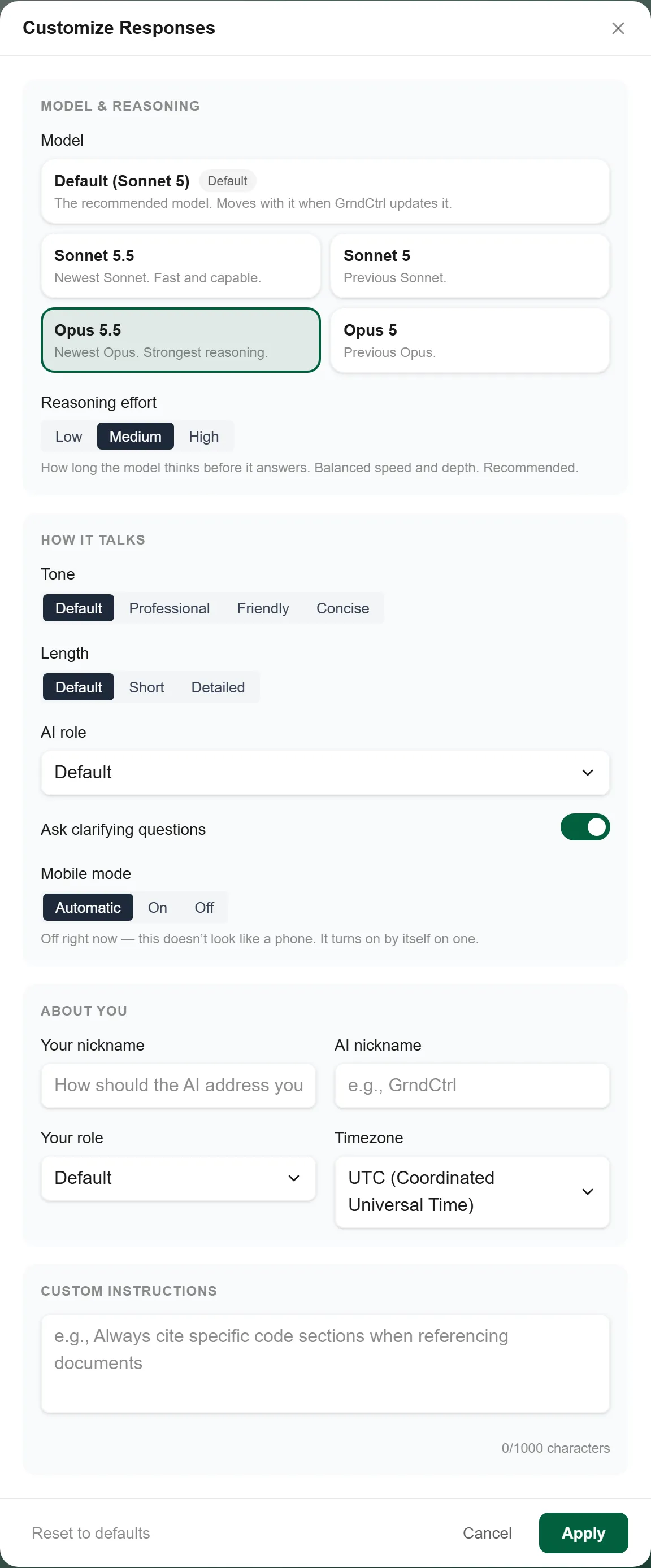
The Settings
Section titled “The Settings”| Setting | Options | What it does |
|---|---|---|
| Model | Default (Sonnet 5), Sonnet 5.5, Sonnet 5, Opus 5.5, Opus 5 | Which model answers you. Each option carries its version number: the newest and the previous Sonnet, and the newest and the previous Opus. Default is the recommended model and moves with it when GrndCtrl updates it; it suits almost everyone. Opus is slower but stronger on hard analysis. |
| Reasoning effort | Low, Medium, High | How long the model thinks before it answers. Low is fastest and fine for simple questions; High is better for complex analysis. It applies to every model. |
| Tone | Default, Professional, Friendly, Concise | How the assistant communicates. |
| Length | Default, Short, Detailed | How much detail each answer carries. |
| AI role | Default, Subject Matter Expert, Teacher, Quick Assistant | The persona it adopts. Teacher explains step by step; Quick Assistant gets to the point. |
| Ask clarifying questions | On / Off | When on, the assistant asks a follow-up instead of guessing at an ambiguous question. On by default. |
| Mobile mode | Automatic, On, Off | Short, direct answers when you are on a phone, from the same model. Automatic turns it on by itself on a phone and off elsewhere, and the line under it says which way it has resolved on this device. Off reads “Never on, even on a phone.” |
| Your nickname | Free text, up to 50 characters | What the assistant calls you. |
| AI nickname | Free text, up to 50 characters | What you want to call the assistant. |
| Your role | Default, Engineer, Developer, Architect, Project Manager, Executive, Director, Field Inspector, Technician, Coordinator, Administration | Tells the assistant what you do, so it pitches answers at the right level. This is separate from AI role and from your nickname. |
| Timezone | UTC, Eastern, Central, Mountain, Arizona, Pacific, Alaska, Hawaii | Used for dates and times in answers. This is a fixed list of seven United States zones plus UTC — if you work outside them, pick UTC and convert. |
| Custom instructions | Free text, up to 1,000 characters | A standing instruction applied to every conversation — for example, “Always cite specific code sections when referencing documents.” A running character count sits under the box. |
Where to Start
Section titled “Where to Start”If you are unsure, leave everything on Default — the defaults suit most people, and you can adjust as you get a feel for the assistant. The two settings that change the most for the least effort are Length and Your role.
Troubleshooting
Section titled “Troubleshooting”There is no gear icon
Section titled “There is no gear icon”Solutions:
- The gear is on the chat page header, not on the Home screen. Open a chat first.
- On a phone, the panel is in the ⋯ menu on the chat page: choose Customize responses.
The model I chose is no longer in the list
Section titled “The model I chose is no longer in the list”Solutions:
- When a newer version arrives, the list shows the newest and the previous version of each model. If the version you picked leaves the list, your chats move to the nearest one still offered — an Opus choice stays on Opus.
- Open Customize Responses to see which option is selected now, and pick another if you prefer.
An answer says the model’s safety system declined the request
Section titled “An answer says the model’s safety system declined the request”Solutions:
- The model provider runs safety checks, and occasionally a legitimate request trips one. Where the provider allows it, GrndCtrl retries a declined request on another model automatically before showing you this.
- Rephrase the request and say what you are trying to accomplish.
- If the message says the model declined to write out its internal reasoning, ask for the answer, or for a short explanation of how it got there, instead.
I changed a setting but answers look the same
Section titled “I changed a setting but answers look the same”Solutions:
- Check you clicked Apply. Cancel discards everything you changed.
- These settings shape how the assistant writes, not what it knows. If an answer is missing information, the document library is the place to look — see Documents and AI Chat.
- Ask a fresh question. A setting change does not rewrite answers already on screen.
Related Articles
Section titled “Related Articles”- AI Chat Tools and Smart Search — What the assistant can do, and how its tools work
- Documents and AI Chat — Asking questions of your company’s documents
- Getting Started with GrndCtrl — Signing in and finding your way around
- Prompt Management — The organization-wide policies an administrator sets (administrators)