
Branding and Administration
Branding and administration settings let tenant administrators customize the GrndCtrl experience for their organization. From visual appearance (colors, logos, fonts) to AI behavior (prompts, policies) and document management, this is where you configure the portal to match your company’s needs.
Branding and Appearance
Section titled “Branding and Appearance”Customize how GrndCtrl looks for your organization. Branding settings ensure the portal feels like part of your company’s ecosystem.
Accessing Branding Settings
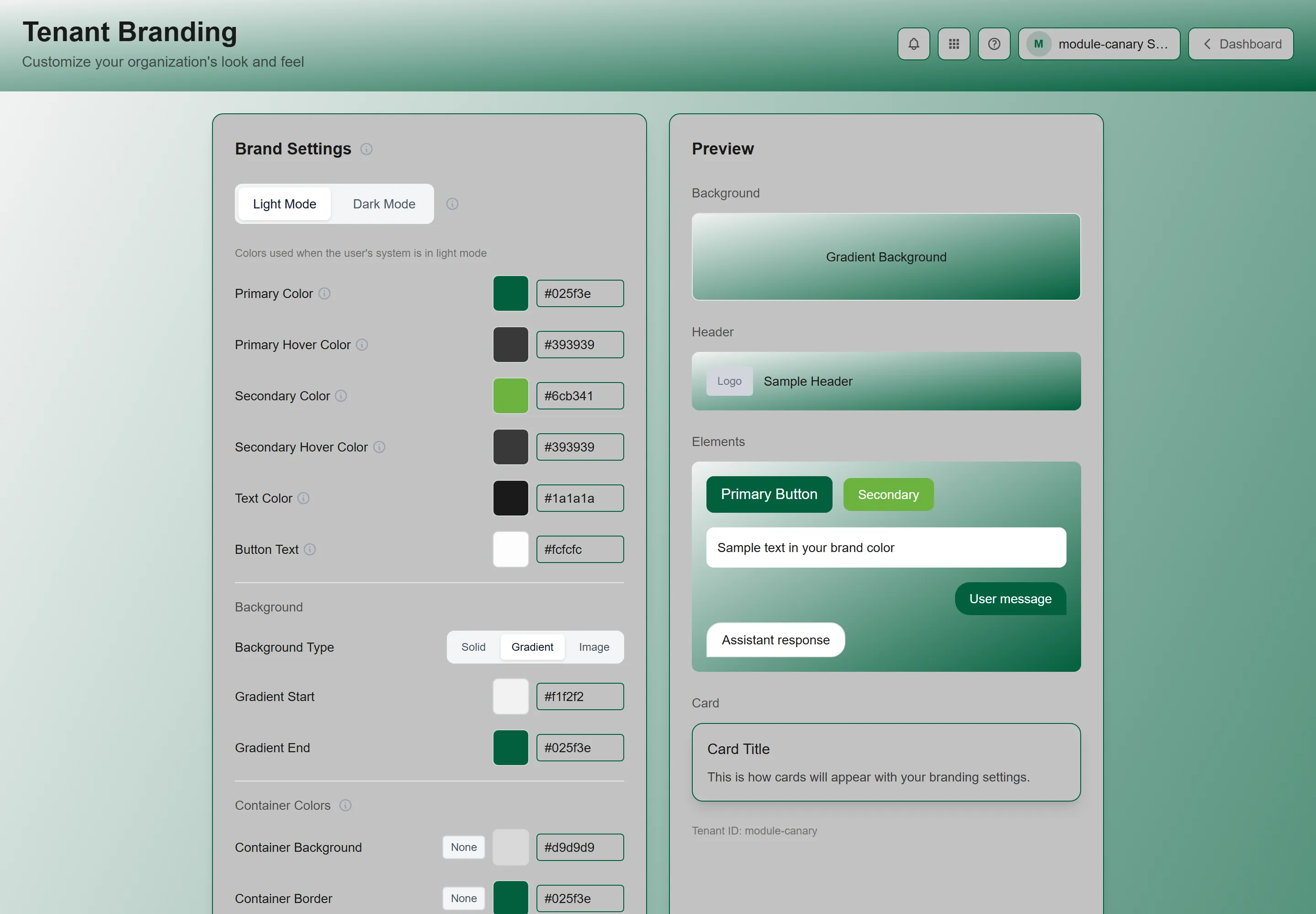
Section titled “Accessing Branding Settings”Click the Apps button — the grid icon in the header, available on every page — and choose Tenant Branding. See Finding and Opening Your Apps if it is not listed. The page opens with every customization option on one screen.
Branding Options
Section titled “Branding Options”| Setting | Description |
|---|---|
| Brand Settings | Primary Color, Primary Hover Color, Secondary Color, Secondary Hover Color, Text Color, and Button Text — the accent colours used for buttons, links, and highlights. Below them, Background (a colour, a gradient, or an uploaded image with Image Fit and Overlay), Container Colors, and Card Colors. Each group is set twice — once for light mode and once for dark mode, which GrndCtrl picks from each person’s device setting. |
| Typography | A Font Family, or a Custom Font you upload (WOFF2 or WOFF, up to 5MB). |
| Logo | A Light Mode Logo and a Dark Mode Logo, plus an App Logo pair for the installed app, a JV Report Logo, and a Favicon. Images up to 5MB. |
| Help & Support | What the ? menu offers: the Knowledge Base URL and its Link Label, the Feedback Portal Path, and how Submit a Ticket works — NXT Support, Email (to a Support Email), or Service Hub. |
Uploading a Logo
Section titled “Uploading a Logo”- Navigate to Tenant Branding.
- Under Logo, click Upload Logo — or Upload Dark Logo for the dark-mode variant.
- Select an image file from your device.
- The logo preview updates immediately.
- Click Save Changes to apply.
The logo is stored securely and served to all users in your organization.
Customizing Colors
Section titled “Customizing Colors”- Navigate to Tenant Branding.
- Under Brand Settings, set Primary Color, Secondary Color, and the other colours — for light mode and for dark mode.
- Check the Preview section at the bottom of the page.
- Click Save Changes to apply the new colors. Reset to Defaults puts every branding setting back.
Tip: Choose colors that match your company’s brand guidelines. The primary color should have sufficient contrast against white backgrounds for readability.
AI Prompts and Policies
Section titled “AI Prompts and Policies”How the assistant answers is configured in Prompt Management, not here. Two things live there, and the difference between them matters:
- The system prompt is managed by NXT and is read-only for tenant administrators. You can read it and see its version, but you cannot change it.
- Tenant policies are what you customize — eleven named text elements, each with its own character limit, injected into the system prompt at a placeholder.
See Prompt Management for what each policy element sets.
Note: policies are advanced settings. Changes can significantly affect how the AI interacts with your employees. Test changes carefully before deploying them widely.
Document Management Settings
Section titled “Document Management Settings”Everything the AI assistant can read is managed in the Document Library, not here. That is where you upload and organize documents, set up folder syncing, review indexing health, and manage the boost tags that decide which documents the assistant favours. See Managing Your Document Library.
Document and Analytics
Section titled “Document and Analytics”Access analytics from the admin dashboard to understand how your AI knowledge base is being used:
| Analytics View | What It Shows |
|---|---|
| Document Library → Activity | Indexing health for your documents — what needs attention, what never indexed, and where content is orphaned. This replaced the separate Document Analytics page. |
| Conversation Analytics | What questions employees ask, response quality metrics, and usage trends over time |
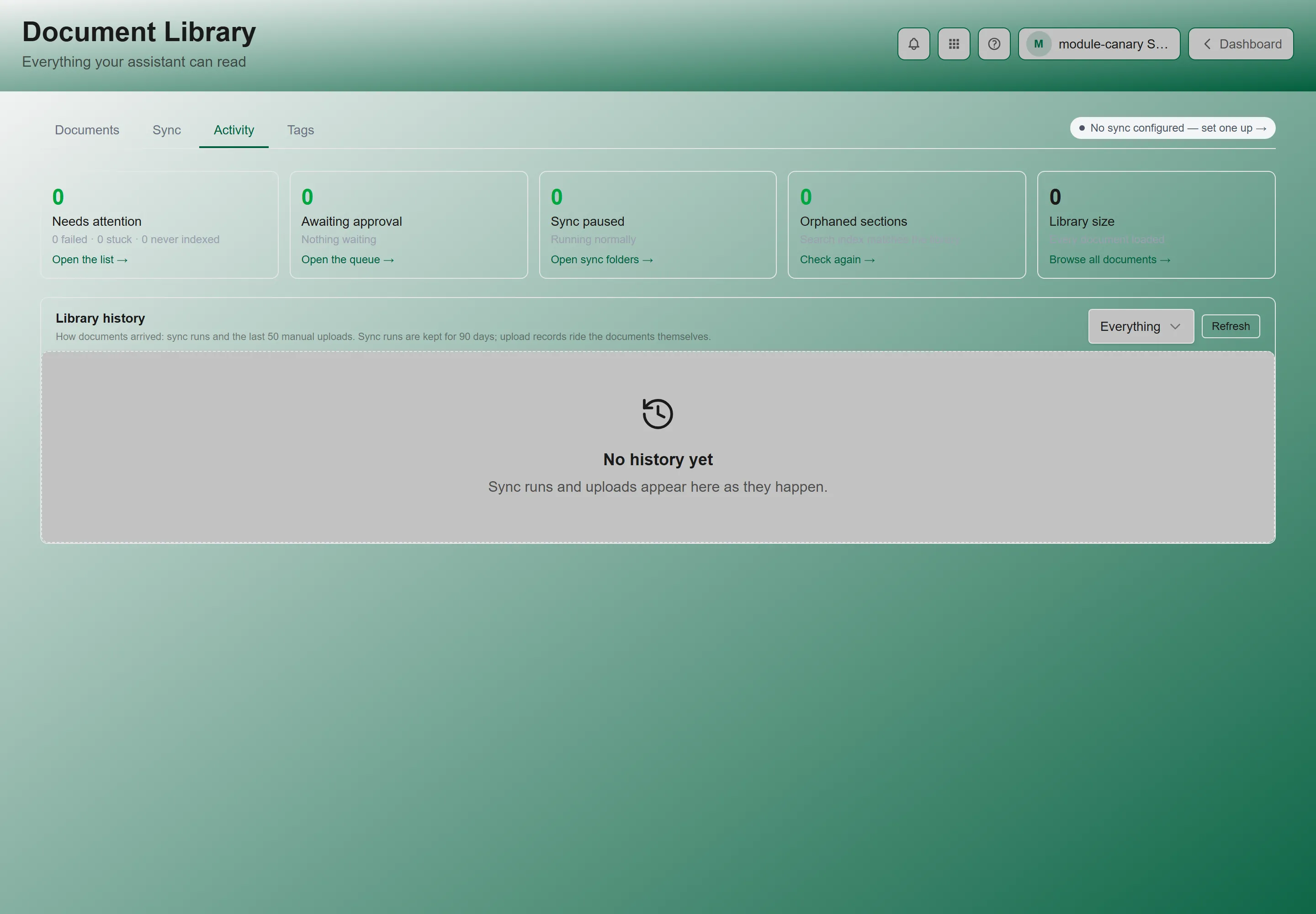
Use analytics to identify gaps in your document library — if employees are frequently asking about topics without good AI answers, those topics need documentation.
Good News Settings
Section titled “Good News Settings”Administrators can configure Good News group settings from the Good News Admin section. For details on how Good News works, see Good News.
Best Practices
Section titled “Best Practices”- Match your brand — Use your company’s official colors and logo to make GrndCtrl feel like part of your organization’s tools
- Review analytics monthly — Check document and conversation analytics to identify content gaps
- Test AI changes — After modifying prompts or policies, test the AI with common questions to verify behavior
- Set the dark-mode variants — GrndCtrl follows each person’s device theme, so upload a Dark Mode Logo and check the dark colours as carefully as the light ones.
Troubleshooting
Section titled “Troubleshooting”Our logo is hard to read in dark mode
Section titled “Our logo is hard to read in dark mode”Solutions:
- Upload a dark logo variant. Where no dark variant is configured, GrndCtrl falls back to the light one in dark mode, which is what makes a dark-on-transparent logo disappear.
- A logo with a transparent background and light-coloured artwork is the usual culprit — supply a version that reads on a dark surface.
I saved a change and it has not appeared
Section titled “I saved a change and it has not appeared”Solutions:
- Confirm the save actually went through — if a Save button is still showing unsaved changes, it did not.
- Reload the page. Branding is fetched when the app loads, so an open session can keep showing the previous values.
- Ask a colleague to check. If it is correct for them and not for you, it is your session rather than the setting.
I changed a setting and it affected more than I expected
Section titled “I changed a setting and it affected more than I expected”Solutions:
- Everything on this page applies to your whole organization, not to you. There are no per-user branding settings.
- For settings that only affect how the assistant answers you, see Customizing AI Responses.
Related Articles
Section titled “Related Articles”- Documents and AI Chat — Upload documents and manage the AI knowledge base
- Getting Started with GrndCtrl — Learn the basics of navigating the portal