
Administering the Employee Phone Program
This article is for administrators of the Employee Phone Program. It covers the four configuration pages under Settings — program details, notifications, the HR system connection, and email templates. For submitting and signing requests, see Requesting a Phone with the Employee Phone Program.
Program Settings
Section titled “Program Settings”Legal Company Name — “e.g. BECI, Inc.” — is the entity name that appears on the authorizations employees sign. Saving confirms with “Saved.”
Notifications
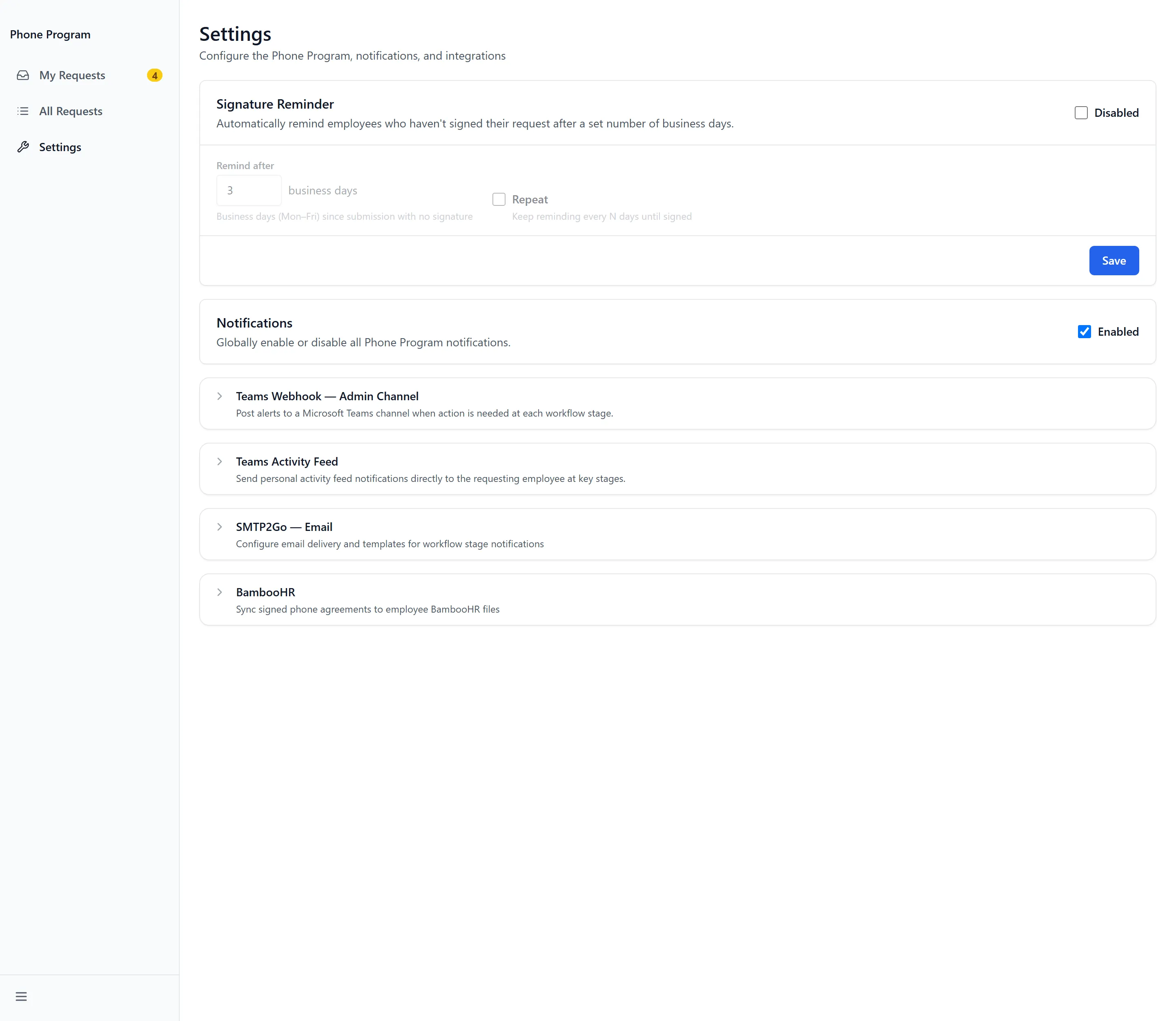
Section titled “Notifications”Notifications decides who is told as a request moves. Each event is Enabled or Disabled independently:
- New port-in request submitted and signed
- Employee submits the port-out request
- Employee completes the electronic signature
- Stage handoffs — IT Processing, IT Complete and HR Processing
Posts go to the Default Webhook URL, and any event can take an Override URL (or leave blank to use default) so IT and HR can watch different channels. Saving without a URL returns “Enter a webhook URL first.”
Remind after chases unsigned requests — “Keep reminding every N days until signed”.
BambooHR
Section titled “BambooHR”BambooHR connects the program to your HR system, shown as Enabled or Disabled. It is what supplies the name an employee’s signature is checked against.
Employee File Folder names where signed authorizations are filed back, so the payroll deduction document lands on the employee’s HR record rather than living only in this app. Refresh re-checks the connection.
A connection problem reports specifically: “Access check failed.” means the credential could not be verified, and a permissions refusal shows DENIED rather than a generic failure.
Email Templates
Section titled “Email Templates”The SMTP2Go page holds the emails the program sends. Add Template creates one and Edit Template changes it. Each carries two names: one is the “Display name shown to recipients”, the other the “Internal name used when assigning to a stage”.
Templates substitute request details into the body — Carrier name, Carrier account number, Billing ZIP code on the account and a Direct link to the request among them. Where several lines are on one request, a repeating block covers them, closed by End of lines repeat block so the template knows where the repetition stops.
Troubleshooting
Section titled “Troubleshooting”Employees say their correct name is being rejected
Section titled “Employees say their correct name is being rejected”Solutions:
- Check BambooHR is Enabled and its access check is passing. Use Refresh to re-test.
- “Access check failed.” or DENIED means the connection, not the employee, is the problem.
- Where the connection is healthy, check the name held in BambooHR. The comparison is exact, so a middle initial in one system and not the other will fail.
Nobody is being notified when requests move
Section titled “Nobody is being notified when requests move”Solutions:
- Check the individual events are Enabled. They are set separately, so some can be live while others are not.
- Check the Default Webhook URL is set, or that the event has its own Override URL (or leave blank to use default).
Emails aren’t arriving
Section titled “Emails aren’t arriving”Solutions:
- Check the sending address is verified at the provider — “Must be verified in SMTP2Go”. This is the most common cause, and it fails quietly.
- Check the template has recipients. Saving one without any returns “Enter at least one recipient.”
- Check the template is assigned to the stage you expect, using its “Internal name used when assigning to a stage” rather than its display name.
Requests are piling up at Awaiting Sig
Section titled “Requests are piling up at Awaiting Sig”Solutions:
- Set or shorten Remind after. Without it nothing chases the employee, and the request waits indefinitely.
- Confirm Employee completes the electronic signature is Enabled, so the team knows when one clears.
Related Articles
Section titled “Related Articles”- Requesting a Phone with the Employee Phone Program — What your employees see, and the signatures you’re asking them for
- Connecting Your Systems with Integrations — How GrndCtrl connects to HR and email providers
- Getting Access to Apps and Extensions — Enabling the app and granting groups access to it