
Feedback Portal
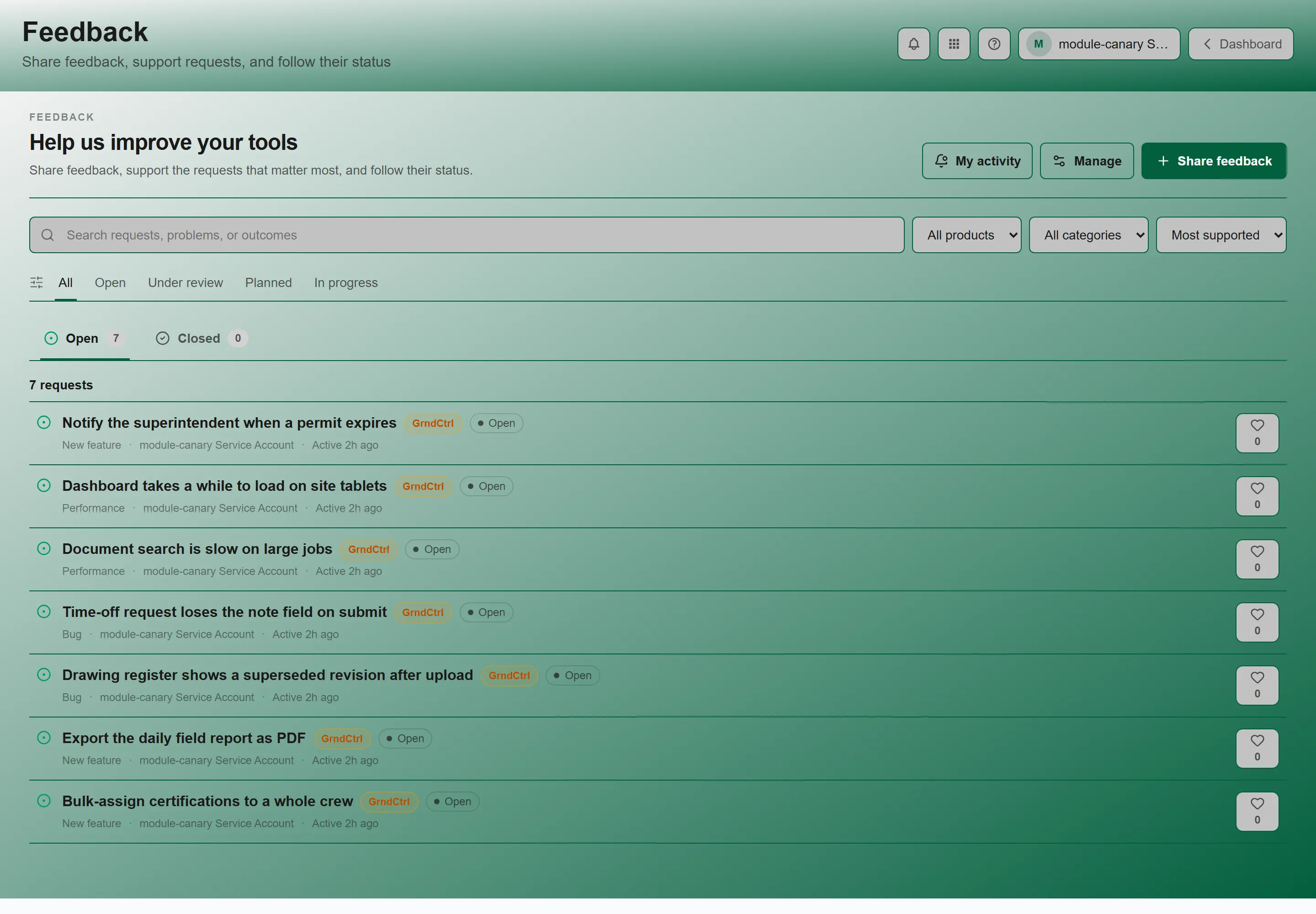
Feedback gives every employee a voice in shaping the tools they use every day. Submit requests, support ideas from colleagues, and track how your suggestions progress — all in one place across every NXT product. The page header reads Feedback, under the line “Help us improve your tools”.
Opening Feedback
Section titled “Opening Feedback”- Open Feedback — from the Apps button in the header, or from its widget on your Home screen.
- Select a product to view or submit feedback for.
Products
Section titled “Products”You can submit feedback for any product in the NXT ecosystem:
| Product | Description |
|---|---|
| NSPEC | Field report and inspection platform |
| SuperClear AI | AI-powered building envelope defect detection |
| GrndCtrl | This company portal — yes, you can request features for the portal itself |
Browsing Existing Feedback
Section titled “Browsing Existing Feedback”After selecting a product, you’ll see a list of submitted feature requests. Each request shows:
- Title — A short description of the idea
- Category — The type of feedback (see below)
- Support count — How many people have supported this idea
- Status — Current progress of the request
- Comments — Discussion from other employees
Feedback Categories
Section titled “Feedback Categories”| Category | Use For |
|---|---|
| New feature | Functionality that does not exist yet |
| Bug | Something that is broken or behaving wrongly |
| Performance | Speed and efficiency — slow loading, poor responsiveness |
Submitting a Feature Request
Section titled “Submitting a Feature Request”-
Open Feedback.
-
Select the product your feedback is for.
-
Click Share feedback. The New feedback page opens, asking “What should work better?”
-
Fill in the details:
- Product — Which product the feedback is for.
- Title — A concise summary of your idea, at least 5 characters.
- Description — Explain the problem you’re trying to solve and your proposed solution.
- Category — Pick the closest match from the list your organization offers.
-
Click Share feedback at the bottom of the form.
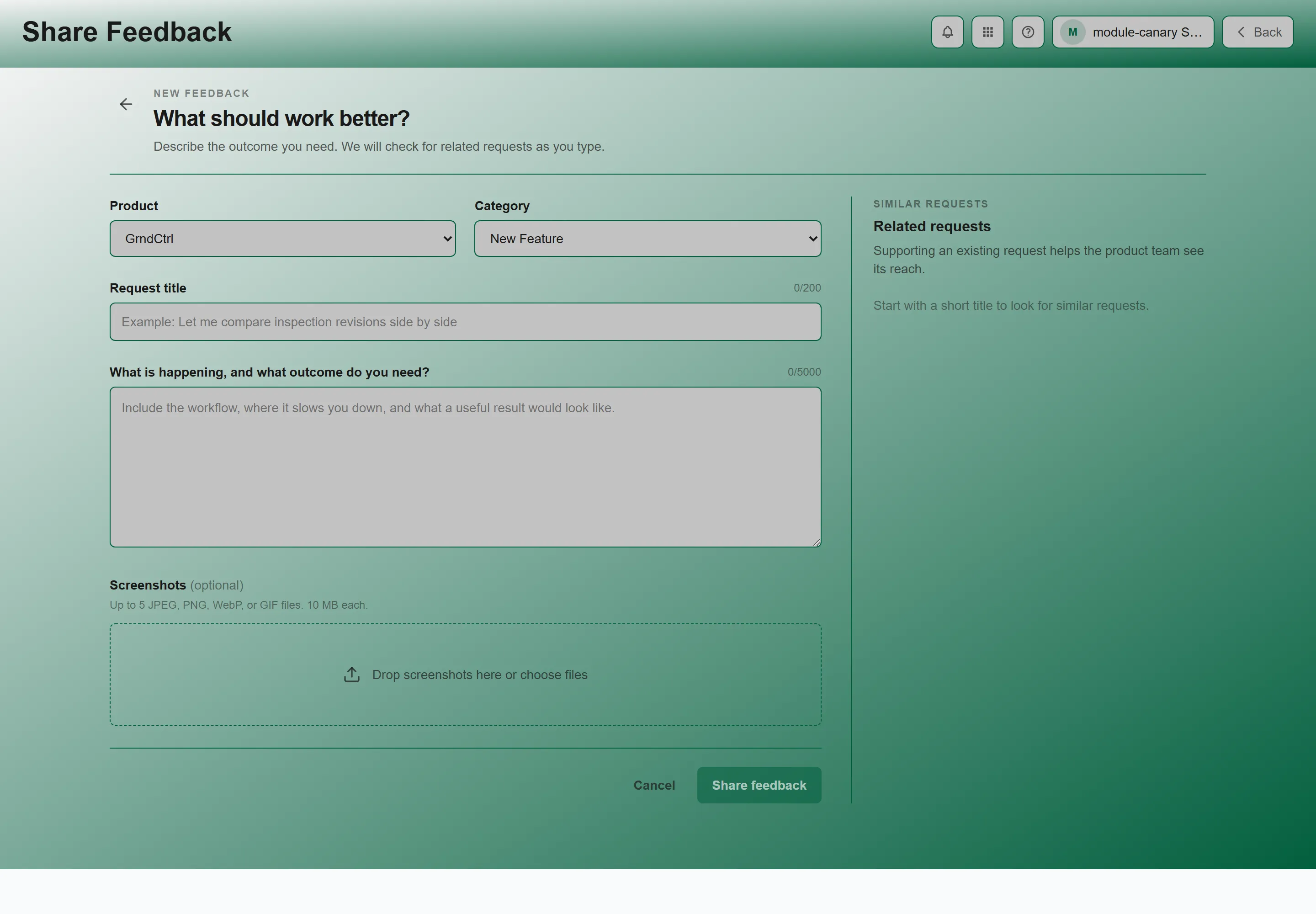
Tip: Before submitting, check if a similar idea already exists. The form lists Similar requests as you type your title and description, helping you avoid duplicates. The system uses intelligent matching, so you may see related ideas even with different wording. If a matching idea exists, click Support instead rather than creating a duplicate.
Attaching Images
Section titled “Attaching Images”You can attach screenshots or reference images to your feature request under Screenshots — “Up to 5 JPEG, PNG, WebP, or GIF files. 10 MB each.” Images help the product team visualize your idea or understand a bug.
Supporting Ideas
Section titled “Supporting Ideas”Supporting a request is the primary way to show it matters to you:
- Browse the feedback list for a product.
- Click Support on any request you agree with.
- The button changes to Supported and the count beside it updates immediately.
- Click Supported again to remove your support.
Requests with more supporters get higher visibility and help the product team prioritize what to build next. The count is shown on each request card.
Commenting
Section titled “Commenting”Add context or discuss ideas with your colleagues:
- Click on a feature request to open its detail view.
- Scroll to Discussion.
- Type your comment under Add context or an example and click Post comment.
Comments help the product team understand the use case better and see how many people are affected by a request.
Tracking Request Status
Section titled “Tracking Request Status”Each feedback request has a status that tracks its progress:
| Status | Meaning |
|---|---|
| Open | Submitted, not yet triaged |
| Under review | Being evaluated by the product team |
| Planned | Accepted and scheduled to be built |
| In progress | Being built now |
| Shipped | Built and released |
| Declined | Reviewed, but not going ahead |
A duplicate is not a status. If your request is folded into a similar one, it becomes read-only and points at the request that carries the discussion forward — you follow the survivor from there.
You’ll receive notifications when the status of a request you submitted or supported changes.
Feedback Notifications
Section titled “Feedback Notifications”The Feedback page keeps a panel headed Updates on your feedback for activity on requests you’re involved with — “Comments, status changes, merges, and staff responses stay here.” Until there is any, it reads “No feedback activity yet”.
- Status changes — when your request moves to a new status
- Comments — when someone comments on a request you submitted or supported
- Staff responses — an official response from an administrator
- Merges — when your request is merged with another
Administration (Administrators)
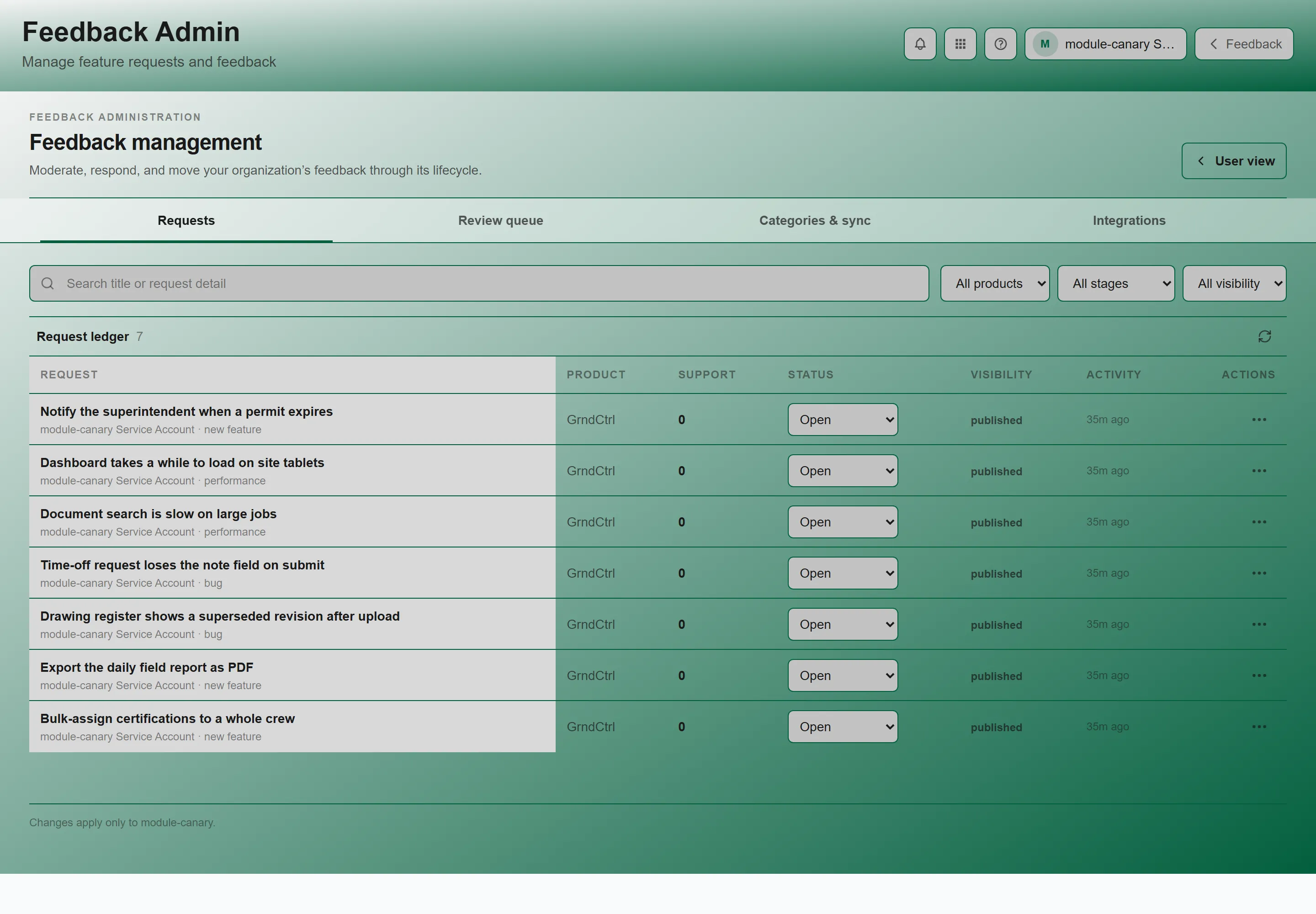
Section titled “Administration (Administrators)”Administrators manage feedback from Feedback Admin, which has four sections:
- Requests — the full ledger: change status, publish, hide, merge duplicates, and post official responses
- Review queue — requests awaiting publication
- Categories & sync — request categories, product availability, and the NSPEC import
- Integrations — submit-only credentials for external products
Best Practices
Section titled “Best Practices”- Search before submitting — Check for existing similar requests to avoid duplicates
- Be specific — Describe the problem and your ideal solution clearly
- Support generously — Supporting requests helps the team prioritize what matters most
- Add context in comments — Explain your use case so the team understands the impact
- Choose the right category — This helps the team route requests to the right people
Troubleshooting
Section titled “Troubleshooting”The list is empty or my search finds nothing
Section titled “The list is empty or my search finds nothing”Solutions:
- “No requests match these filters” means the filters are too narrow — “Clear the filters or share the need that is missing.”
- “Requests and ideas your team shares will show up here. Be the first.” means nothing has been submitted for that product yet.
- If you see “One or more unsupported filters were cleared.”, you followed a link with filters that no longer exist — the page has reset them for you.
The product I want is not listed
Section titled “The product I want is not listed”Solutions:
- Only enabled products appear for browsing and submission. If yours is missing, ask your administrator to enable it.
My request has not changed status
Section titled “My request has not changed status”Solutions:
- Status is set by an administrator, not by supporter count. A request with many supporters can sit in Open for a long time.
- Check whether it was merged into another request — the surviving request carries the discussion and the support.
- Watch for the unread marker on your requests; status changes and comments show up there.
Related Articles
Section titled “Related Articles”- Getting Started with GrndCtrl — Learn the basics of navigating the portal
- Documents and AI Chat — Search company documents and ask the AI assistant
- Feedback Admin — For administrators: moderating posts and settings