
Designing a Template
The template editor is where a document gets its shape. This article covers the editor’s layout, the difference between a designed page and a flowing section, and how to place and adjust content on the canvas.
The Editor at a Glance
Section titled “The Editor at a Glance”Open a template by clicking its name in the Templates list. The editor fills the screen, and its parts are always in the same places.
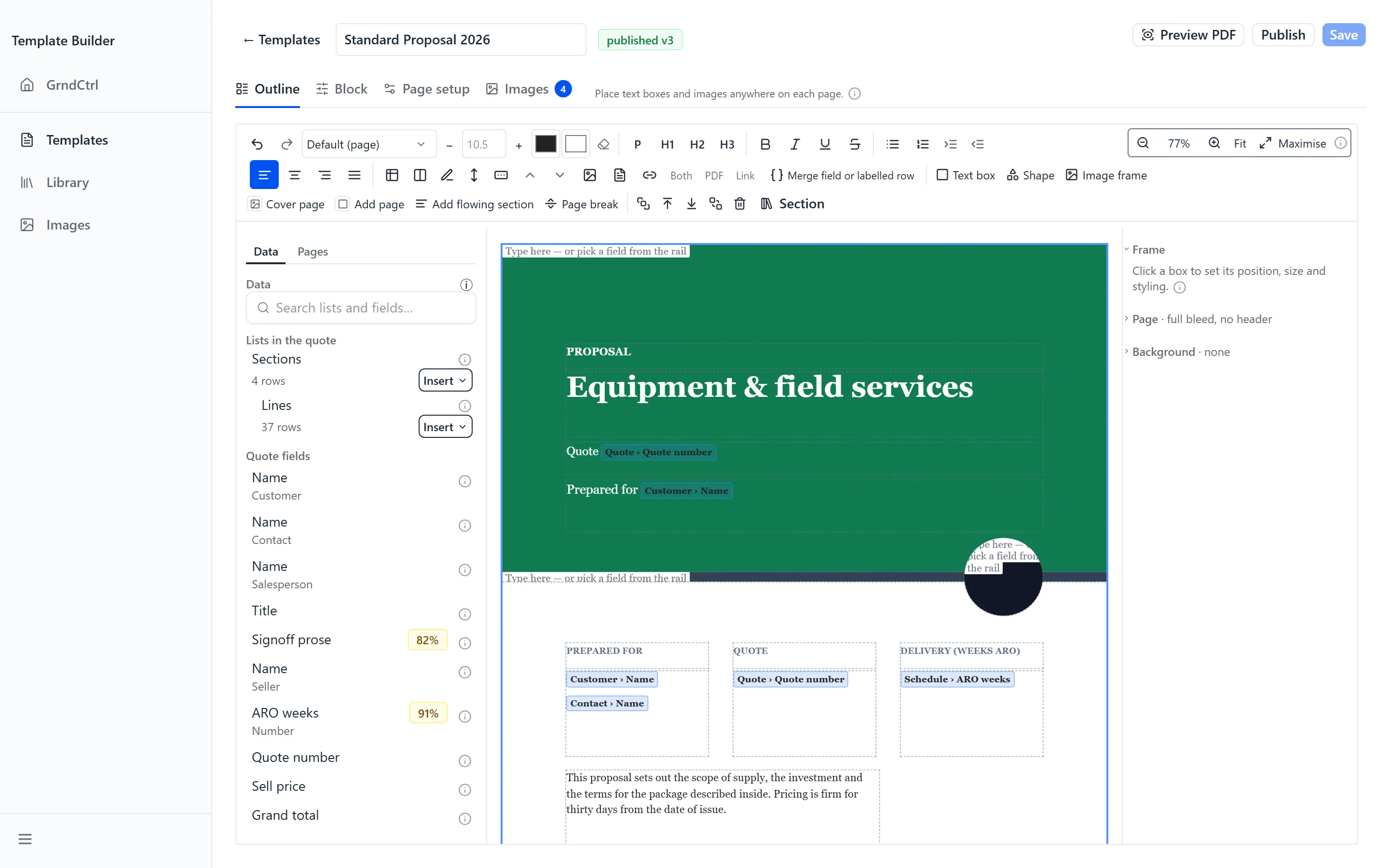
Across the top:
- ← Templates — leaves the editor and returns to the list
- The Template name field — edit the name in place
- A status badge reading published v{number} or never published
- Preview PDF, Publish and Save
Below that, four tabs:
| Tab | What it holds |
|---|---|
| Outline | The document itself — the canvas, the toolbar and the side rails. |
| Block | Settings for whatever you have selected. The tab renames itself to match — Table, Totals, Region or the name of the selected element — so you can tell what is behind it before you click. |
| Page setup | Paper size, margins, fonts and the page’s header and footer. See Setting Up Pages, Headers and Footers. |
| Images | The image library, with a count of the images you can place. See Adding Images and Managing Assets. |
Pages and Flowing Sections
Section titled “Pages and Flowing Sections”This is the one idea worth getting right before you build anything. A document is made of two kinds of thing, and they behave differently.
The editor explains it under the tab strip — “Place text boxes and images anywhere on each page.” — and the About pages and flowing sections information button expands on it: “A document is a stack of pages you design. Add a flowing section when a run of content sets its own length — it paginates itself. Preview PDF is the real render.”
| Kind | Use it when |
|---|---|
| Page | You know what goes on it and where. You place boxes yourself, and the page stays one page. |
| Cover page | A page that prints edge to edge with no header or footer. It always goes at the very start of the document. |
| Flowing section | The content sets its own length and you cannot know it in advance — a priced table, terms, a long description. It breaks across as many pages as it needs. |
Adding Pages and Sections
Section titled “Adding Pages and Sections”The bottom row of the toolbar builds the document’s structure. Each control says where its result lands:
- Cover page — “Insert a full-bleed cover page at the start of the document”
- Add page — “Add a blank canvas page after the selected one”
- Add flowing section — “Add a flowing section after the selected one — it grows with its content and paginates itself (pricing, terms, long text)”
- Page break — “Page break — start a new page after this paragraph”. This one works inside a flowing section, so put the cursor there first.

Columns Side by Side, and a Panel Behind Them
Section titled “Columns Side by Side, and a Panel Behind Them”Inside a flowing section, Insert split row puts two blocks side by side; drag the divider between them to set the proportions. With the cursor in the row, Add column to split row adds a column and Remove this column from the split row removes the one you are in.
A split row can carry a panel colour behind all its columns. It is how text stays readable over a picture set behind the text, such as a map:
- Put the cursor inside the split row.
- In the toolbar, open the colour well “Paint a panel behind these columns, over any picture behind the text” and pick a colour — white hides the picture under the columns.
- To take the panel away, click No panel.
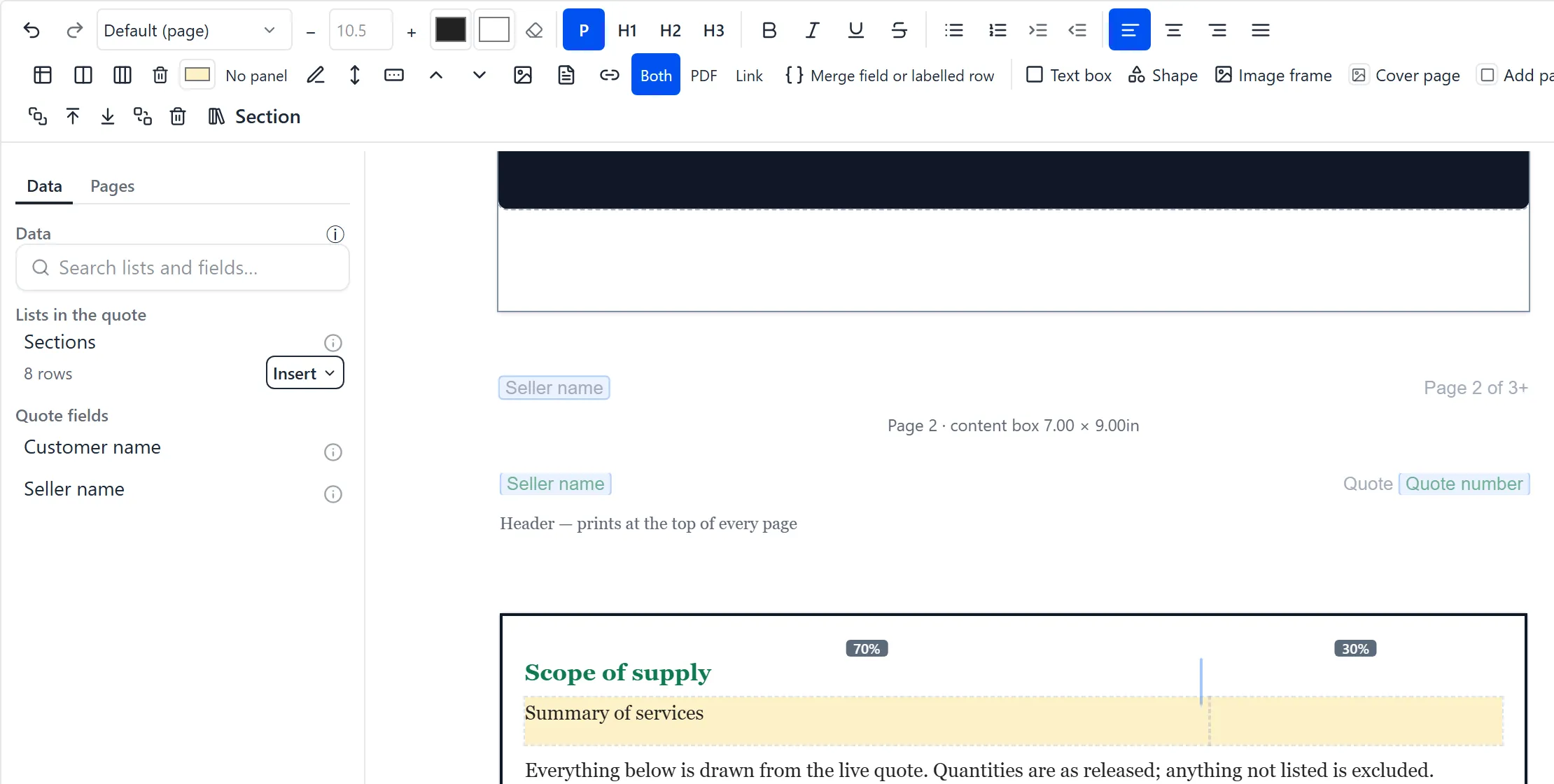
The panel covers the whole row, gaps included, so wherever the row overlaps the picture, that part of the picture is hidden. A longer list covers more of it.
Placing Content on a Page
Section titled “Placing Content on a Page”On a designed page, everything lives in a box you position yourself. Three controls create them:
- Click Text box to add a box you can type in.
- Click Shape for a rectangle, ellipse or line — useful as a band of colour behind text.
- Click Image frame to add an empty picture box, then choose its picture from the inspector.
Drag a box to move it, drag its edges to resize it, and select it to open its settings on the Block tab. A new empty box shows the prompt “Type here — or pick a field from the rail” until you put something in it.
Signature Blocks
Section titled “Signature Blocks”If a proposal is going to be signed, the lines it is signed on come from the template. Use Insert signature block to place one. It prints “A taller blank rule above the labelled lines, to sign across.” above ruled lines labelled “Name”, “Title” and “Date”.
Whose signature block this is assigns the block to a party. The customer’s “prints the signer once signed”, so the space that is blank when the proposal goes out is filled by the act of signing.
The Side Rails
Section titled “The Side Rails”The panel on the left of the canvas has two tabs.
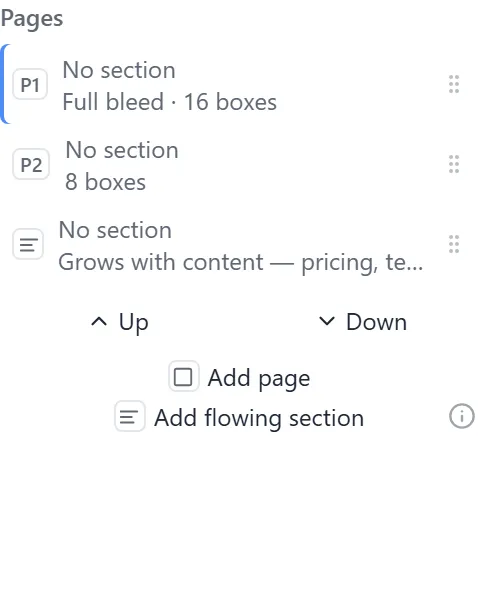
- Pages — the document’s structure as a list of rows, one per page or flowing section, each labelled with what it is. Drag a row to reorder it, or select one to work on it. The same Add page and Add flowing section controls are here too.
- Data — the fields and lists the quote provides, with a search box reading “Search lists and fields…”. Fields are grouped under Lists in the quote and Quote fields.
On the right, the inspector shows settings for the current selection. With nothing selected it says so: “Click a box to set its position, size and styling.”
A Field’s Colour, Font and Size
Section titled “A Field’s Colour, Font and Size”A field you place from the Data rail shows on the page as a pale blue chip carrying the field’s name. When a proposal is generated, the quote’s value prints in its place. A field can carry its own colour, font and size, so a value can print white on a dark panel while the words around it stay as they are.
- Click the field to select it. On a designed page the first click selects its text box, so click the field a second time. A blue ring shows the field is selected, and the panel on the right reads Merge field.
- In the toolbar, pick a colour with Text colour, a typeface with Font family, or a size in points beside it. Shift-click another field to change both at once.
- Save the template.
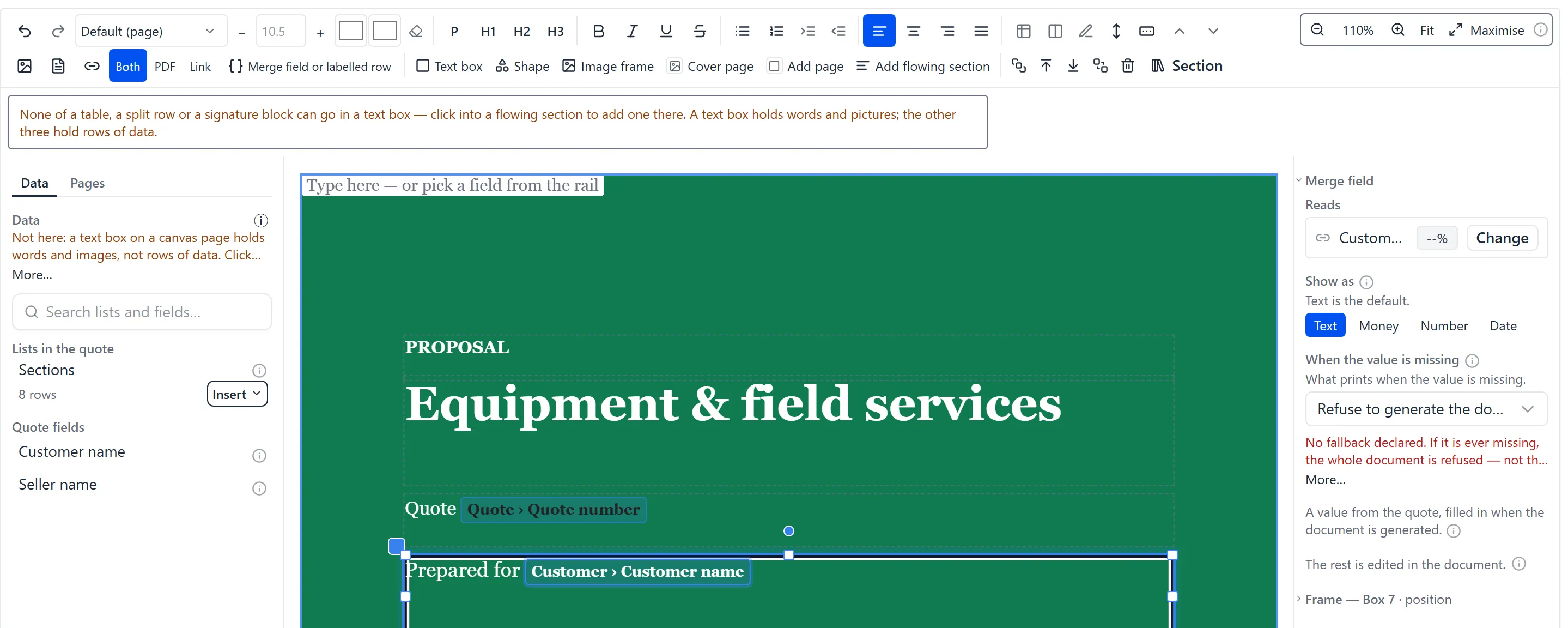
In the editor, only the colour shows on the chip: its name is drawn in the colour the value will print in. The font and size show in Preview PDF and on paper. To style a whole line, select the line, field and words together, and the colour, font and size apply to all of it.
A field takes no highlight. Pressing Highlight colour with a field selected says “A bound field takes no highlight. Select the line around it to highlight the text instead.”
Zoom and Space
Section titled “Zoom and Space”The right-hand end of the toolbar’s top row controls how much of the page you can see:
- The zoom percentage, with controls either side of it to step it up or down
- Fit — sizes the page to the space available
- Maximise — gives the canvas the whole window; the control then reads Exit
Undo and Saving
Section titled “Undo and Saving”Undo and Redo are at the left of the toolbar, and they cover typing and moving boxes in one history — so undo steps back through your edits in the order you made them, whatever kind they were.
Click Save to store your work. While there are unsaved changes the header shows an unsaved badge, and Save is only available when there is something to save. The first save of a brand-new document confirms with a saved — document created badge.
Troubleshooting
Section titled “Troubleshooting”The Data rail has no fields in it
Section titled “The Data rail has no fields in it”The rail distinguishes two causes, and says which one you have.
Solutions:
- “Quote Generator has not published any fields yet.” — nothing is wrong with your template. The fields come from Quote Generator, and it has not published them for you yet: “Nothing is bound to anything yet because there is nothing to bind to. Fields appear here once Quote Generator publishes them for you; a template can be laid out in the meantime and the fields placed afterwards.” Carry on designing and add the fields when they arrive.
- “The list of fields could not be loaded.” — a different thing: “Nothing is missing — this is a loading failure rather than an empty list, and reopening the template usually resolves it.” Close the template and open it again.
- If the list stays empty across reopens and Quote Generator is in use in your organization, ask an administrator to check the presentation settings in Quote Generator — that is where what a template can bind to is configured.
A page says it is waiting for the page size
Section titled “A page says it is waiting for the page size”The page reads “waiting for the page size from the server” instead of drawing.
Solutions:
- Boxes are positioned against the printed page, so the editor will not draw a page until the server has confirmed its dimensions. Give it a moment.
- If it persists, change something on Page setup — a margin, or the paper size — which makes the editor ask again.
Add flowing section put the section in the wrong place
Section titled “Add flowing section put the section in the wrong place”Solutions:
- It landed before the selected page because adding it after would have put it against another flowing section. The editor says so when it happens.
- Select a different page first if you want the section somewhere else, or drag the row into place on the Pages rail.
Save says a number of boxes are over
Section titled “Save says a number of boxes are over”Solutions:
- Content does not fit inside one or more boxes, and the editor refuses rather than printing a document with text cut off it. See Previewing and Publishing a Template, which covers the badge and the ways to clear it.
Related Articles
Section titled “Related Articles”- Quote Generator Help
- Getting Started with Template Builder — Creating, renaming and archiving templates
- Setting Up Pages, Headers and Footers — Paper size, margins, fonts and the bands at the top and bottom of every page
- Adding Images and Managing Assets — Uploading pictures, cropping and tinting them
- Previewing and Publishing a Template — Checking a document and freezing a version quotes can use
- Reusing Sections with the Library — Save part of a document and drop it into another template
- Sending a Quote for Signature — What happens to a document once a signature block is on it