
Finding and Opening Your Apps
GrndCtrl is a platform: the chat assistant, the admin pages, and every app your organization has turned on all live behind one launcher called the App Drawer. If you are looking for a page and cannot find it, the App Drawer is where to look first — it is the one place that lists everything you have access to.
Opening the App Drawer
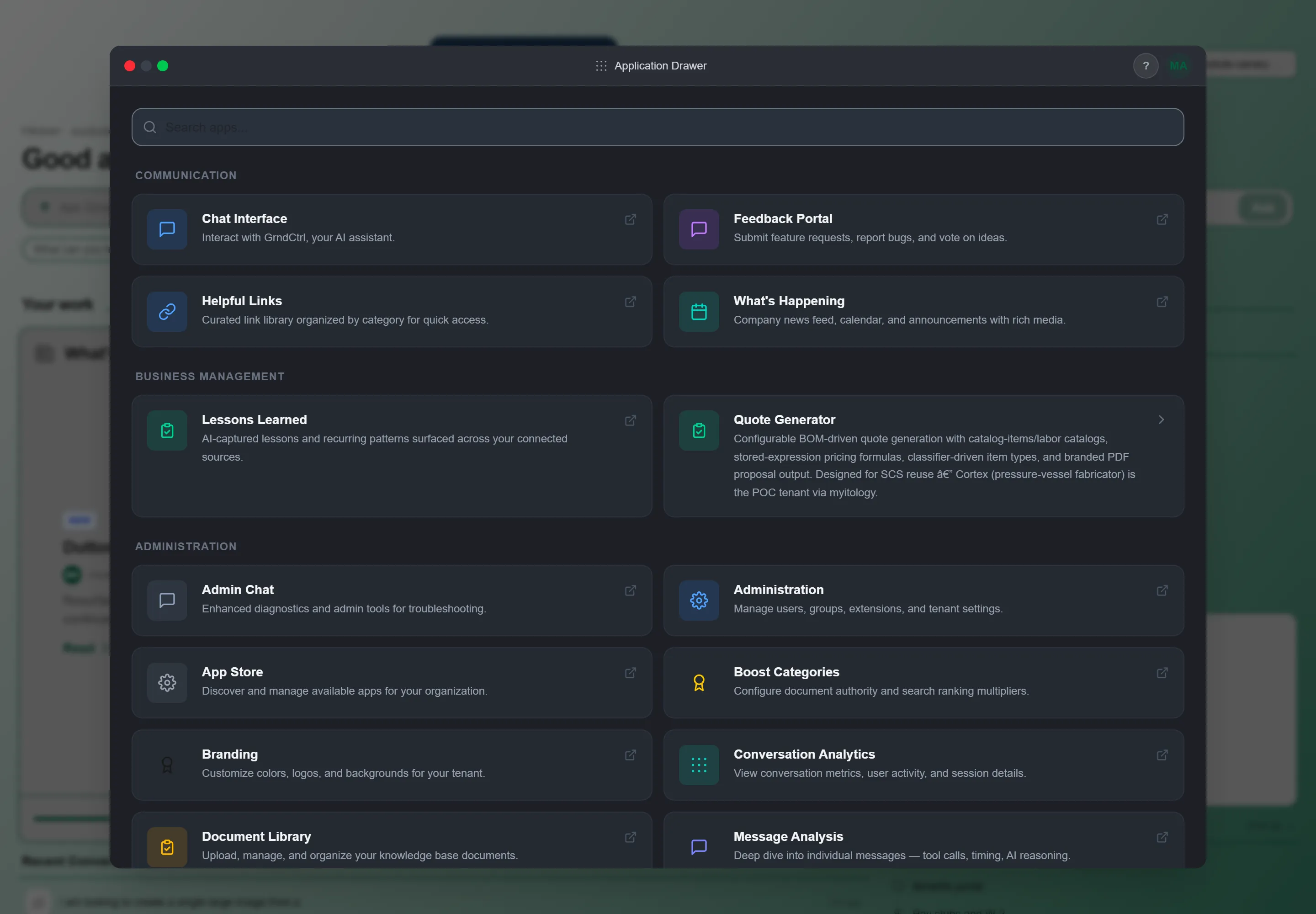
Section titled “Opening the App Drawer”Click the grid icon in the header — nine small squares, labelled Apps when you hover over it. It sits next to the notification bell and the ? help button, and it is on every page, not just Home. The panel that opens is titled Application Drawer.

The drawer opens over whatever you were doing. The page underneath stays loaded, so closing the drawer puts you straight back where you were with nothing reloaded.
Finding an App
Section titled “Finding an App”The drawer opens on a grid of app cards grouped by category. The categories, in the order they appear, are Communication, Business Management, Documents, Analytics, People, Features, Integrations, and Administration. Each card shows the app’s name and a one-line description of what it does.
Above the grid is a Search apps… box. Start typing and the grid filters as you go; if nothing matches you will see No apps match “…”. Search is the fastest route when you know the name of what you want.
Working Inside the Drawer
Section titled “Working Inside the Drawer”Click a card and the app opens inside the drawer, in a window over your current page. The window has three controls in its top corner:
| Control | What it does |
|---|---|
| Maximize | Expands the window to fill the screen. |
| Restore | Returns a maximized window to its normal size. |
| Close | Closes the drawer entirely and returns you to the page underneath. |
There is also a Help button in the same row, and an App Switcher button — covered next.
Switching Between Apps
Section titled “Switching Between Apps”You do not have to go back to the grid to change apps. Click App Switcher and a panel slides in from the left titled Switch App, listing every app you can reach, grouped by the same categories. The app you are currently in is marked with a dot.
At the bottom of that panel are two more entries:
- All Apps — returns you to the full app grid.
- A home entry — closes the drawer and takes you back to the main GrndCtrl app.
Why Some Apps Open as a Full Page
Section titled “Why Some Apps Open as a Full Page”Most apps open inside the drawer. A few open as a full page instead, replacing your current view. That is a deliberate choice your administrator makes per app, not a fault.
In Tenant Administration → Extensions, each extension’s Configure dialog has two separate App Drawer toggles that are easy to confuse:
| Toggle | What it controls |
|---|---|
| Show in App Drawer | Whether the app’s card appears in the drawer at all. Turn it off and the app stays enabled but is only reachable by a direct link or another entry point. |
| Open in App Drawer | What happens when you click the card. On, it opens inside the drawer. Off, it navigates to its own full page. |
Administrators can also set Open in App Drawer for every extension currently shown at once — the All ON and All OFF buttons at the top of the Extensions tab — rather than opening each Configure dialog in turn. Show in App Drawer has no bulk control; it is set per extension.
Getting to Help from Inside the App
Section titled “Getting to Help from Inside the App”Next to the Apps button is a ? button that opens a short menu:
- Knowledge Base — opens this Help Center. Your organization can rename this entry and point it somewhere else, so it may carry a different label. Inside an app that publishes its own help page, the entry reads {app} help and opens that page instead.
- Feedback Portal — opens Feedback.
- Submit a Ticket — raises a support request.
Troubleshooting
Section titled “Troubleshooting”An app I expect is not in the drawer
Section titled “An app I expect is not in the drawer”Solutions: three things have to be true before an app appears. Check them in order.
- The app is enabled for your organization.
- Your group has been granted access to it.
- You have signed in since that change. Work through Getting Access to Apps and Extensions for each step.
- A fourth, less common cause: an administrator turned Show in App Drawer off for that app, which hides it from the drawer without disabling it.
I clicked an app and got “Access Denied”
Section titled “I clicked an app and got “Access Denied””Solutions:
- Sign out and back in first — the most common cause is a session that predates the change to your access.
- If it persists, the app is enabled but your group has not been granted access to it. Ask your administrator to assign your group.
I cannot find the grid icon
Section titled “I cannot find the grid icon”Solutions:
- On a narrow screen the header splits into two rows and the controls move to the right-hand cluster. The grid icon is still there, beside the notification bell.
- Widen the window or rotate a tablet to landscape if you would rather see the full-width header.
Related Articles
Section titled “Related Articles”- Getting Access to Apps and Extensions — What to do when an app is missing or you see “Access Denied”
- App Store — How an administrator turns apps on and off for the organization
- Getting Started with GrndCtrl — Signing in, the Home screen, and your chat preferences
- Tenant Administration — Managing users, groups, and extension access