
Company Calendar
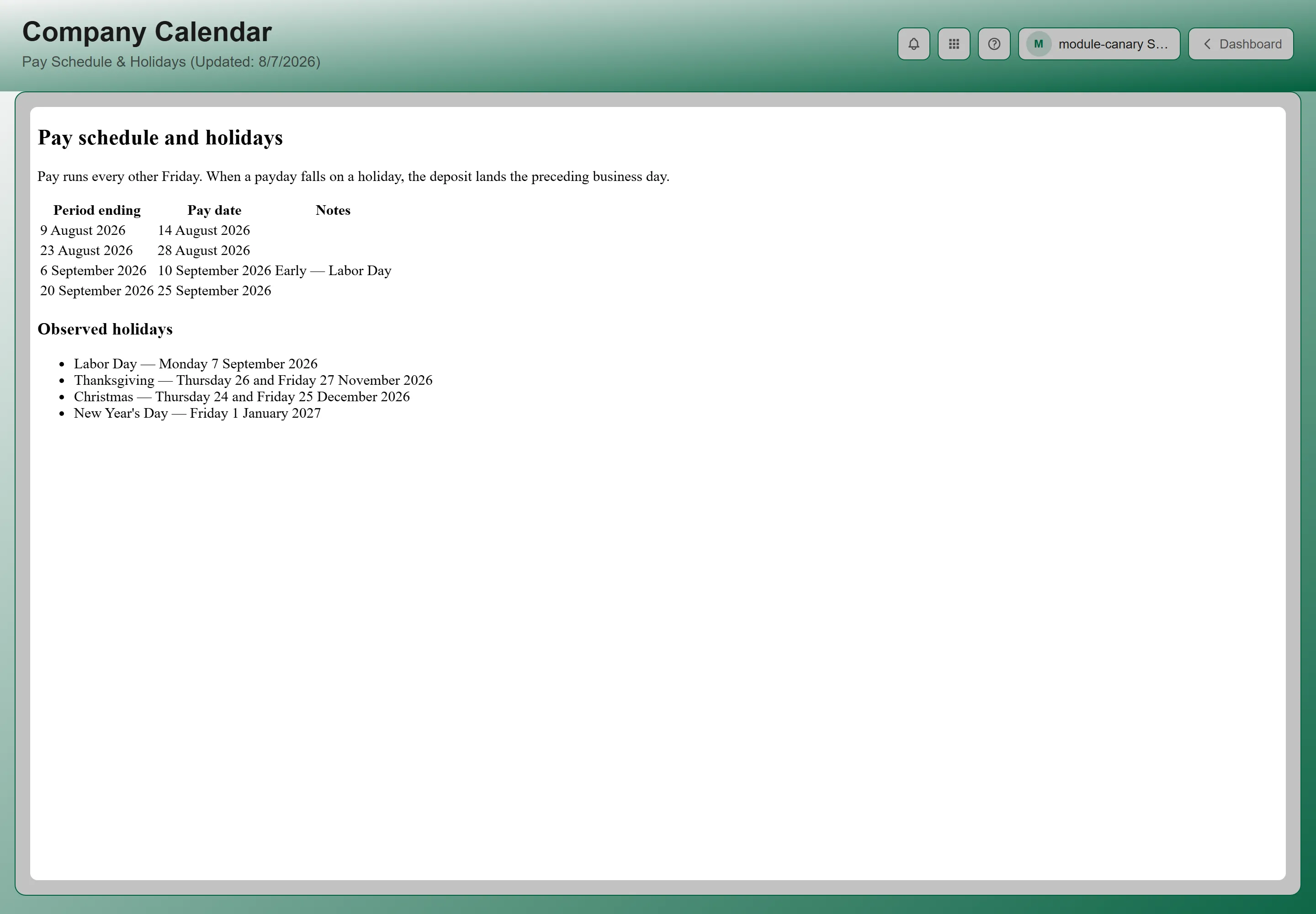
The Company Calendar is where your organization publishes its pay schedule, holidays, and company events. Its subtitle names the two things people look for most: “Pay Schedule & Holidays”.
Opening the Calendar
Section titled “Opening the Calendar”The calendar is reached from your Home screen, not from the Apps button. There are two ways in:
- The Calendar widget — a compact version of the same calendar. Its Open → link opens this full-page view.
- The What’s Happening widget — when a calendar has been published, the widget carries a Calendar button that goes to the same page.
What’s On It
Section titled “What’s On It”The calendar itself is published by your administrators, so its exact contents and layout are your organization’s. Typically it covers:
- Pay schedule — pay period end dates and paydays
- Company holidays — office closures and observed holidays
- Company events — meetings, training days, and team events
If You See “No calendar has been uploaded yet”
Section titled “If You See “No calendar has been uploaded yet””Nothing is broken — your organization has not published one. The page offers Return to Dashboard. Ask an administrator to upload it; the steps are below and take a minute.
Publishing the Calendar (Administrators)
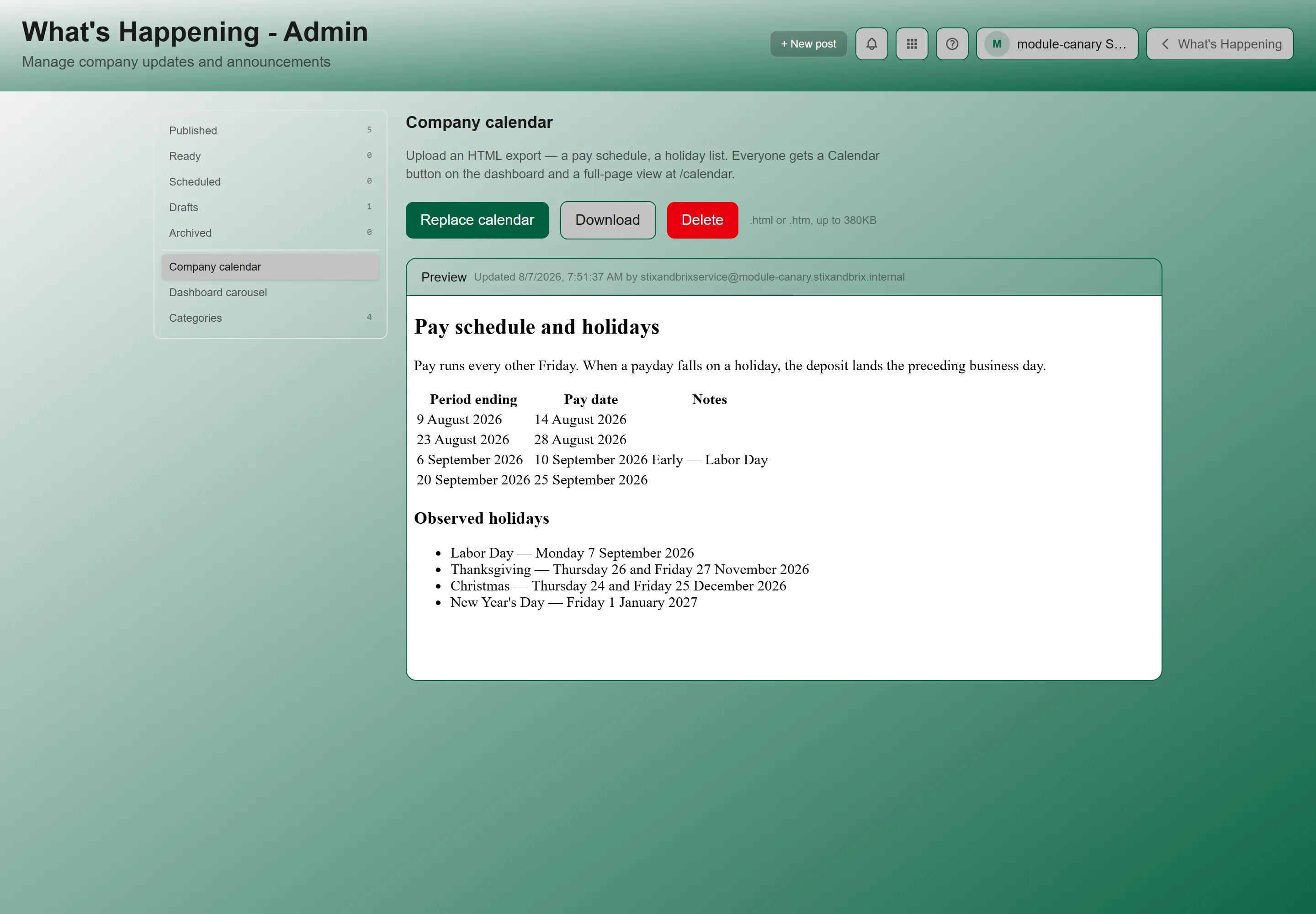
Section titled “Publishing the Calendar (Administrators)”The calendar is maintained from the Company calendar section of the What’s Happening admin panel. To get there, open What’s Happening, click Manage announcements in the page header, then choose Company calendar.
Uploading or Replacing It
Section titled “Uploading or Replacing It”- Click Upload calendar — or Replace calendar if one is already published.
- Choose an HTML export of your calendar. Accepted extensions are .html and .htm, up to 380 KB.
- Check the Preview that appears below, which renders exactly what everyone will see.
Once published, two other controls appear: Download, which saves the current calendar back out as a file, and Delete, which removes it.
Who Sees It
Section titled “Who Sees It”Everyone who can sign in. Publishing the calendar gives every user both the full-page Company Calendar view and, where an administrator has placed it, the Calendar widget on the Home screen.
Troubleshooting
Section titled “Troubleshooting”I can’t find Company Calendar in the Apps list
Section titled “I can’t find Company Calendar in the Apps list”Solutions:
- The calendar has no entry in the Apps list at all — it is reached from a Home screen widget. See Opening the Calendar.
- If neither widget is on your Home screen, the What’s Happening app may not be enabled for your organization, in which case neither the page nor the widget appears. Ask an administrator to enable it — see Getting Access to Apps and Extensions.
The calendar is showing last year’s dates
Section titled “The calendar is showing last year’s dates”Solutions:
- The calendar is a published file, so it stays as it was uploaded until someone replaces it. It does not refresh on its own.
- Check the last-updated date in the page header, then ask an administrator to upload the current one.
My calendar file is rejected as too large
Section titled “My calendar file is rejected as too large”Solutions:
- The limit is 380 KB, and the message tells you your file’s actual size.
- Embedded images are the usual cause. Export without them, or link to them instead — that normally brings a calendar well under the limit.
The calendar renders differently from my source file
Section titled “The calendar renders differently from my source file”Solutions:
- The calendar is displayed in an isolated frame for security, so it cannot reach the rest of the app or load everything an ordinary web page could. Some styling and scripts will not survive.
- Use the Preview in the admin section to confirm how it will actually appear before you publish.
Related Articles
Section titled “Related Articles”- What’s Happening — Company news and announcements, the app that delivers this calendar
- Managing What’s Happening — The admin panel, including the Company calendar section
- Finding and Opening Your Apps — Using the App Drawer to reach any page