
The Quote Header and Document Settings: Reference, People and Linked Records
A quote opens on its overview, where the Document Settings card says who the quote is for and who is on it, and the Project card holds the Reference. On the lines, behind Edit Quote, the header row names the quote and holds the controls you use most. This article is for the estimator: it covers that header row, the cells on the overview you change in place (the Reference, the people on the quote, and the Salesforce and NetSuite records the quote is linked to), and what sits behind Document Settings. The overview itself is in The Quote Overview.
Reading the Header
Section titled “Reading the Header”On the lines, the header row names the quote: its name, its number, the revision (Rev 0, Rev 1 and so on) and its stage. A change order also says which quote it changes.
On the right of that row:
- Overview, with the back arrow: back to the quote’s overview (pointing at it says “Back to the quote overview”). It is there however you reached the lines, including from a link or after a reload.
- Proposal ▾: the proposal, and the downloads where your organisation offers them. Preview Proposal and Edit Proposal come first, then the files below a divider, such as Price schedule (.xlsx). See Sending a Quote for Signature.
- Advance to…: moves the quote to its next stage. See Moving a Quote Through Its Workflow.
- Document Settings: every setting on the quote in one place. See Document Settings below.
- Estimator and Customer (PDF): switch between your view and the customer’s. The second reads Customer (link) when the quote reaches the customer as a link.
- Maximize, the arrows at the end of the row, gives the quote the whole window.

On a locked quote (with the default stages, a won or lost one), Clone to revise sits beside Advance to…, and a won quote also offers Create Change Order. A quote at Ready to send is sealed but not locked: once it has been sent, its overview offers Revise… instead, beside Send again. Send to customer, Delivery record and Archive are on the overview, not on the lines.
What the quote is and who it is for are on the overview, in its Document Settings card, in this order: Document name, Due date, Client, Main client contact (the customer’s signer) and Document lead (the salesperson). Under them come On the proposal, Signers, the Cc count, and one cell for each record the quote is linked to in another system. Its Terms card holds the payment terms, how long the price is held and how the quote reaches the customer, each one changed in place; see Changing a Field in Place.
In the customer’s view, Advance to… and the status strip are hidden, because the customer never sees them.
Changing the Reference
Section titled “Changing the Reference”The Reference is your own name for the job: a site, a phase, a purchase order. It is the first field in the overview’s Project card.
- Click the Reference value, or the pencil beside it. An empty Reference shows
—. - Type the new Reference.
- Press Enter, or click anywhere else, to save it. Press Esc to leave it as it was.
The change is saved at once. It is logged in the quote’s Activity with your name,
and the field’s own Undo, Redo and History work on it; see Undo, Redo and
History for Each
Field.
The AI Record’s What happened log also gets one line, for example “Reference
changed: {old} → {new}”, under the Reference badge. Clearing it records (none) as
the new value. You can also set it in Document Settings, where the field is also
called Reference.
Once the quote is locked, or for anyone without Edit quotes, the pencil is gone. The customer’s view shows the Reference only when it differs from the quote’s name.
The People on a Quote
Section titled “The People on a Quote”Two cells in the overview’s Document Settings card name the people on a quote.
- On the proposal lists everyone the quote names: the salesperson, the Approver the
quote routes to (marked Approver · routed), and anyone added under one of your
organisation’s roles. Beside each name, a pen mark means their signature is shown on the
proposal, and an envelope means they are cc’d when the customer answers; hover a name to
read
signature shownorsignature not shown. The cell shows three people and then a count such as+2; hover the count to see the rest. Click the cell to open Document Settings at On the proposal. When no Approver can be found, the cell says so and why. - Signers says who signs on each side. The first line,
Signatures shown: {names}, lists the people whose signatures print for your organisation (and, where your organisation has signing entities,· as {entity}, the entity they sign as). On the lines, a second line names the customer’s signer. Until someone chooses one it readsCustomer signer: —with Choose the customer signer. On the overview that second line is not repeated, because the card’s Main client contact is the same person; until one is chosen it reads Choose the main client contact. Click any of these to change it.
Beside the cells, Cc · 4 counts the people cc’d when the customer answers. Click it to
switch anyone on or off, or to add someone with + Add someone to cc.
People in Document Settings
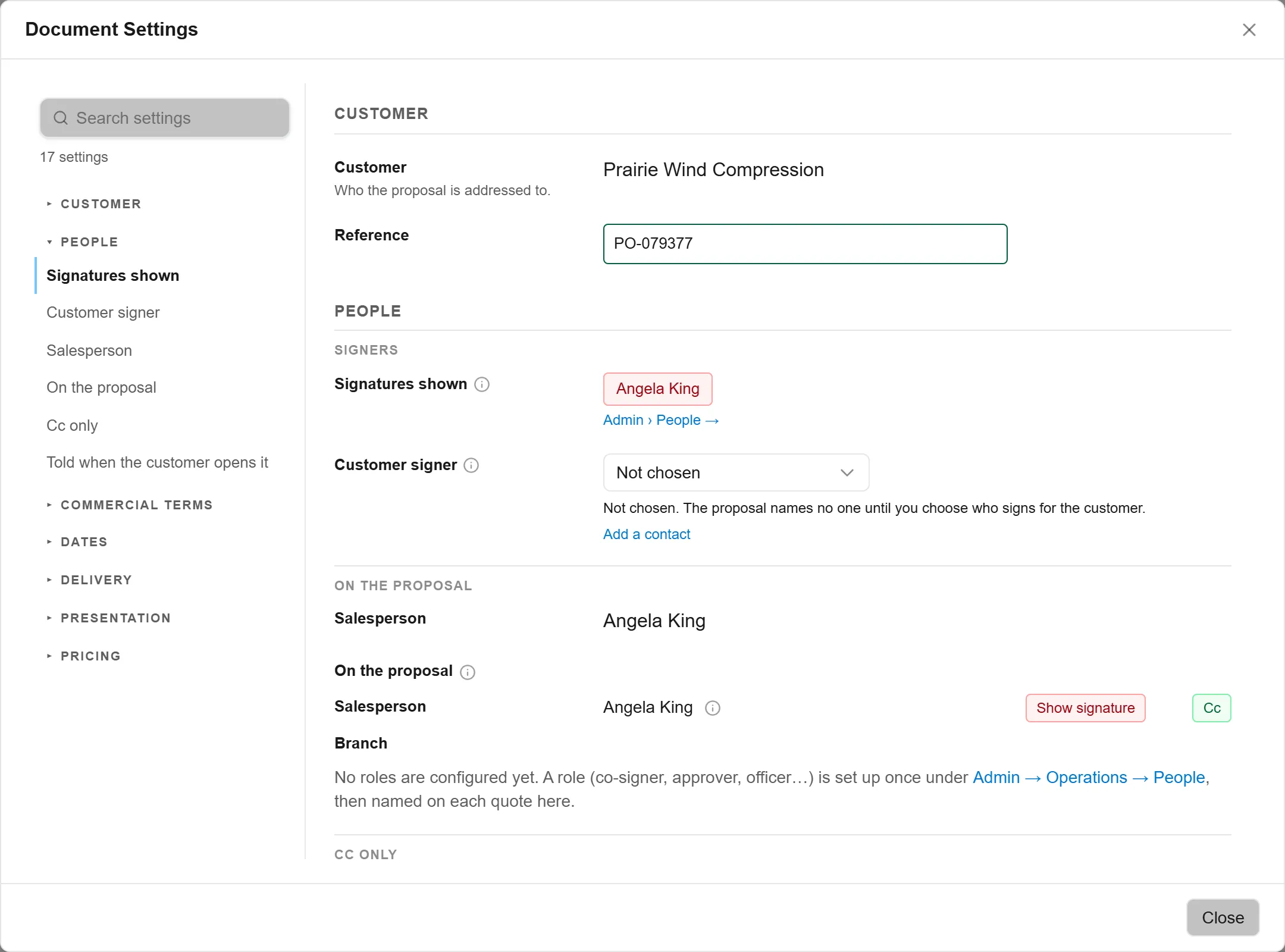
Section titled “People in Document Settings”Document Settings → People holds the rest, in four groups.
- Signers. Signatures shown: “Whose signatures print on the proposal. By default the salesperson’s; switch on the routed Approver, or anyone else with a signature on file.” Click a name to switch it off or on, or + Show a signature to add someone. Someone who cannot sign says why, for example that they have no signature on file. Where your organisation has signing entities, Signs as picks the legal entity named as the seller. Customer signer picks the customer’s signer from the customer’s contacts; Edit corrects the chosen contact and Add a contact adds one.
- On the proposal. The Salesperson, then everyone the quote names, one row each: “Everyone we name on this quote: the salesperson, the Approver it routes to, and anyone you add under a role. Each person has two switches: Signs (their signature block prints for us) and Cc (told when the customer answers, and copied on the send).” The first switch is labelled Show signature and changes the same set as Signatures shown. + Add person adds someone under one of your organisation’s roles, and Remove takes them off. The salesperson is changed in the overview’s Salesperson cell.
- Cc only. “People cc’d when the customer answers and on the send, who are not named on the proposal.” + Add someone to cc offers the people with access to Quote Generator.
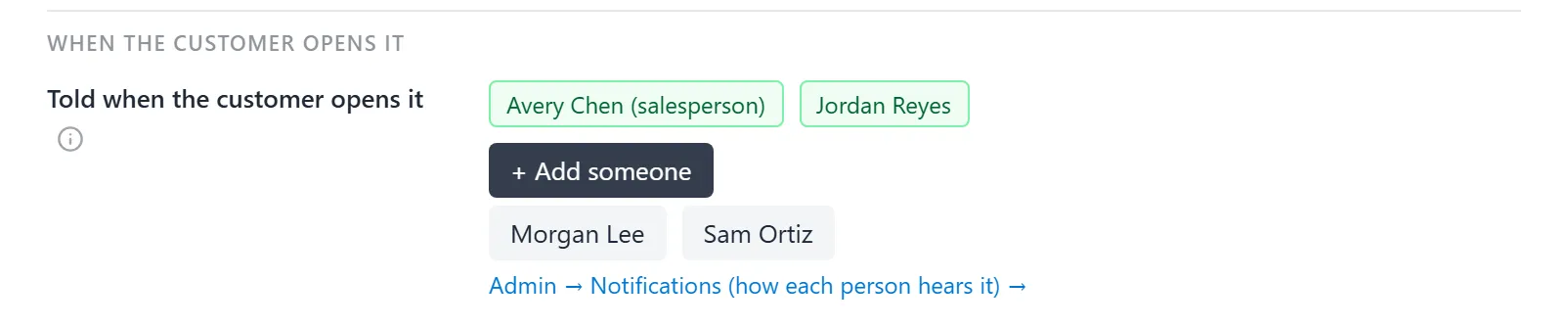
- When the customer opens it. Told when the customer opens it: “Who hears it the first time the customer opens the signing link (once per link). The salesperson is on the list by default.” See Who Is Told When the Customer Opens It below.
When the customer accepts or declines, everyone with Cc on is told: by email, and by the bell and Teams when they use GrndCtrl. The same people are copied when the quote is sent. The customer’s signer is not on that list; they get the signed receipt. Switching the salesperson’s Cc off asks first, Stop telling the salesperson?, and Stop telling them confirms. Your organisation’s default for new quotes is under Admin → Presentation.
Roles are set up once by an administrator; see Proposal Roles and Who Signs. Which Approver a quote routes to, and how to change its branch, is in Which Approver Is Told About a Quote.
Who Is Told When the Customer Opens It
Section titled “Who Is Told When the Customer Opens It”The first time the customer opens a signing link, Quote Generator tells the people on the quote’s list. By default that is the salesperson alone.
- Open Document Settings → People and go to Told when the customer opens it.
- Click a name to switch that person off or on. The salesperson’s reads {name} (salesperson).
- To add someone, click + Add someone, then click a name. Only people with access to Quote Generator are offered; when everyone is already listed, it says “Everyone with access is on the list.”
Each click saves at once.
A person is told once per link: a reminder re-sends the same link and tells nobody again, while Send again makes a new link, whose first open is told again. A quote sent as a PDF has no link, so nobody is told. How each person hears it (bell, Teams or email) is the Opened row under Admin → Operations → Notifications, and their own My notifications; see Quote Notifications. On a locked quote the list cannot be changed.
Document Settings
Section titled “Document Settings”Document Settings, on the overview’s top row and in the header row on the lines, holds every setting on the quote in one dialog, with Search settings at the top of its list. The groups, in order:
- Customer: the customer and the Reference.
- Project: the project’s details and the NetSuite template (below). A change order also shows Original contract sent and Previous accepted change orders.
- People: who signs, who is named, who is cc’d and who is told when the customer opens it (above).
- Commercial terms: Payment terms and Valid for, the days the price is held.
- Dates: the Due date, when the proposal is due. It is not printed on the proposal.
- Delivery: How this quote reaches the customer. See How the Quote Reaches the Customer.
- Presentation: the Proposal template, the Letterhead and the Quote name printed on the cover.
- Pricing: Contingency and Margin.
Organisations that sell subscriptions also see a Term under Commercial terms, and Go-live and Subscription billing starts under Dates.
Project Details and the NetSuite Template
Section titled “Project Details and the NetSuite Template”Project details holds the fields your organisation asks for on every quote, such as the project’s street, city, state and zip, and the proposal type. The same fields sit in the overview’s Project card. A change is saved with the quote, like any edit.
NetSuite template says which NetSuite project template the quote’s products were built from: “Built from NetSuite template”, the template’s name, how it was chosen (named on the Salesforce opportunity, derived from the opportunity, or chosen here) and how many products it built. Build from a different template… opens Build from a NetSuite project template, where a template’s parent tasks become the quote’s products and its child tasks the hours and milestones under them. When the opportunity points at a template whose products are not on the quote yet, the row says so and offers Build from this template.
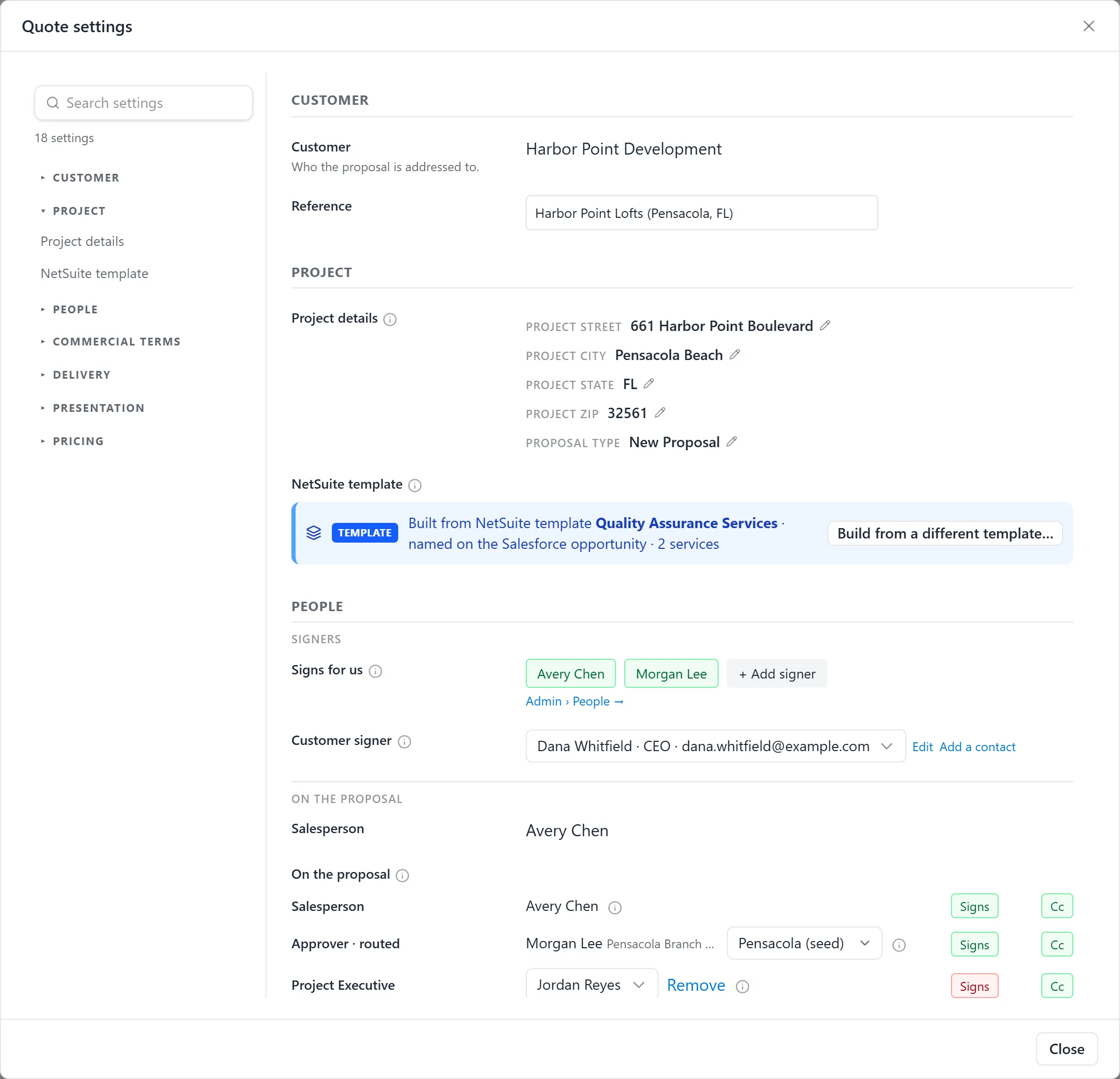
Each of the two rows appears only when the quote has something for it: an organisation that asks for no project fields, or a quote with no NetSuite template, shows no empty row.
Linked Records: the Salesforce Opportunity and the NetSuite Project
Section titled “Linked Records: the Salesforce Opportunity and the NetSuite Project”Where your organisation has connected Salesforce and NetSuite, the overview’s Document
Settings card carries one cell for each record the quote writes to when it is won.
Each is labelled with its system and kind, such as Salesforce · Opportunity or
NetSuite · Project. A linked record’s title opens it in the other system. While the
quote is a draft, each cell has a button to change it.
Linking or Changing the Opportunity
Section titled “Linking or Changing the Opportunity”A quote started from a Salesforce opportunity is linked to it. A quote started any other way — blank, from documents, or copied from another quote — shows Not linked: “this quote is not linked to a Salesforce opportunity, so nothing is written to Salesforce when it is won — link one to have the Won update it”.
- On the Salesforce cell, click Link an opportunity, or Change if one is already linked. The Salesforce opportunity dialog opens.
- Find the opportunity in the list. It is the same list as Open Opportunity on a new quote, with the same filters, but it also lists closed deals. See Finding a Salesforce Opportunity.
- Click it, then click Link this opportunity.
Only the link moves: “the customer, site, products and prices stay as they are.” If the opportunity names a different customer or site, the dialog lists each difference under “The customer and site were NOT changed. This opportunity says:”. Click Pull the customer and site from this opportunity to take them, or Done to keep the quote as it is. Pulled site fields are unsaved edits until you Save the quote.
The Approver follows the opportunity. Linking a different opportunity can change the branch, and the record says so, for example “Approver routing: {old branch} → {new branch}” (older record lines say “Branch Manager routing”).
Picking the NetSuite Project
Section titled “Picking the NetSuite Project”By default a won quote opens a new NetSuite project for its work. The cell says Created on Won until then. If the work belongs in a project that already exists, pick it:
- On the NetSuite cell, click Pick a project. The NetSuite project dialog opens.
- Search by name, number or customer, or, for a project too new to be listed, type its id under Type its NetSuite id instead.
- Click the project, then click Use this project.
The cell now names the project and says “its tasks are added to this project when the quote is won — no new project is created”. To go back to a new project, click Change, then Create a new project on Won instead. Projects marked do-not-use or duplicate in NetSuite are not offered.
The Small Ring Beside the Label
Section titled “The Small Ring Beside the Label”A small ring beside the Salesforce or NetSuite label tells you whether a Won will actually write there. A filled ring means the writes are on; a hollow ring means an administrator has turned them off. Hover it to read which, for example “Salesforce writes are off — Won will not write to the opportunity”. When a quote has no cell for that system, the ring sits on the progress strip instead. Where the writes were never set up there is no ring at all. Administrators switch them in What Happens in Salesforce and NetSuite When a Quote Is Won or Lost.
Troubleshooting
Section titled “Troubleshooting”I cannot edit the Reference or change a linked record
Section titled “I cannot edit the Reference or change a linked record”If the quote says “Changing a quote needs the Edit quotes permission. A Quote Generator admin grants it under Admin › People › Permission roles.”, ask an admin for a role with Edit quotes. Otherwise the quote is locked. A won, lost or archived quote keeps the Reference, and a sealed quote (from Ready to send on) keeps the records it went out with; a change that reaches the server anyway is refused with “This quote is past the point its linked records can change — a locked, sent, won or lost quote keeps the opportunity and project it went out with. Nothing was changed.” To change it, use Clone to revise and edit the new draft.
There is no NetSuite cell
Section titled “There is no NetSuite cell”The NetSuite cell appears only where a Won creates NetSuite projects — the NetSuite writes are on and the project defaults are set. With the NetSuite writes off, Created on Won is not shown.
The proposal footer shows the quote name, not the Reference
Section titled “The proposal footer shows the quote name, not the Reference”Either the quote has no Reference, so the name prints in its place, or the proposal was built before the Reference changed. Rebuild the proposal.
The opportunity cannot change after the quote was written to Salesforce
Section titled “The opportunity cannot change after the quote was written to Salesforce”Once Salesforce has been written for a quote, its link stays where that write went: “Salesforce has already been written for this quote, so its opportunity link stays where that write went. Nothing was changed.”
Advance to… is missing from the header
Section titled “Advance to… is missing from the header”You are in the customer’s view. Click Estimator to bring back Advance to…. Without Edit quotes, Advance to… is not offered at all.
The Customer, people and linked records are not on the lines
Section titled “The Customer, people and linked records are not on the lines”They are on the quote’s overview. Click Overview, first in the header row on the lines, to go back to it.
Related Articles
Section titled “Related Articles”- Quote Generator Help
- Creating Quotes with Quote Generator
- The Quote Overview: Where a Quote Opens
- Finding a Salesforce Opportunity
- Sending a Quote for Signature
- Which Approver Is Told About a Quote
- What Happens in Salesforce and NetSuite When a Quote Is Won or Lost
- Proposal Roles and Who Signs
- Reading the AI Record