
The Quote Overview: Where a Quote Opens
When you open a quote, it opens on its overview: the quote at a glance, the settings and terms you can change in place, and everything that has happened on it. The products, prices and worksheet are one click away, behind Edit Quote. This article is for the estimator and anyone else who works on quotes.
What the Overview Shows
Section titled “What the Overview Shows”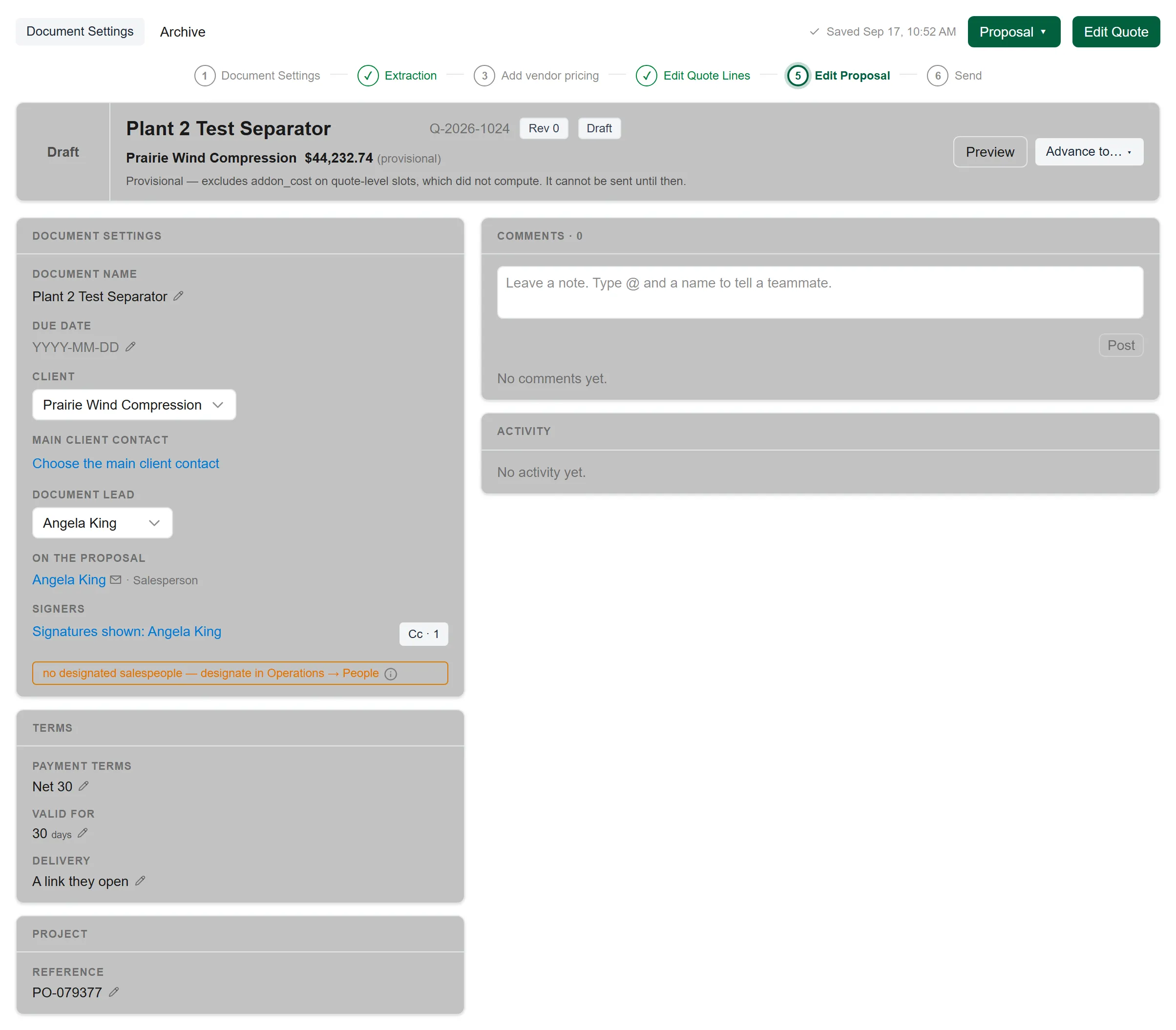
From the top:
- Across the top: Document Settings and Archive on the left, with Advance to… first once the quote is ready to send. On the right, the save indicator, then Proposal ▾ (the proposal, and the downloads where your organisation offers them) and Edit Quote side by side, both filled with your organisation’s colour, the same colour as Ask about Quote {number} at the top of the page.
- Under it, the quote’s steps, numbered from Document Settings to Send, each ticked once it is done. A quote whose products carry given prices has four: Document Settings, Edit Quote Lines, Edit Proposal and Send. A quote built from parts also has Extraction and Add vendor pricing.
- Under it, the quote itself. On the left, the stage, or once the quote has gone out, how many days ago it was sent. Then the quote’s name, number, revision and stage, the customer, the project address and the total. Under them, one sentence says what the quote needs next. On the right, Preview shows the lines the way the customer sees them, and beside it is the quote’s next step. On a draft it is Advance to…. Once the quote is ready to send it is Send to customer, and Advance to… moves to the top row. After the send it is Delivery record, Send again, Revise… (until the customer signs) and Revisions. On a won or lost quote it is Clone to revise, and a won quote also offers Create Change Order.
- Document Settings: Document name, Due date, Client, Main client contact and Document lead (the salesperson), then the people On the proposal, the Signers, the Cc count and the records the quote is linked to in Salesforce and NetSuite. See The Quote Header and Document Settings.
- Terms: Payment terms, Valid for (the days the price is held) and Delivery (how the quote reaches the customer). Organisations that sell subscriptions also see Term and Go-live.
- Project: the Reference, then the project fields your organisation asks for, such as the street, city, state and zip.
- Template: where the products were built from a NetSuite project template, its name. Click it to open that row in Document Settings.
- Comments: notes for your team, with the box to write one. See Comments: Notes and @mentions.
- Activity, under Comments: once the quote has been sent, whether the customer has opened it, then every logged change. See Activity: What Happened, and the Customer’s Opens.
On a phone, Comments and Activity sit below the cards.
Changing a Field in Place
Section titled “Changing a Field in Place”- Click the value, or the pencil beside it.
- Type the new value, or pick one from the list.
- Press Enter, or click anywhere else, to keep it. Press Esc to leave the field as it was.
The terms and the Reference save as soon as you leave the field. A project field that can change a price is kept as an unsaved change and saves with the quote, like an edit on the lines. The customer, the salesperson and the people open their own pickers; see The Quote Header and Document Settings.
The Save Indicator
Section titled “The Save Indicator”One indicator, at the top right, says where the quote’s changes stand. It shows one of these:
- “Saved {time}”: everything you changed is saved.
- “N unsaved changes”, with Save and Discard beside it. Press Ctrl+S (⌘+S on a Mac) to save. A quote also saves by itself after 15 seconds without typing.
- “Saving…”, or “Auto-saving…” when the quote is saving by itself.
- “Updated by {name} · just now”: a teammate changed the quote while you had it open. The page reads the change in, so you do not need to reload.
- “Not saved: {reason}”: the last save did not go through, and the reason is the server’s own. Save tries again.
On the overview, Undo and Redo beside the indicator act on the field you changed last. On the lines, the same indicator sits above the products.
Undo, Redo and History for Each Field
Section titled “Undo, Redo and History for Each Field”Each field keeps its own history: the quote’s name, the terms and the Reference. Point at a field and three small buttons appear at its edge: Undo, Redo and History. With the field selected (and not while you are typing in it), Ctrl+Z steps it back and Ctrl+Y steps it forward. A button is greyed out when there is no step to take.
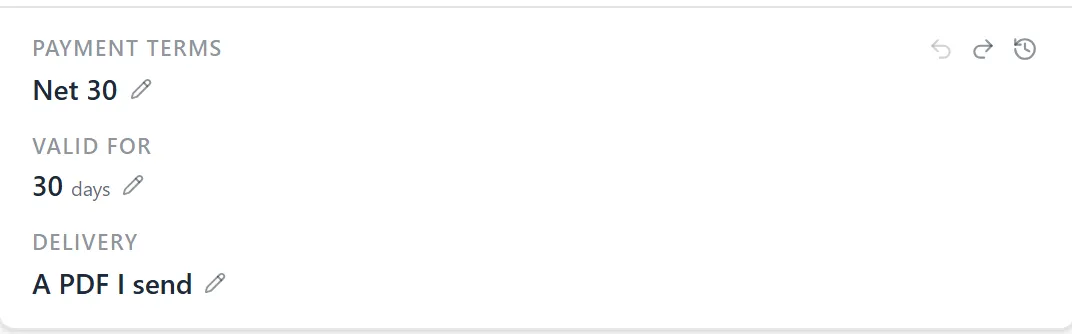
Undo never rewrites what happened. It saves the earlier value as a new change, with your name on it, so the history shows the edit and the undo as two rows. When the value you are about to replace was set by someone else, the quote asks first: Replace a teammate’s change?, with the line “Replaces {name}’s change from {time}.” Click Replace to go ahead.
The History
Section titled “The History”Click History on a field to see every change to it, newest first. Each row names the field, who changed it and when, and the value before and after.
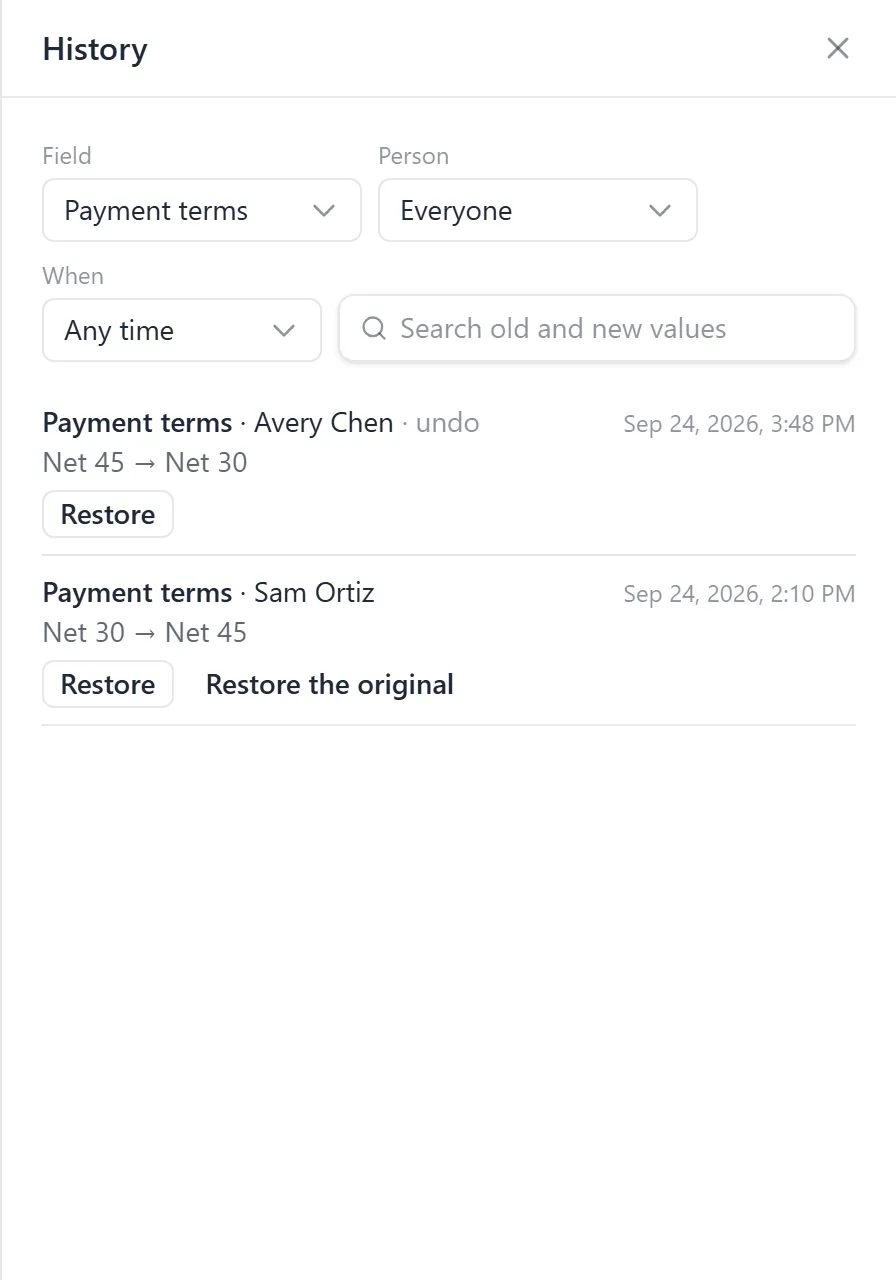
- Field narrows the list to one field, or shows Every field.
- Person shows one person’s changes, or Everyone’s.
- When: Any time, Today, Last 7 days or Last 30 days.
- Type in Search old and new values to find a value the field once held.
Restore puts back the value a row left the field holding. On the oldest change to a field, Restore the original also appears: it puts back the value the field held before anyone changed it. Either one is saved as a new change, like an undo. A change logged before Quote Generator kept whole values says “Logged before full values were kept, so it cannot be restored.”
Comments: Notes and @mentions
Section titled “Comments: Notes and @mentions”Comments, on the right above Activity, holds your team’s notes on the quote. Notes are for your team only; the customer never sees them. The heading counts them, for example Comments · 3. The Comments · N button at the top of the page brings you here and puts the cursor in the box (pointing at it says “Go to the comments on this page”). On the quote’s lines, the same button opens the comments in a panel beside the quote instead.
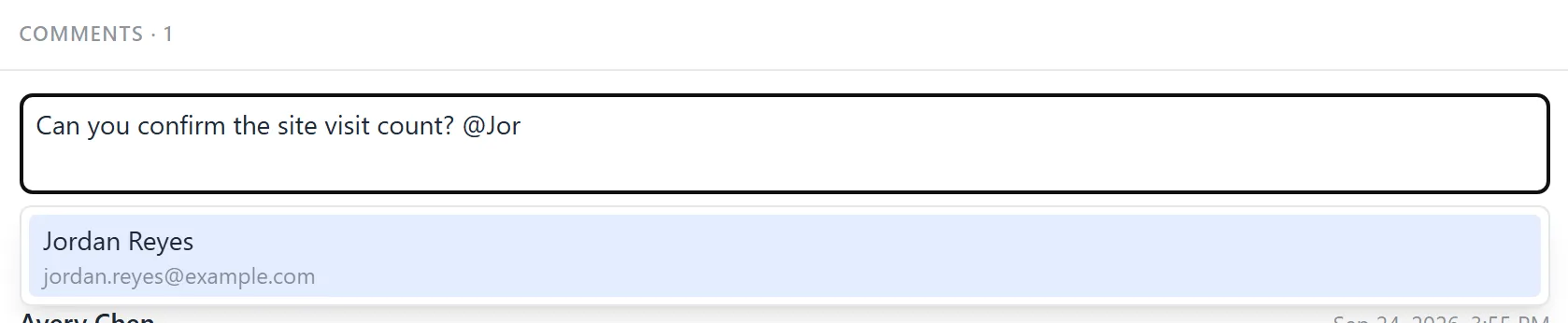
- Click in the box that reads “Leave a note. Type @ and a name to tell a teammate.”
- Type your note. To tell someone, type @ and the start of their name, then pick them from the list with the arrow keys and Enter, or click them. Only people with access to Quote Generator are offered. When the note mentions someone, a line under the box says how many people it will tell.
- Click Post, or press Ctrl+Enter.
Who is told about a note:
- A note that mentions nobody tells the quote’s salesperson, by the bell.
- A note that mentions people tells each of them instead, by the bell and Teams. Each person can turn those off for themselves under My notifications → @mentions.
- An administrator can add or remove channels for both under Admin → Operations → Notifications; see Quote Notifications.
- You are never told about your own note.
Under the box, the notes are listed in full, newest first, each with who wrote it and when. Show more lists older ones. With none yet, the section says “No comments yet.”
A note is not a change to the quote, so anyone who can open the quote can leave one, including someone who can only view it.
Activity: What Happened, and the Customer’s Opens
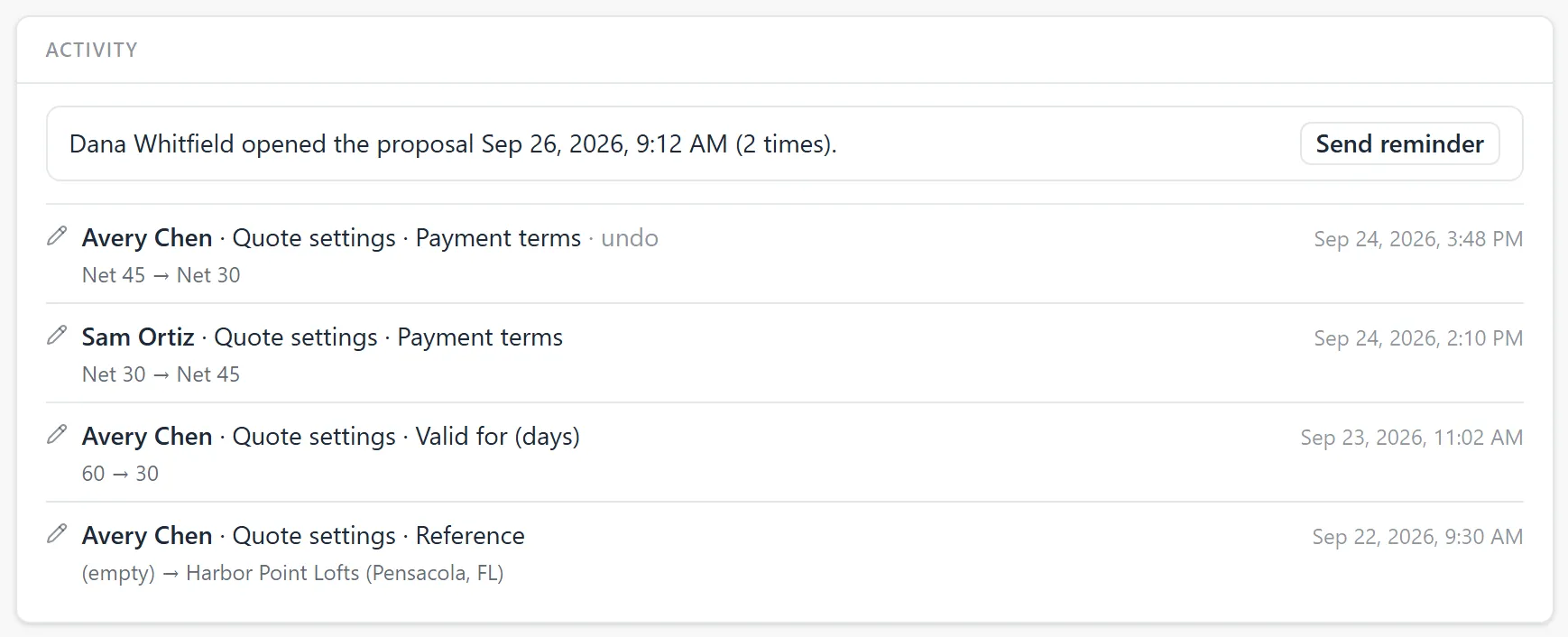
Section titled “Activity: What Happened, and the Customer’s Opens”Activity, under Comments, lists every logged change to the quote, newest first, each with who and when. A change that was an undo, a redo or a restore says so. Show more lists older ones. Notes are not repeated here; they are under Comments.
Whether the Customer Has Opened It
Section titled “Whether the Customer Has Opened It”Once the quote has gone to the customer, the first line of Activity says whether they have opened it: “{name} hasn’t opened the proposal yet.”, or “{name} opened the proposal {when}.” When they have opened it more than once, the line adds how many times: “({N} times)”. A quote sent as a PDF has no link to open, so its line keeps saying they have not opened it.
The first time the customer opens a signing link, Quote Generator also tells the people on the quote’s list: by default the salesperson. Choose who is on it under Document Settings → People → Told when the customer opens it; see The Quote Header and Document Settings. Each person hears it by the channels set for the Opened event; see Quote Notifications.
Sending a Reminder with the Same Link
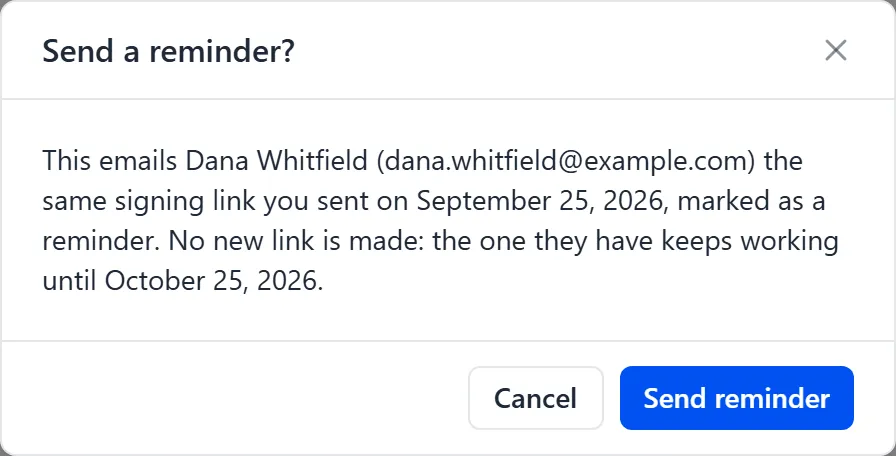
Section titled “Sending a Reminder with the Same Link”Send reminder, beside that line, emails the customer the signing link you already sent, marked as a reminder. No new link is made: the link they have keeps working until it expires. It is offered whether or not they have opened the proposal, while the newest link is still unanswered and valid.
- On the quote’s overview, click Send reminder in Activity.
- Read the confirmation, Send a reminder?: “This emails {name} ({email}) the same signing link you sent on {date}, marked as a reminder. No new link is made: the one they have keeps working until {date}.”
- Click Send reminder. A message confirms “Reminder sent to {name}, with the same link.”, and the line in Activity adds “Reminder sent {when}.”
The customer’s email has the subject of the first send with Reminder: in front, and
opens with “A reminder about the proposal sent to you on {date}. The link below is the
same one, and it works until {date}.”, then the message you sent with the proposal. The
reminder is listed in the Delivery record; see Reading the Delivery
Record.
Send reminder is not offered on a quote sent as a PDF (there is no link), once the customer has answered, or after the newest link was revoked or expired. To send a new link instead, use Send again; see Sending the Proposal.
If the quote changed after it was sent, the reminder is refused, because the customer holds the earlier document. The quote asks Revise the quote instead? with the reason, for example “This quote changed after it was sent (the latest change: a quote setting was changed), so the document they hold is the earlier version. Revise the quote to send them the current one: a new revision, with a new link. No reminder was sent.” Revise… opens the revise dialog.
Edit Quote: the Lines
Section titled “Edit Quote: the Lines”Edit Quote opens the quote’s lines: the header with Overview, Proposal ▾, Advance to…, Document Settings and the Estimator and customer views, the status area with Needs attention and Tools, and the products or lines with their prices. See Building the Quote on the Canvas.
To come back, click Overview, with the back arrow, first in the row of buttons at the top of the lines (pointing at it says “Back to the quote overview”). It is there however you reached the lines, including from a link or after a reload. Your browser’s Back button also works. A link to a quote’s lines opens them directly.
When a Quote Is View-Only
Section titled “When a Quote Is View-Only”Once your organisation has given Edit quotes to a role, only the people holding that role can change a quote. Everyone else with access to Quote Generator sees every quote view-only, with the reason under the top row: “Changing a quote needs the Edit quotes permission. A Quote Generator admin grants it under Admin › People › Permission roles.”

Edit Quote reads View lines, the fields have no pencil, Undo and Redo are greyed out, and History offers no Restore. You can still read everything, see the customer’s view with Preview, download files from Proposal ▾ where your organisation offers them, and leave a note under Comments. Preview Proposal and Edit Proposal are not offered. New Quote still opens, but every way to start is dimmed and Create quote cannot be pressed. If Quote Generator cannot tell who may edit, the quote opens view-only and says “Could not read who may edit quotes, so this quote opens view-only. Reload to try again.”
Troubleshooting
Section titled “Troubleshooting”I opened a quote and cannot see its products or prices
Section titled “I opened a quote and cannot see its products or prices”A quote opens on its overview. Click Edit Quote at the top right (View lines on a quote you cannot change).
There is no pencil, or the quote says it needs the Edit quotes permission
Section titled “There is no pencil, or the quote says it needs the Edit quotes permission”You do not hold a role with Edit quotes. Ask a Quote Generator admin to give you one under Admin → People → Permission roles. If the stage reads locked on a won, lost or archived quote, nobody can change it; use Clone to revise, beside Preview on the quote’s overview.
I am on the quote’s lines and the back button says Dashboard
Section titled “I am on the quote’s lines and the back button says Dashboard”After a reload, or when you opened the lines from a link, the back button at the top right of GrndCtrl’s header goes to the Dashboard. To return to the quote’s overview, click Overview, first in the quote’s own row of buttons.
There is no Send reminder
Section titled “There is no Send reminder”Send reminder shows only on a quote that went out as a signing link the customer has not answered. It is not offered when the quote was sent as a PDF, when the customer has signed or declined, when the newest link was revoked or has expired, or when you can only view the quote. To send a new link, use Send again; see Sending the Proposal.
The reminder asks Revise the quote instead?
Section titled “The reminder asks Revise the quote instead?”The quote changed after it was sent, so a reminder would send the customer back to the earlier document. Nothing was sent. Click Revise… to make a new revision and send it with a new link, or Cancel to leave the quote as it is.
Undo is greyed out
Section titled “Undo is greyed out”That field has no earlier value to go back to. Each field has its own history, so an undo on one field never changes another. To go further back, open History and click Restore on the row you want.
The person I typed after @ is not offered
Section titled “The person I typed after @ is not offered”Only people with access to Quote Generator can be mentioned. If someone without access is named anyway, the note is refused: “{person} does not have Quote Generator access, so they cannot be mentioned. Nothing was posted.” If nobody is offered at all, the box says why, for example “Nobody can be mentioned right now: the access list could not be read.”
The indicator says Updated by someone
Section titled “The indicator says Updated by someone”A teammate changed the quote while you had it open. What you see is already their version. If you were about to undo their change, the quote asks before replacing it.