
Finding a Salesforce Opportunity
When you start a quote from Salesforce, start from a closed deal’s proposal, or link a quote to an opportunity, you pick the opportunity from one list. This article is for the estimator who needs to find the right one quickly: what the list shows by default, and how to filter, sort and search it.
Opening the List
Section titled “Opening the List”The same list opens from three places, each showing a different part of it:
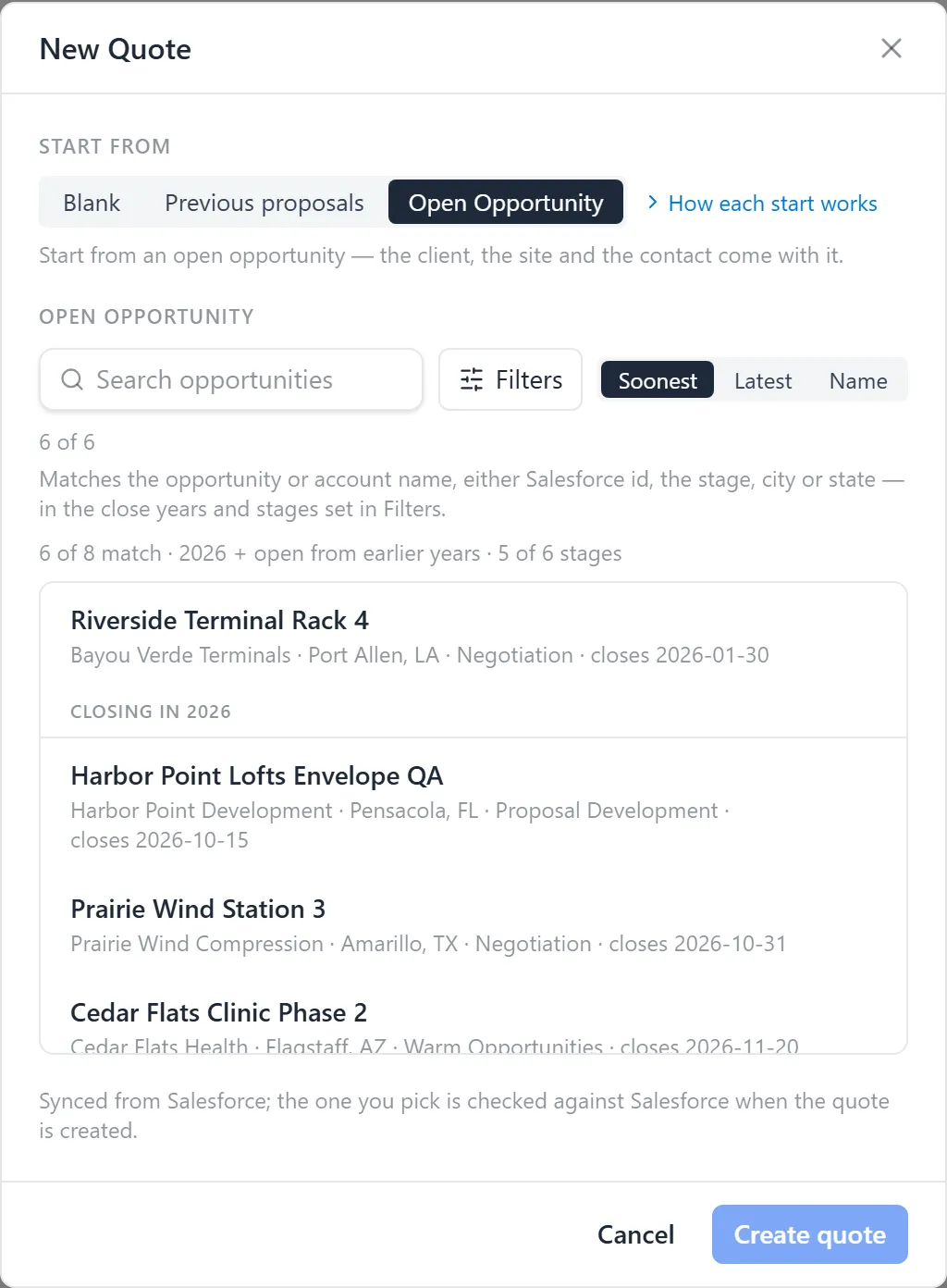
- + New Quote → Open Opportunity (Select an open Salesforce opportunity): opportunities that are still open. The client, the site and the contact come with the one you pick.
- + New Quote → Previous proposals → Closed in Salesforce: only the closed stages, Executed Contract, Closed Lost, Closed - Cancelled and Closed Won, so you can start from the proposal behind a deal. See Starting from a Previous Proposal.
- On a draft quote’s overview, the Salesforce cell’s Link an opportunity or Change. The Salesforce opportunity dialog lists every stage, open and closed. See The Quote Header.
Above the list are a search box, a Filters button, the sort, and a count such as
412 of 530: how many opportunities the list holds, out of all the ones in the years
and stages you chose. Under the toolbar, one sentence says exactly what was searched,
for example 412 of 530 match · 2026 + open from earlier years · 7 of 9 stages.
Each row shows the opportunity’s name, then its account, city, stage and close date, for
example closes 2026-12-31. A closed row also names the Salesforce proposal behind it.
What It Shows First
Section titled “What It Shows First”Out of the box the open list is built for the work in front of you:
- The opportunities whose close date falls in the current year.
- Above them, the opportunities still open whose close date has already passed. When there
are many, they are folded into one line, such as
▸ 64 open from earlier years — show; click it to expand them. - Every stage except Cold Opportunities and Proposal Accepted, which stay hidden until you turn them back on.
- Soonest-closing first within each group.
Closed in Salesforce opens on this year’s closed deals, latest-closing first, with every closed stage shown. The year is the opportunity’s close date in Salesforce; it is the only date the list has.
Filtering by Stage and Close Year
Section titled “Filtering by Stage and Close Year”- Click Filters. A panel opens with two groups, Stage and Close year.
- Under Stage, click a stage to hide or show it. A filled chip is shown; an outlined chip is hidden. Each chip carries its count.
- Under Close year, click one or more years. On the open list, Open earlier includes or leaves out the opportunities still open from before the earliest year you chose. All years searches everything.
- Close the panel. The list, the count and the sentence update.
The Filters button shows a number when your filters differ from the defaults. Clear filters, at the top of the panel, puts all of them back.
Sorting
Section titled “Sorting”The three sort chips beside Filters are:
- Soonest: close date, soonest first. The default on the open list.
- Latest: close date, latest first. The default for closed deals.
- Name: A to Z.
Every sort applies to the whole selection, not only the rows on screen. The open opportunities from earlier years stay at the top under every sort.
Searching
Section titled “Searching”Type in Search opportunities. The line under the box says what it matches: the opportunity’s name or its account’s name, either Salesforce id (the opportunity’s or the account’s), the stage, the city or the state. The search runs inside the years and stages you chose, so an opportunity that is filtered out is not found. If a search comes back empty, the list says “No opportunities match your search in the selected years and stages.” Widen the years or clear the filters and search again.
Your Choices Are Remembered
Section titled “Your Choices Are Remembered”The list remembers your stages, years and sort, and opens with them next time, on this browser and for you alone. Nobody else’s list changes. To return to the defaults, open Filters and click Clear filters.
Troubleshooting
Section titled “Troubleshooting”I can’t find an opportunity I know exists
Section titled “I can’t find an opportunity I know exists”Check four things in order: whether it is open or closed (a closed deal is under Previous proposals, not Open Opportunity), its stage (Cold Opportunities and Proposal Accepted are hidden by default), its close year (choose All years), and whether it has synced from Salesforce yet. The sentence under the toolbar tells you what was searched.
A closed opportunity is greyed out
Section titled “A closed opportunity is greyed out”There is no proposal to start from. The row says why, for example “No proposal on file for this opportunity — nothing to start from.” Start the quote another way and link the opportunity you need on the quote’s overview.
The list says it is showing only the first part
Section titled “The list says it is showing only the first part”A long selection is capped at 200 rows per group. The list says how many it is showing out of how many, in which order, and asks you to narrow the search to see the others. Type part of the name, or narrow the years or stages.
The list says no opportunities are synced
Section titled “The list says no opportunities are synced”“No opportunities are synced yet.” means the Salesforce sync has not delivered any opportunities to Quote Generator. Ask your administrator to check the Salesforce integration.