
Turn On Document Sharing
Document Sharing lets the people you choose send a fixed copy of a Document Library or My Docs file to named people inside or outside your organization, and see who opened it. This article is for tenant administrators: it covers turning sharing on, deciding who may share, and setting the rules for links that leave your organization.
Opening the Document Sharing Settings
Section titled “Opening the Document Sharing Settings”Use either way in:
- From the Document Library, open any document and click Share. While sharing is off, the dialog says “Document Sharing is turned off for your organization. Turn it on in Document Sharing settings.” Click Open Document Sharing settings.
- Go straight to the Settings tab of the Document Sharing page:
/document-sharing?tab=settings.
Document Sharing is also listed in the App Store under Administration.
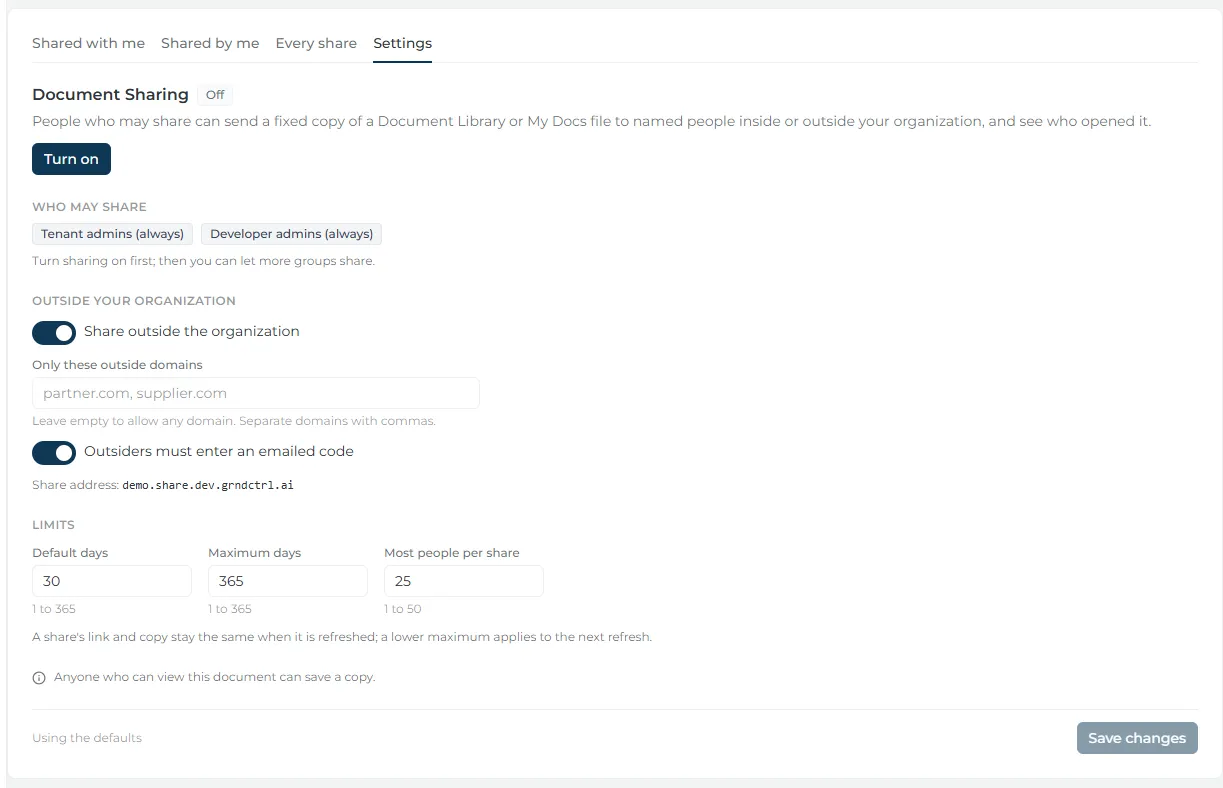
Turning Sharing On
Section titled “Turning Sharing On”- On the Settings tab, click Turn on. The badge beside Document Sharing changes from Off to On.
- Check Who may share. It lists Tenant admins (always) and Developer admins (always), so only administrators can share until you add a group.
- Optional: change the policy below, then click Save changes.
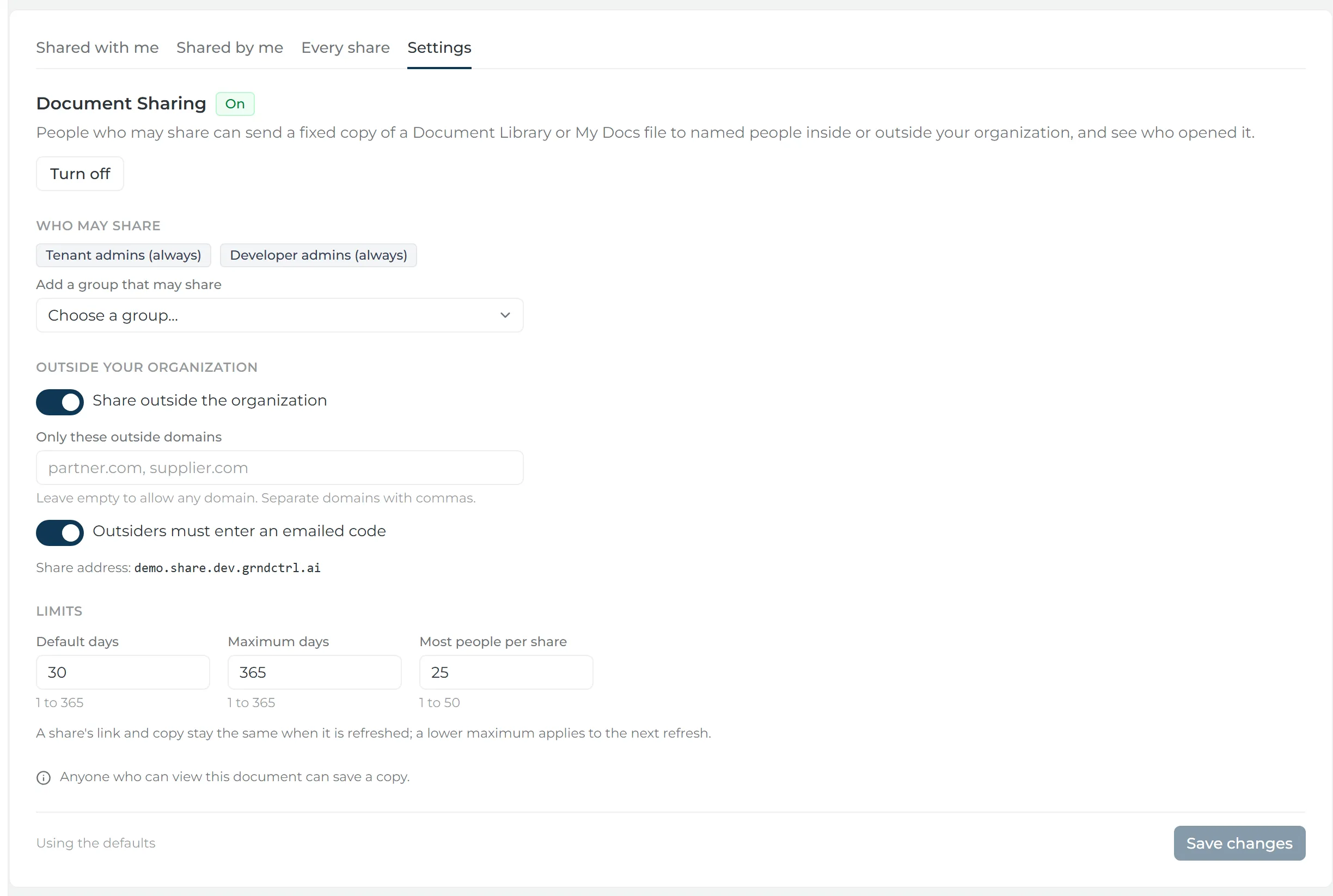
Choosing Who May Share
Section titled “Choosing Who May Share”Administrators can always share. To let more people share, choose a group under Add a group that may share, then click Save changes. Everyone in that group gets the Share action. To take it away again, remove the group and save.
Setting the Policy
Section titled “Setting the Policy”The policy applies to every share, including shares already sent: a change takes effect the next time someone opens a link.
| Setting | Default | What it does |
|---|---|---|
| Share outside the organization | On | When off, people can share only with users in your organization and with your groups. |
| Only these outside domains | Empty (any domain) | A comma-separated list of domains, such as partner.com. When set, outside addresses must be on one of them. |
| Outsiders must enter an emailed code | On | Someone outside your organization gets a link, and must enter a 6-digit code emailed to that same address before the document opens. |
| Default days | 30 | How long a new share works unless the sharer picks another length. |
| Maximum days | 365 | The longest a share can work, from when it is shared or refreshed. 365 is the most it can be. |
| Most people per share | 25 | How many people and groups one share can name, up to 50. |
Sharing a Document
Section titled “Sharing a Document”Once sharing is on, try it with one of your own documents to see what the people you allow will see.
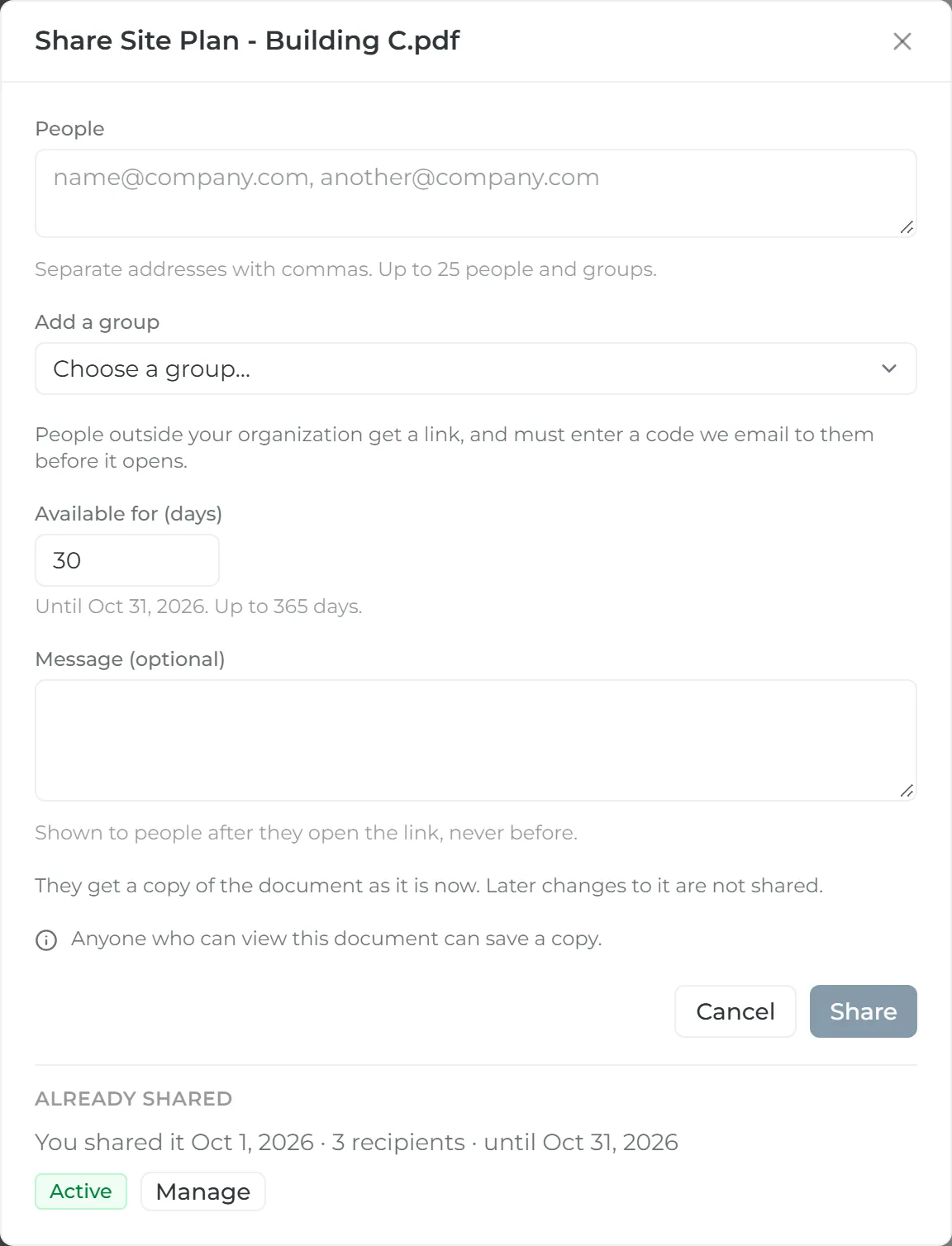
- In the Document Library, open a document and click Share. In My Docs, click the share icon on the document’s row.
- Under People, type email addresses separated by commas.
- Optional: pick a group under Add a group. Groups are not emailed; their members find the document under Shared with me.
- Set Available for (days), and optionally add a Message (optional).
- Click Share. Each person is listed as Inside your organization, Outside your organization or Group, with whether they were emailed.
What Recipients See
Section titled “What Recipients See”- Inside your organization — an email with a link that opens after they sign in. The share is also under Shared with me on the Document Sharing page and in My Docs.
- Outside your organization — an email with a link. If a code is required, they ask for it on the page and enter it before the document opens.
- Group — no email. Members find it under Shared with me.
Managing a Share
Section titled “Managing a Share”Open the Shared by me tab, or Shared by me in My Docs, and click Manage on a share. Administrators can also see every share in the organization on the Every share tab. From a share you can:
- Refresh link — the same link and the same copy work for a new number of days.
- Withdraw — one person’s link stops working on their next click.
- Withdraw for everyone — every link stops working. “A withdrawn share can’t be refreshed. Share the document again.”
Each person’s row shows whether they were emailed and how many times they opened it.
Turning Sharing Off
Section titled “Turning Sharing Off”- On the Settings tab, click Turn off.
- Click Turn off sharing to confirm. Nobody can share, and no shared link opens, until it is turned on again. Shares are kept, not deleted.
Troubleshooting
Section titled “Troubleshooting”Someone cannot share
Section titled “Someone cannot share”They see “Only tenant admins, and the groups they choose, can share documents. Ask a tenant admin to add you.” Add one of their groups under Add a group that may share and click Save changes.
Outside addresses are refused
Section titled “Outside addresses are refused”If Share address reads “Not set yet. Outside links need one: ask your platform administrator.”, your organization has no share address yet. Contact support to have one set up. Sharing inside your organization still works.
A person shows as not emailed
Section titled “A person shows as not emailed”The email could not be delivered. Someone inside your organization keeps access: they sign in and find the document under Shared with me. Someone outside your organization has no way in without the email, so their link is withdrawn. Check the address, then add them again from Manage.
An outside address is refused because of its domain
Section titled “An outside address is refused because of its domain”Only these outside domains is set and the address is not on one of them. Add the domain, or ask the sharer to use an address on an allowed domain.