
Quote Notifications: What You Are Told, and How
Which quote events Quote Generator tells you about, on which channel, and how to turn a channel off for yourself. The second half is for administrators, who choose which events are told at all.
The Three Channels
Section titled “The Three Channels”- Bell — the GrndCtrl bell at the top of the page.
- Teams — your activity feed in Microsoft Teams.
- Email — a message from GrndCtrl.
A notice names the quote and the customer, says what happened, and links straight to the quote. A note that @mentions you has its own row, so you can hear about mentions differently from everything else.
What You Can Be Told
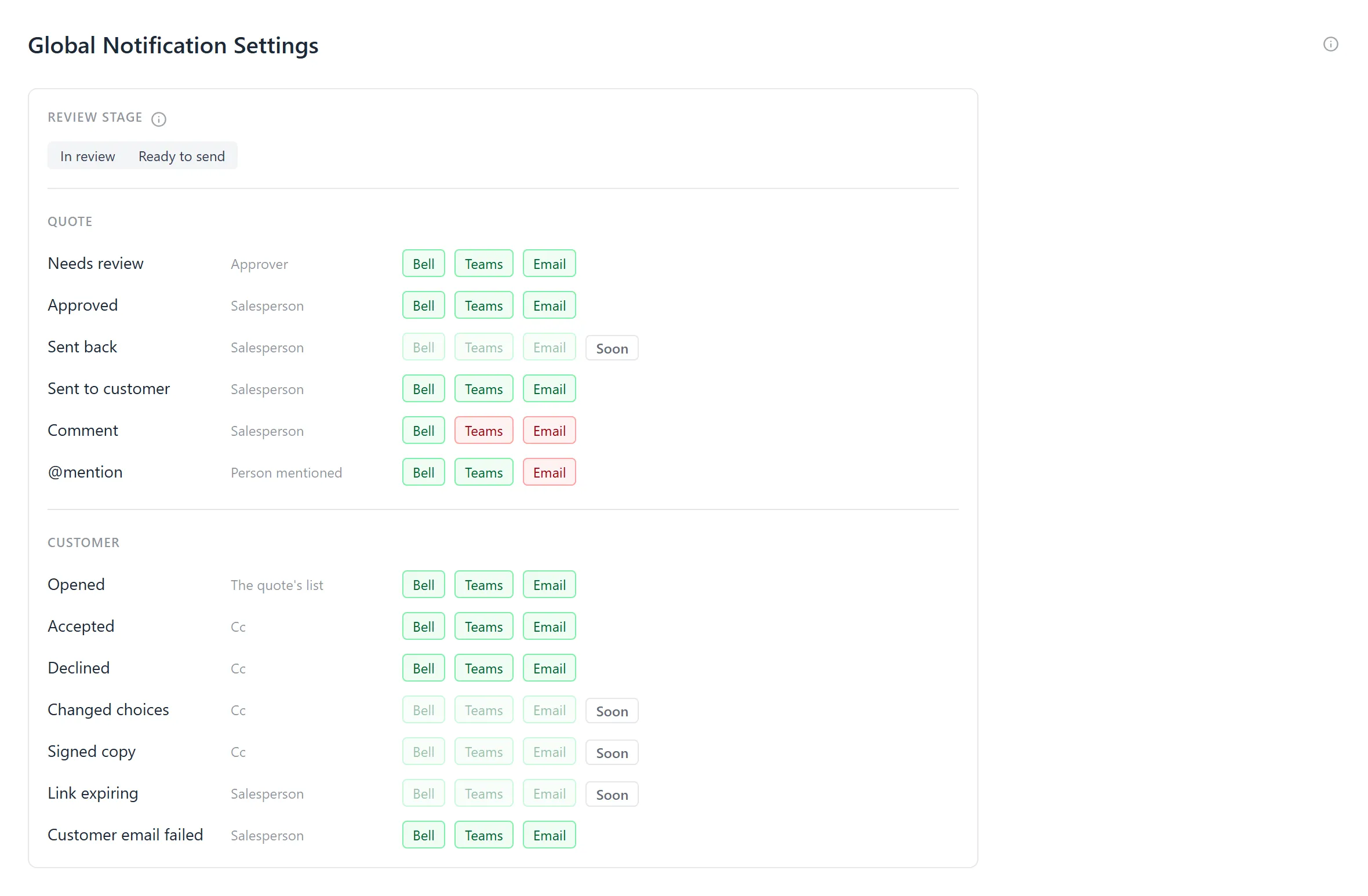
Section titled “What You Can Be Told”These are the quote events Quote Generator sends today, and who each one tells. Each can go out on Bell, Teams and Email. All three start on, except for two: Comment starts on the bell only, and @mention on the bell and Teams. An administrator can turn any of them on or off.
| Event | When | Who is told |
|---|---|---|
| Needs review | A quote enters your organization’s review stage, or someone tries to move it on and it needs approval first | The Approver for the quote’s branch (when your organization requires approval, only the Approvers who can give it) |
| Approved | The Approver moves the quote on out of review | The salesperson |
| Sent to customer | The proposal goes to the customer | The salesperson (the Cc list is already copied on the send itself) |
| Opened | The customer opens a signing link for the first time: “{name} opened {number}” | The quote’s own list, set under Document Settings → People → Told when the customer opens it (by default the salesperson) |
| Accepted | The customer signs | The quote’s Cc list — the people told when the customer answers |
| Declined | The customer declines | The quote’s Cc list |
| Comment | Someone leaves a note on the quote that mentions nobody | The salesperson |
| @mention | Someone leaves a note that names you with @: “{name} mentioned you on {number}” |
Each person mentioned (only people with access to Quote Generator can be) |
| Customer email failed | An email to the customer from your organisation’s mailbox could not be sent | The salesperson |
How to leave a note and mention someone is in The Quote Overview.
Three rules hold for every event:
- You are never told about something you did yourself.
- A channel reaches you only when your administrator has it on for that event and you have not turned it off for yourself.
- Each event tells you once. A quote that is sent for review twice while it sits in the same stage does not tell the Approver twice. Opened tells once per signing link: a reminder re-sends the same link and tells nobody again, while Send again makes a new link whose first open is told. A quote sent as a PDF has no link, so it is never told.
Listed, But Not Sent Yet
Section titled “Listed, But Not Sent Yet”The administrator’s list also shows four events marked Soon. Their switches are greyed out, because nothing is sent for them yet:
- Sent back — a quote cannot go back a stage; revising makes a copy.
- Changed choices — told inside the Accepted notice today.
- Signed copy — the signed copy is already emailed to the Cc list.
- Link expiring — nothing watches a link’s expiry yet.
Turning a Channel Off for Yourself
Section titled “Turning a Channel Off for Yourself”- Open Quote Generator and choose My notifications in its menu.
- Under Quote events → Tell me by, turn Bell, Teams or Email off. Green is on, red is off. Each click saves at once.
- Under @mentions, do the same for notes that mention you.
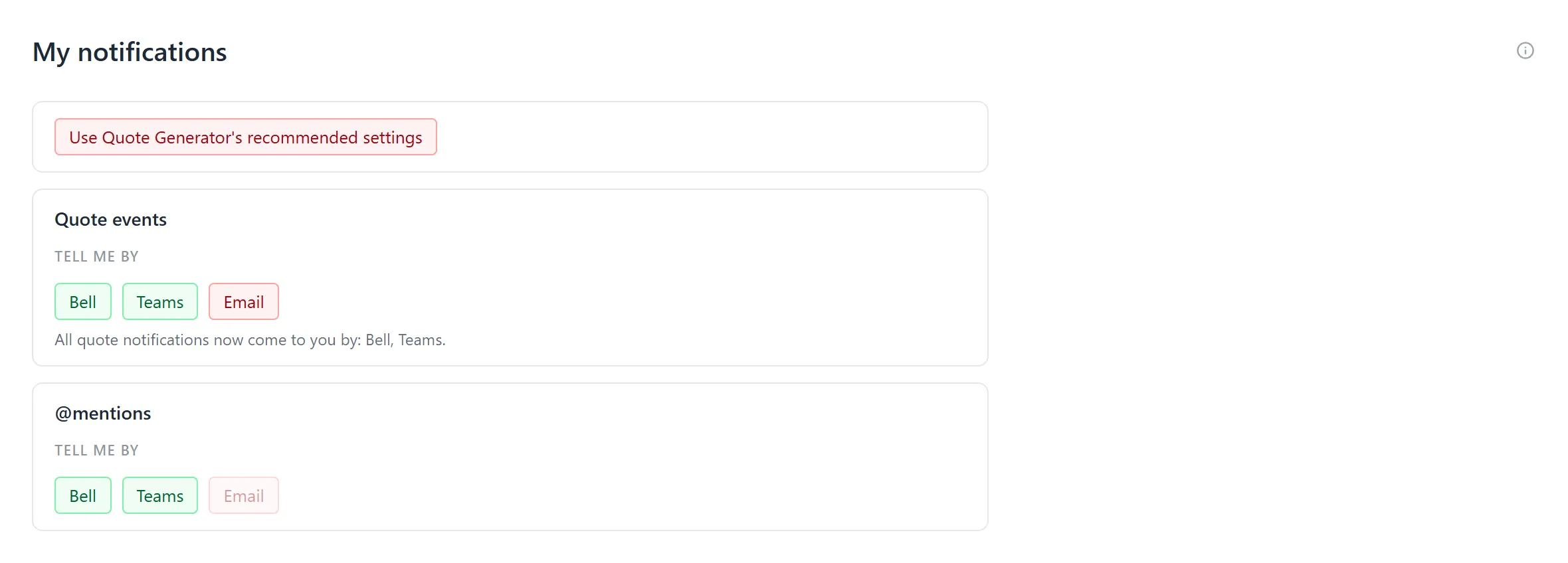
Turning a channel off under Quote events stops every quote event reaching you that way, and a line under the switches says how they reach you now, for example “All quote notifications now come to you by: Bell, Teams.” Turning off the last one asks first: You won’t hear about quotes at all. Sure?, and Turn it off confirms.
The @mentions row only covers notes that name you. A channel your administrator has off for mentions is greyed out, and pointing at it says “Your admin has this off for mentions.” By default that is Email.
Use Quote Generator’s recommended settings, at the top, is on while nothing is turned off. When you have turned something off, click it to turn every channel in both rows back on.
None of this changes what anyone else is told, and it does not choose which events exist: your administrator does that.
When Teams Is Greyed Out
Section titled “When Teams Is Greyed Out”Teams can only reach you once your organisation has connected Microsoft Graph to GrndCtrl and allowed it to send Teams notifications. Until then, the Teams switch is off and greyed out in both rows, and a line at the top of My notifications says why, for example “Teams is greyed out: Teams isn’t connected for your company yet.” Pointing at a greyed Teams switch shows the same reason.
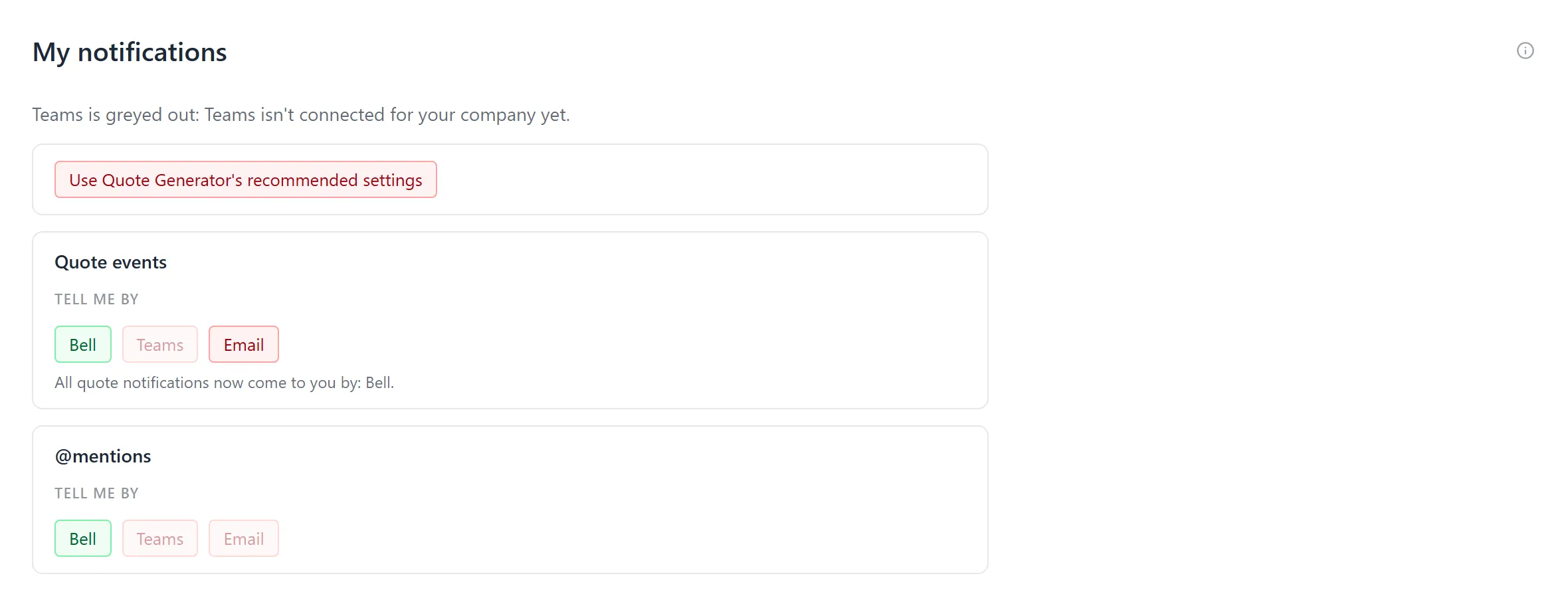
The reason is one of these:
- “Teams isn’t connected for your company yet.” Microsoft Graph is not connected.
- “Teams notifications aren’t turned on for your company yet.” Microsoft Graph is connected, but it has not been allowed to send Teams notifications, or it was allowed with no resource scope.
- “Teams isn’t ready for your company yet: the Microsoft connection can’t send Teams notifications.” The Microsoft connection cannot send them.
- “Whether Teams can reach you couldn’t be checked just now.” The check itself failed; try again later.
The line under Quote events never names a greyed Teams, and a greyed Teams does not count as a way to reach you. Ask your administrator to turn it on; see Teams for Administrators.
Choosing Which Events Are Told (Administrators)
Section titled “Choosing Which Events Are Told (Administrators)”- Open Admin → Operations → Notifications. The page is headed Global Notification Settings.
- Each event is a row with who it tells and three switches, Bell, Teams and Email. Turn a switch off and that event stops going out on that channel for everyone.
- Review stage picks the stage a quote waits in for its Approver. Entering it sends Needs review to the Approver for the quote’s branch.
Who the Approver for a quote is comes from the quote’s branch — see Which Approver Is Told About a Quote. Who is on a quote’s Cc list is set on the quote — see The Quote Header and Document Settings: Reference, People and Linked Records. So is who hears Opened: the quote’s Told when the customer opens it list, the salesperson unless someone changes it — see Who Is Told When the Customer Opens It.
Teams for Administrators
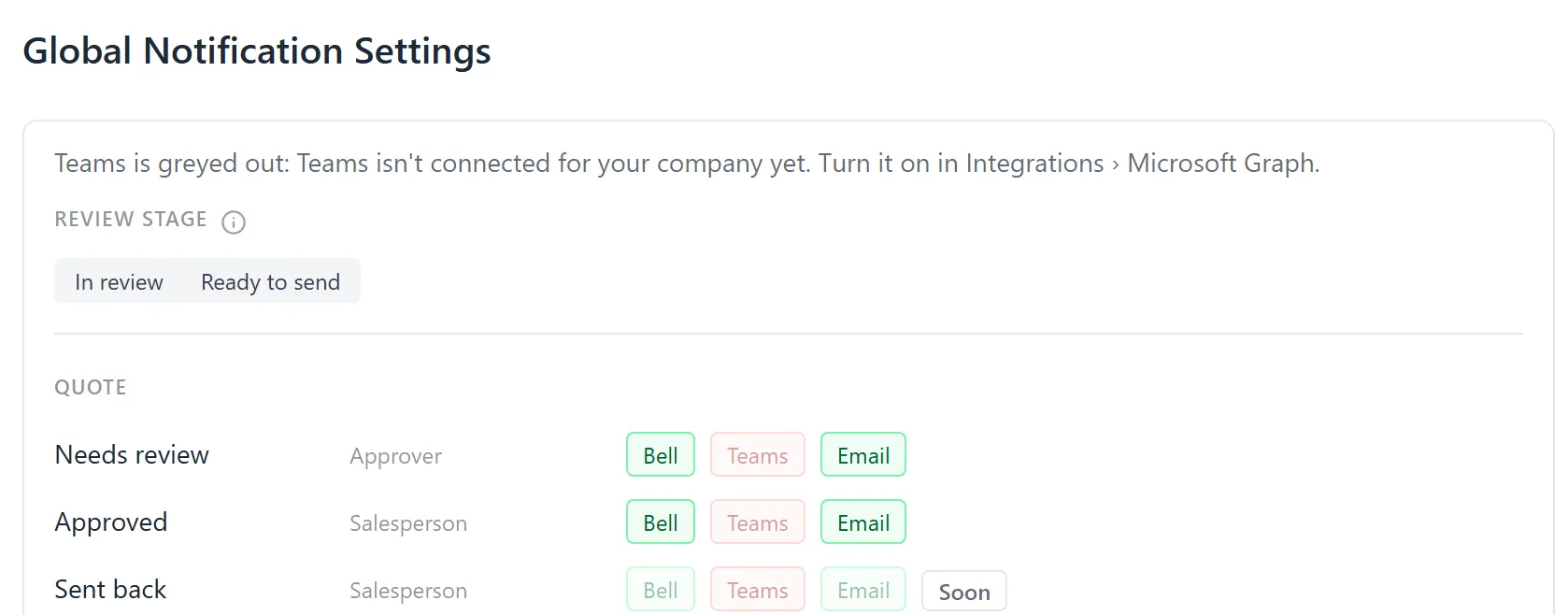
Section titled “Teams for Administrators”When Teams cannot reach people at your organisation, every Teams switch on this page
is off and greyed out, and the top of the list says why and where to fix it, for example
“Teams is greyed out: Teams isn’t connected for your company yet. Turn it on in
Integrations › Microsoft Graph.” The switches you saved are kept, and come back as they
were once Teams can deliver. Teams needs Microsoft Graph connected in the Integrations
Hub, with Teams notifications approved under the pinned GrndCtrl Services entry
and its resource scope set to /users/* (Edit resource scope); see Setting Up
Quote Generator.
Troubleshooting
Section titled “Troubleshooting”I was not told about a quote
Section titled “I was not told about a quote”- Check My notifications: the channel you expected may be off for you.
- Ask your administrator whether that event’s switch for the channel is on.
- If you made the change yourself, you are not told about it.
- Check that you are the person the event tells: the Approver for Needs review, the salesperson for Approved, Sent to customer and Comment, the Cc list for Accepted and Declined, the people named for @mention, and the quote’s Told when the customer opens it list for Opened.
I was not told when the customer opened the proposal
Section titled “I was not told when the customer opened the proposal”- Check that you are on the quote’s Told when the customer opens it list, under Document Settings → People.
- Only the first open of each signing link is told. If the link had been opened before, by anyone, that open was the one told.
- A quote sent as a PDF has no link, so its opens cannot be told.
- Ask your administrator whether the Opened row’s switches are on, and check your own Quote events row under My notifications.
Teams is greyed out
Section titled “Teams is greyed out”Teams cannot reach people at your organisation yet, and the line at the top of the page
says why. An administrator connects Microsoft Graph and approves Teams notifications
with the resource scope /users/*; see Teams for
Administrators.
I was mentioned and heard nothing
Section titled “I was mentioned and heard nothing”- Check the @mentions row under My notifications. A greyed channel is one your administrator has off for mentions, or, for Teams, one that cannot reach people at your organisation yet; pointing at it says which.
- A note that mentions people tells only them. The salesperson is told about a note only when it mentions nobody, or names them.
An event shows Soon
Section titled “An event shows Soon”It is listed so you can see the whole set, but nothing sends it yet. Its switches stay greyed out until it does.