
GrndCtrl Chat: The Assistant in Its Own Window
GrndCtrl Chat is the GrndCtrl assistant on its own, at chat.grndctrl.ai. Add it to
your desktop or your phone and its icon opens straight into a new chat, ready to type.
This article is for anyone who uses GrndCtrl’s chat.
What GrndCtrl Chat Is
Section titled “What GrndCtrl Chat Is”- Its own app, named GrndCtrl Chat, with its own icon: the GrndCtrl mark with a chat bubble.
- Its own address,
chat.grndctrl.ai. It opens on a new chat with the message box ready, not on the GrndCtrl Home screen. - The same assistant, the same account and the same conversations. A chat you start in GrndCtrl Chat is listed in GrndCtrl’s chat too.
Adding It on a Desktop
Section titled “Adding It on a Desktop”- In GrndCtrl, open the chat.
- In the chat’s toolbar, at the top right, click the Add GrndCtrl Chat button, a monitor with a down arrow. Pointing at it shows its name.
- The Add GrndCtrl Chat page opens: “Opens straight into a new chat.” Click Add.
- Your browser asks whether to install it. Confirm. The page then reads Added, and GrndCtrl Chat opens in its own window, with your other apps.

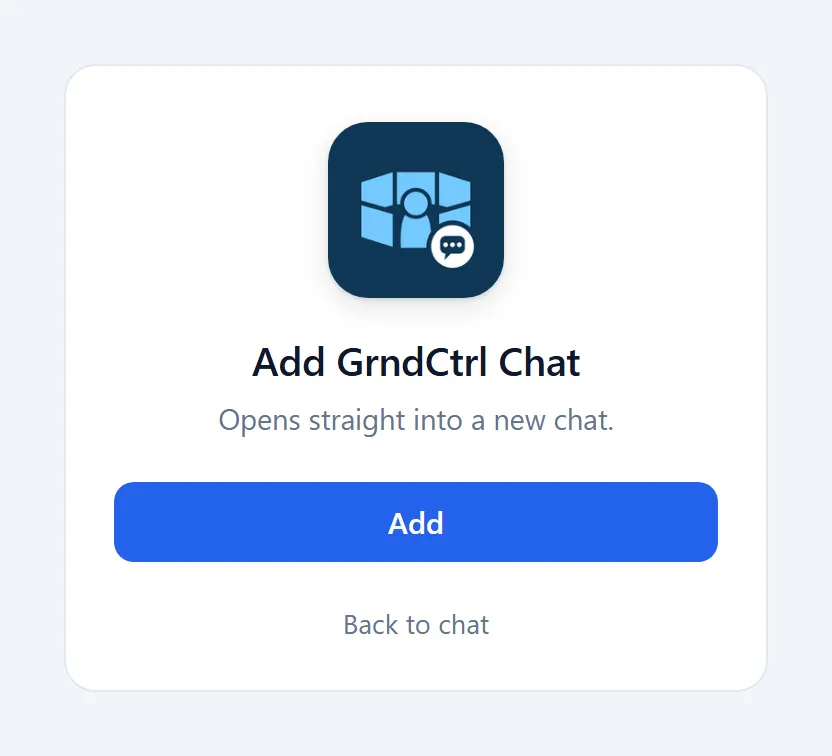
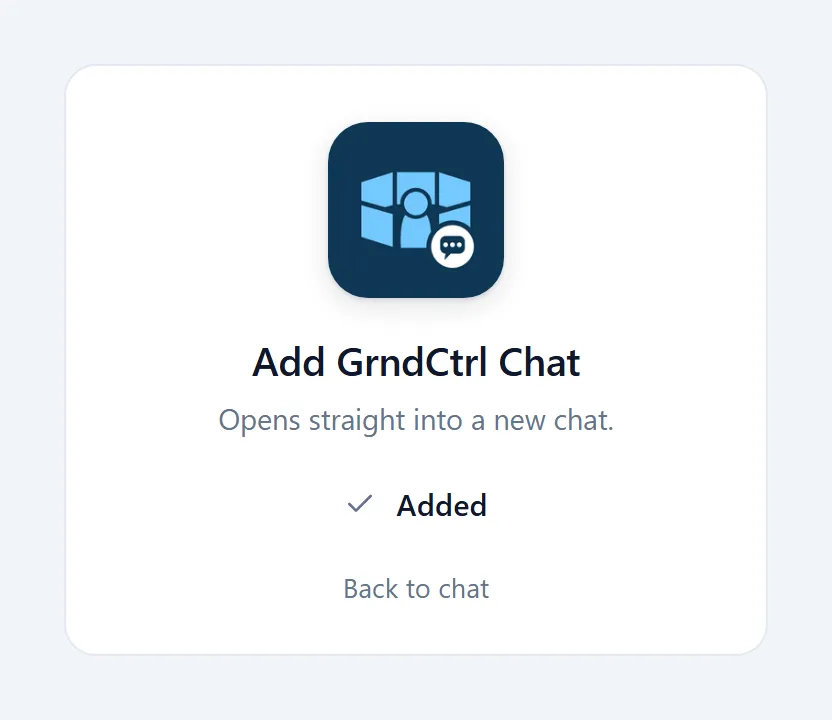
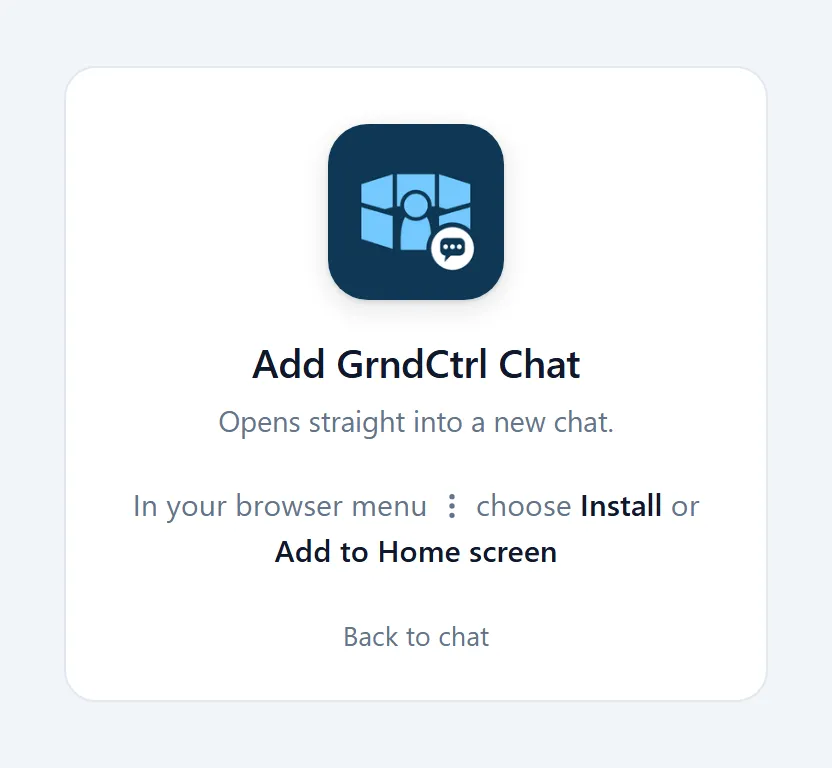
In Chrome and Edge, Add opens the browser’s own install dialog. Where a browser offers no install dialog, the page says how to add it from the browser’s menu instead: “In your browser menu choose Install or Add to Home screen”. In Safari on a Mac it says “In Safari: File, then Add to Dock”.
Adding It on a Phone
Section titled “Adding It on a Phone”-
In GrndCtrl, open the chat.
-
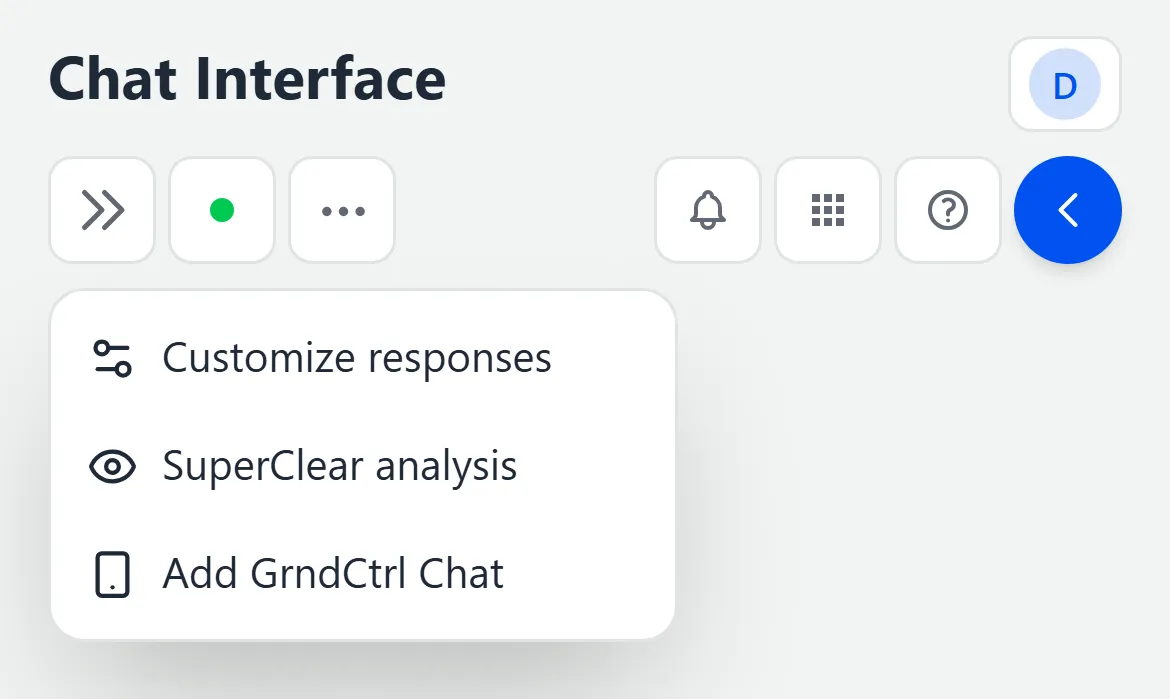
At the top, tap the ⋯ button, then Add GrndCtrl Chat.
-
On the Add GrndCtrl Chat page:
- On an iPhone or iPad, follow its two steps: Share, then Add to Home Screen. Then tap Add to confirm.
- On Android, tap Add, then confirm the install. If the page asks you to use the browser’s menu instead, choose Install or Add to Home screen there.
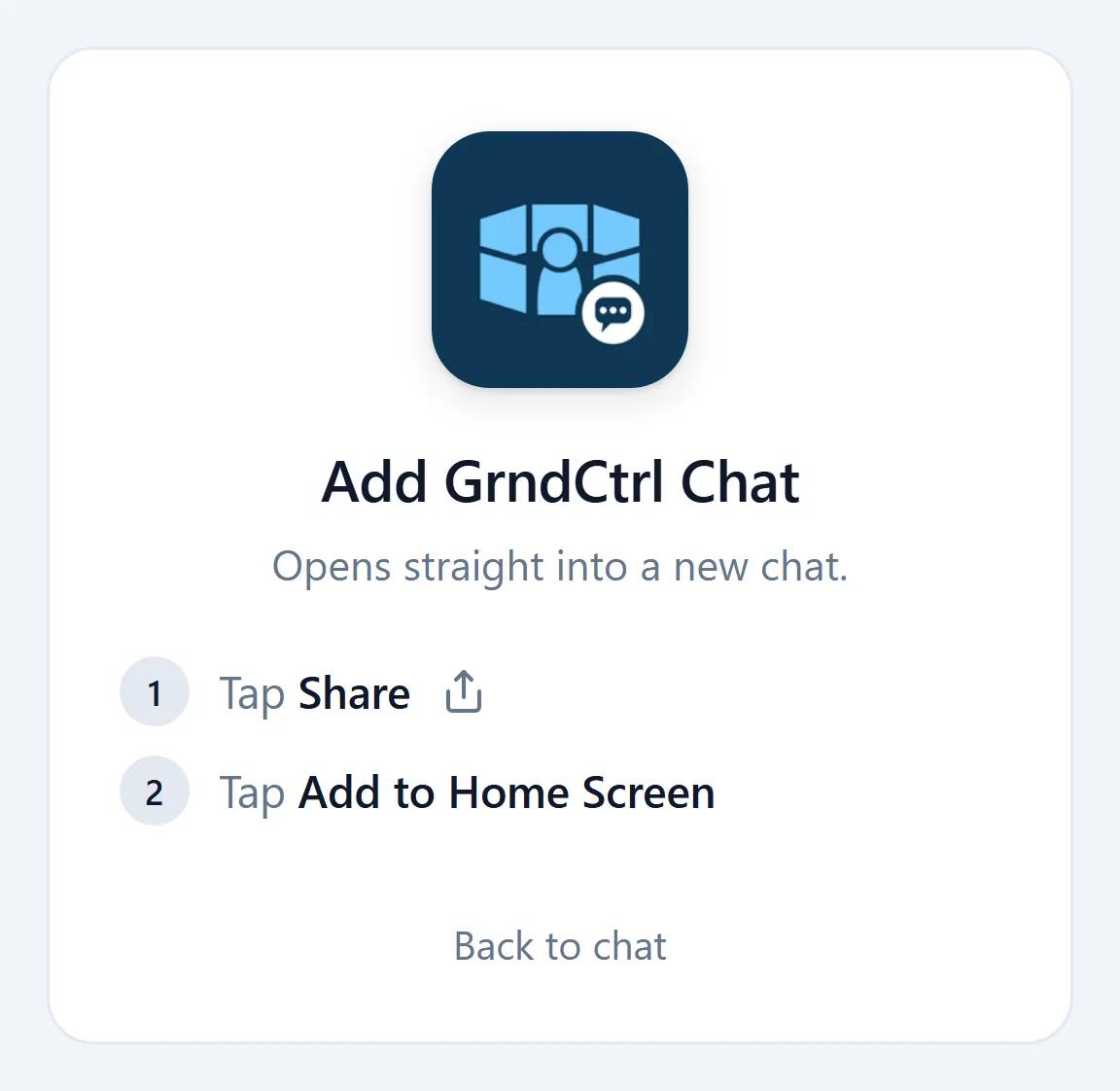
The GrndCtrl Chat icon then sits on your home screen. On a phone, the dashboard can also show an Add GrndCtrl Chat banner under the header; its X dismisses it on that phone.
From Inside the Installed GrndCtrl App
Section titled “From Inside the Installed GrndCtrl App”If you use GrndCtrl as an installed app, the same Add GrndCtrl Chat entry is there: the toolbar button on a computer, and ⋯ on a phone. Only a browser can install an app, so it opens the Add GrndCtrl Chat page in your browser rather than in the app’s window.
- On a computer, the page opens in a browser tab. Click Add and confirm the install. If GrndCtrl Chat is already installed, GrndCtrl Chat itself opens instead.
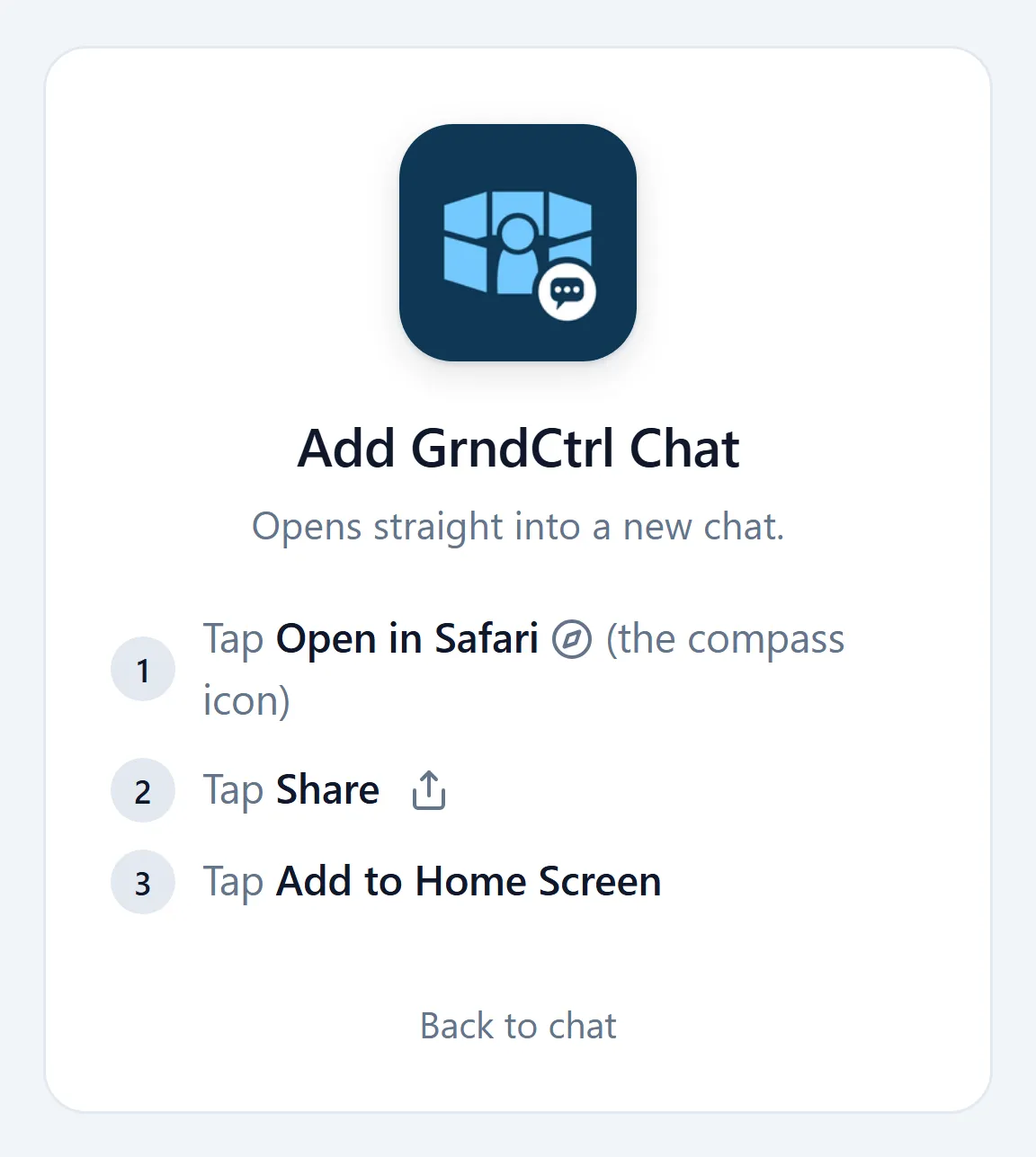
- On an iPhone, the page lists three steps: Open in Safari (the compass icon), then Share, then Add to Home Screen. Once the page is open in Safari, it shows its usual two steps.
Opening It
Section titled “Opening It”Click or tap the GrndCtrl Chat icon. It opens on a new chat with the cursor in the message box; on an iPhone, tap the box once to bring up the keyboard. The first time, sign in with your GrndCtrl account. Your earlier conversations are in the chat’s conversation list, as in GrndCtrl.
If you installed GrndCtrl itself, its icon has a shortcut too: right-click it on the taskbar or Dock (on Android, press and hold it) and choose GrndCtrl Chat to open a new chat inside GrndCtrl.
Troubleshooting
Section titled “Troubleshooting”I don’t see Add GrndCtrl Chat
Section titled “I don’t see Add GrndCtrl Chat”On a computer, the button shows in the chat’s toolbar when the window is wide enough; on a narrow window or a phone, use ⋯ instead. It is not offered inside GrndCtrl Chat itself, or inside a Microsoft Teams tab.
The page tells me to use the browser menu
Section titled “The page tells me to use the browser menu”Your browser did not offer to install it. Open the browser’s menu and choose Install or Add to Home screen. On an iPhone, use Safari’s Share button, then Add to Home Screen.
GrndCtrl Chat asks me to sign in
Section titled “GrndCtrl Chat asks me to sign in”GrndCtrl Chat keeps its own sign-in, so it asks once, the first time you open it. Sign in with the same account you use for GrndCtrl.