
Setting Up Quote Generator
Before estimators can quote from Salesforce opportunities, send proposals for signature and have a won quote reach Salesforce and NetSuite, an administrator sets things up once, in five places. This article is the list, in order, with a link to the article that explains each setting. The Salesforce, NetSuite and Microsoft steps are directions only: the people who run those systems for you make them there.
1. In Salesforce
Section titled “1. In Salesforce”GrndCtrl reaches Salesforce as one integration user. In Salesforce Setup, under Users,
that user has the Salesforce Integration licence and an API-only profile, and under
Permission Sets it is given what Quote Generator needs: read access to your products,
and write access to the opportunity and the CPQ quote a won quote updates. Name the
permission sets so they are easy to find later, for example GrndCtrl Quote Writer and
GrndCtrl Product Read.
2. In NetSuite
Section titled “2. In NetSuite”A won quote can open a NetSuite project. NetSuite needs two values on every project it creates: the subsidiary and the project expense type. Find their internal ids in NetSuite, on a project form or the list of each, and keep them for step 5. They are your company’s own ids; never copy them from another company or from your sandbox.
3. In Microsoft
Section titled “3. In Microsoft”Quote Generator signs and emails proposals through Microsoft Graph, connected in the Integrations Hub. To send customer email from your own address rather than the platform’s, your Microsoft 365 administrator gives Microsoft Graph permission to send mail, in the Entra admin center, and provides the one mailbox it sends from, in the Exchange admin center. Customer email can come from the platform address with no mailbox at all.
4. In the Integrations Hub
Section titled “4. In the Integrations Hub”- Connect Salesforce and NetSuite with their credentials. See Connecting Integrations. Salesforce syncs on the cadence you choose in its Settings; to pick up a record you have just added, click Sync now there.
- Open Quote Generator in the Integrations Hub and its consumer, Quote Generator
signing & customer email. Click Approve beside
quote.record_outcome, which records how a customer answered a sent proposal and moves the quote to Won or Lost. An approved operation with no resource scope refuses every call, and the row says so: “Approved · no resource scope — every call is refused”. Click Edit resource scope, then Allow everything…, read what it allows, and confirm Allow everything. - To send customer email from your own mailbox, open Microsoft Graph, then
Consumers. On Quote Generator signing & customer email, click Approve beside
mail.send, then Edit resource scope. Type the one mailbox it sends from, such asproposals@yourcompany.com, and click + Add. The box says “Changes apply immediately.” There is no Save; close the box when you are done. - With your own mailbox, also approve
quote.record_mail_failureback on Quote Generator’s consumer, with Allow everything… as above. It records on the quote when a customer email that nobody was watching did not leave your mailbox, and tells the salesperson. - For quote notices in Teams, approve Teams notifications for GrndCtrl under the
pinned GrndCtrl Services entry, then Edit resource scope, type
/users/*and confirm the warning: an approval with no resource scope refuses every notice. The Microsoft Graph connection must also be able to send Teams notifications. Until then, Teams is greyed out on both notification pages, with the reason; see Teams for Administrators.
Each click saves at once. The consumer’s row says where it stands: needs approval, partial or approved, with an amber count of any operation still blocked. See Approving What an Extension Can Do.
5. In Quote Generator
Section titled “5. In Quote Generator”Open Quote Generator and click Admin. Its search box finds any setting by what you
would call it, such as won stage.
- Operations → Outbound writes: pick the Salesforce Won stage and Lost stage, enter the NetSuite Subsidiary and Project Expense Type ids from step 2, and then turn on Salesforce writes and NetSuite writes. See Turning the Writes On and Off.
- Operations → People: set up your proposal roles, say which may sign for you, and give the people who sign a signature on file. If you give Edit quotes or Send quotes to a permission role, give that role at once to everyone who should keep editing or sending: from then on, only its holders can. See Proposal Roles and Who Signs.
- Operations → Approvers: assign an Approver to each branch. See Assigning Approvers.
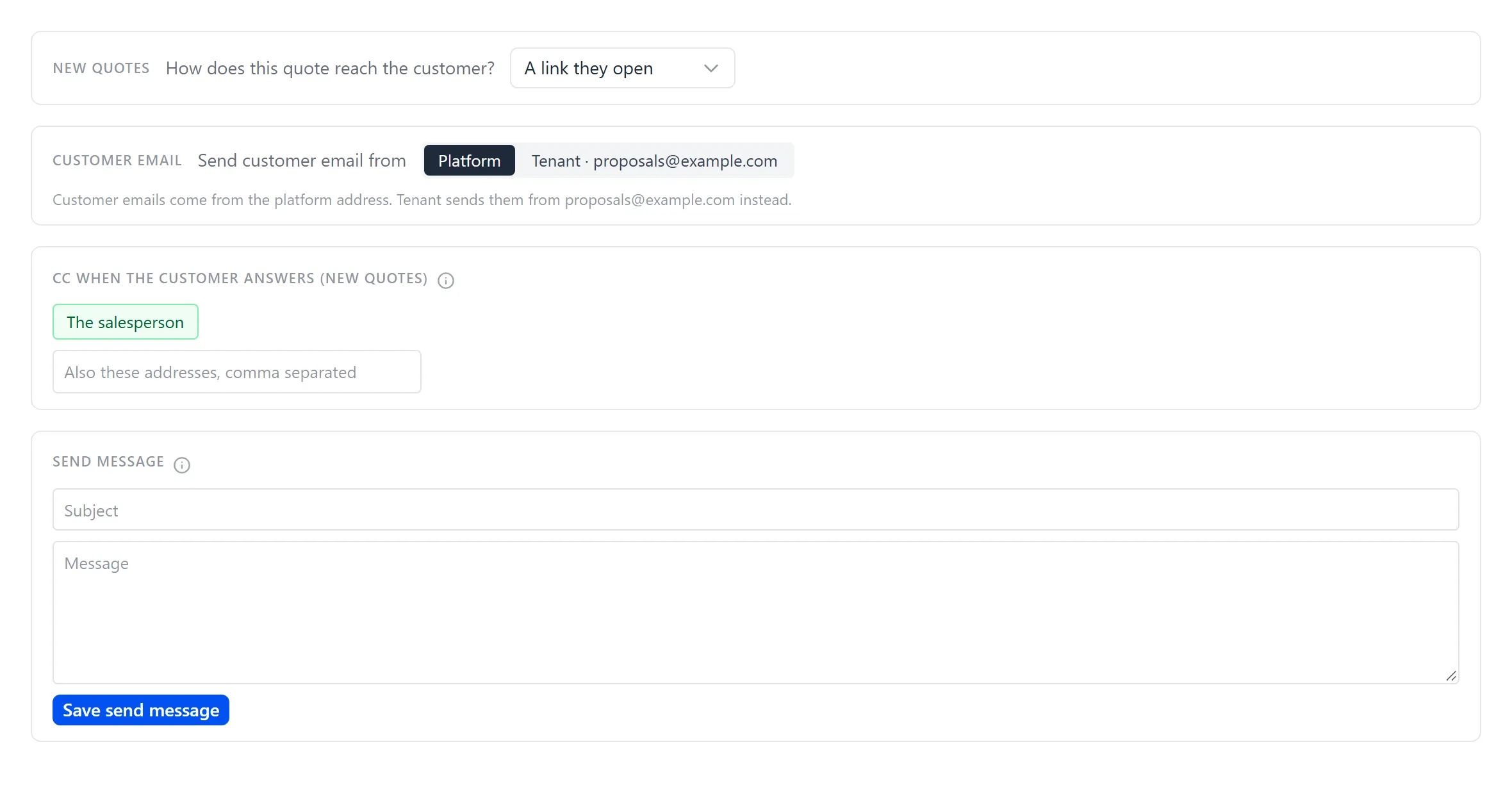
- Presentation → Delivery: how new quotes reach the customer, which address customer email comes from, who is cc’d when the customer answers, and your organisation’s send message (below).
- Presentation → Documents: the proposal templates, built in Template Builder. See Getting Started with Template Builder.
- Operations → Notifications, the page headed Global Notification Settings: which quote events tell whom, and on which channels. See Choosing Which Events Are Told. Who hears that the customer opened a proposal is set on each quote, under Document Settings → People.
The Delivery tab
Section titled “The Delivery tab”Admin → Presentation → Delivery holds four settings:
- How does this quote reach the customer?: A link they open or A PDF I send, for new quotes. See How the Quote Reaches the Customer.
- Send customer email from: Platform, the platform’s own address, or Tenant, the one mailbox approved in step 4.
- Cc when the customer answers (new quotes): The salesperson, and any other addresses, copied on new quotes. Estimators change it per quote under Document Settings → People.
- Send message: the subject and message a send starts from when the salesperson has none of their own. Each person sets their own under My send message. Click Save send message.
Straight to each place, signed in as an administrator. The GrndCtrl links open your own organisation’s page.
| Where | Link |
|---|---|
| Outbound writes | app.grndctrl.ai/ext/nxt/quote-gen/admin/m/operations/outbound-writes |
| People | app.grndctrl.ai/ext/nxt/quote-gen/admin/m/operations/people |
| Approvers | app.grndctrl.ai/ext/nxt/quote-gen/admin/m/operations/branch-managers |
| Notifications | app.grndctrl.ai/ext/nxt/quote-gen/admin/m/operations/notifications |
| Delivery | app.grndctrl.ai/ext/nxt/quote-gen/admin/m/presentation?tab=delivery |
| Microsoft Graph, Consumers | app.grndctrl.ai/integrations?open=nxt%2Fmsgraph§ion=consumers |
| Quote Generator, Consumers | app.grndctrl.ai/integrations?open=nxt%2Fquote-gen§ion=consumers |
| Salesforce Setup, Users | your Salesforce Setup address, then /lightning/setup/ManageUsers/home |
| Salesforce Setup, Permission Sets | your Salesforce Setup address, then /lightning/setup/PermSets/home |
| Microsoft Entra admin center | entra.microsoft.com |
| Exchange admin center | admin.exchange.microsoft.com |
Check It Works
Section titled “Check It Works”Walk one quote through on a test opportunity: From Opportunity to Signed Proposal, Step by Step.
Troubleshooting
Section titled “Troubleshooting”The Salesforce or NetSuite writes will not turn on
Section titled “The Salesforce or NetSuite writes will not turn on”The switch lists what is missing. See Turning the Writes On and Off.
Tenant cannot be chosen under Send customer email from
Section titled “Tenant cannot be chosen under Send customer email from”Microsoft Graph’s mail permission is not approved for exactly one mailbox. The Delivery tab says which, in a sentence under the setting; fix it on the Microsoft Graph page in the Integrations Hub (step 4).