
From Opportunity to Signed Proposal, Step by Step
This walk takes one quote from a Salesforce opportunity to a signed proposal, with your organisation’s default settings, and says who is told at each step. Each step links to the article that explains it in full. Salesforce, NetSuite and Microsoft are set up once beforehand; see Setting Up Quote Generator.
Start the Quote
Section titled “Start the Quote”- Open Quote Generator from the app launcher. On the Dashboard, click + New quote.
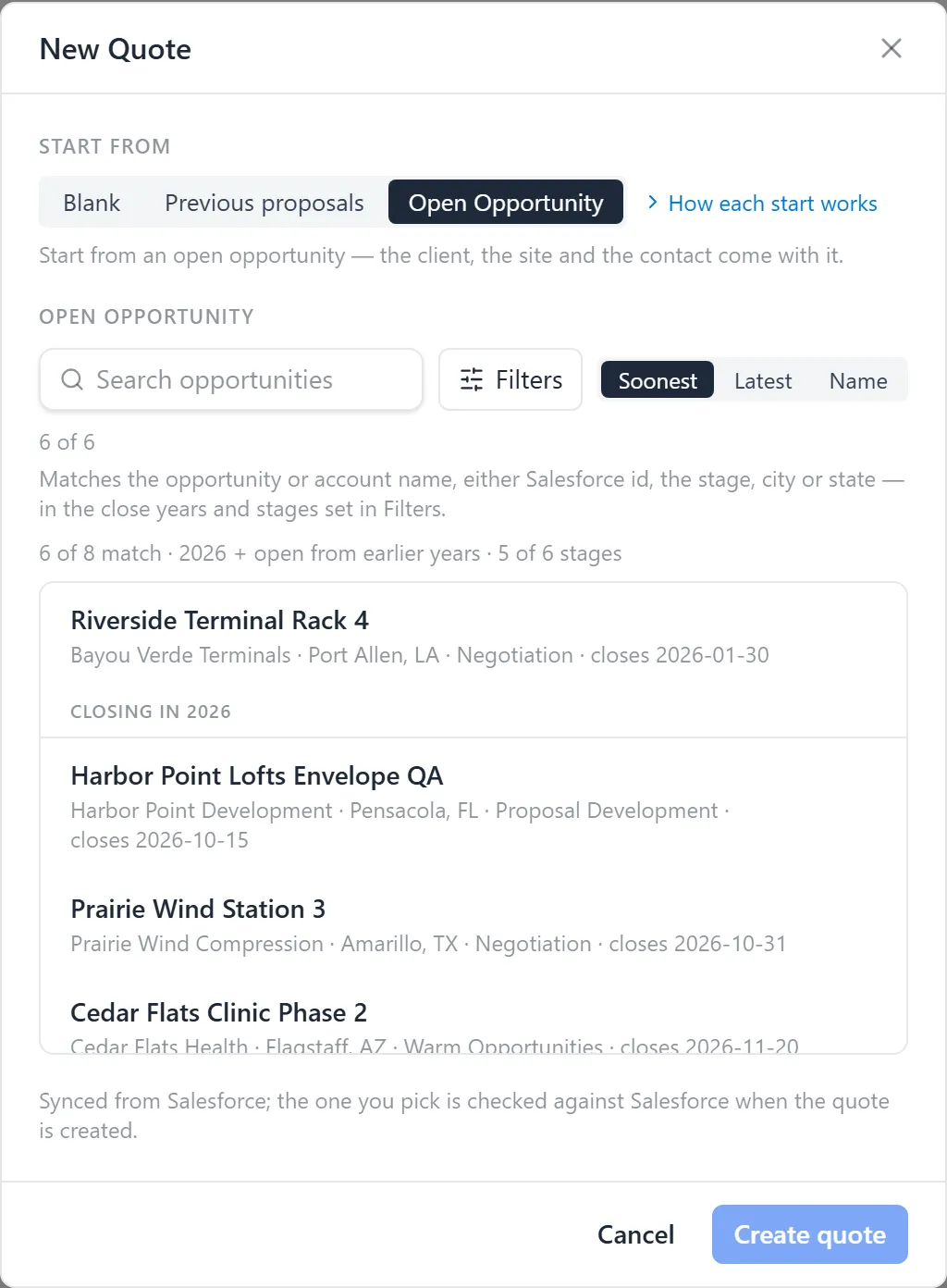
- Under Start from, click Open Opportunity. Type in Search opportunities: the opportunity’s name, its account, either Salesforce id, the stage, the city or the state all work. Click the opportunity. See Finding a Salesforce Opportunity.
- Under Contact, pick the account’s contact who will receive and sign the proposal; the one you pick goes on the proposal. Check the Project site: the proposal prints this address. Fill in any field your organisation asks for here, such as the proposal type.
- Click Create quote. Quote Generator works through Reading the opportunity, Choosing products and Creating & pricing, then opens the quote.
Check the Quote
Section titled “Check the Quote”- Read the quote’s overview, where it opens. The Salesforce opportunity is linked, and the customer, salesperson and people came with it. See The Quote Overview.
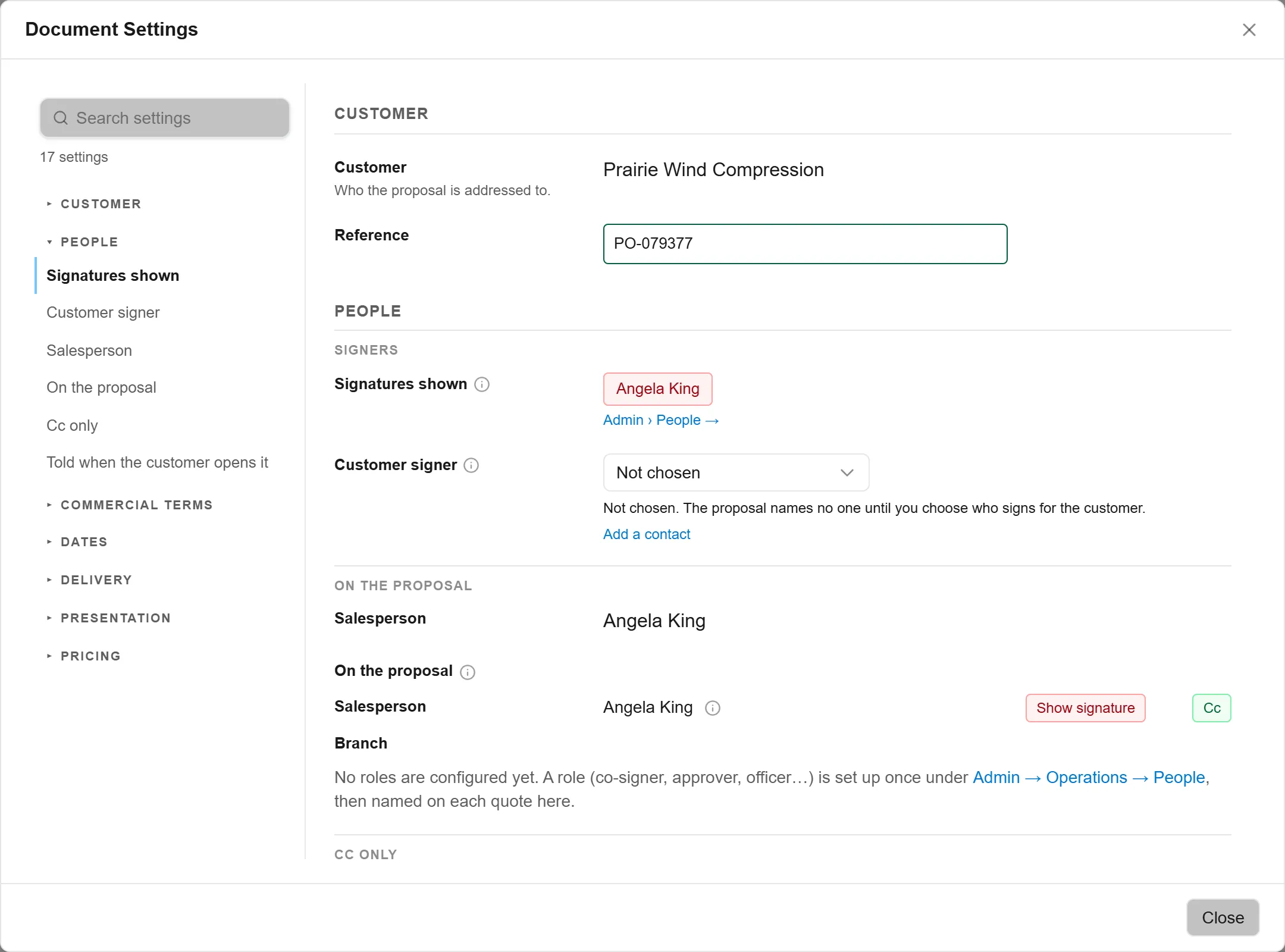
- Click Document Settings and open People. Check the routed Approver and its branch, whose signatures print for you under Signatures shown, and the Customer signer. See People in Document Settings.
- Set the Reference if you use one: click it in the Project card, type, and press Enter. Check the Terms the same way.
- Click Edit Quote. To add a product the opportunity did not bring, click + Add product; see Adding a product by hand. Price every product: a price per unit with a quantity, or a lump sum. See Quantity or Lump Sum. Leave Make optional off unless the customer may decline that product; see Optional Units and Lines.
- Click Save beside the save indicator, or press Ctrl+S. The indicator then reads “Saved {time}”. A quote also saves by itself after 15 seconds without typing. Click Overview, first in the header row, to go back to the overview.
Build the Proposal
Section titled “Build the Proposal”- Open Proposal ▾ and click Preview Proposal. The document builds from the latest prices; read every page. See Building the Document.
- To change words, line up text, make a list or add a standard page for this proposal only, open Proposal ▾ → Edit Proposal, then Save. See Formatting Words and Adding Pages.
- Open Advance to…, click → Ready to send, and confirm Advance & seal. The customer’s document is produced and sealed; nothing is emailed yet.
Send It
Section titled “Send It”- On the quote’s overview, click Send to customer. Check the first line, the customer signer and their address, and the line under it, which says what this send carries.
- Check Cc and Also send to, then the Message. The message starts from your own send message, set under My send message, or your organisation’s.
- Click Send the signing link. The dialog says it is on its way and until when it is valid. Click Done.
- Later, Activity on the overview says whether the customer has opened the proposal, and Send reminder there emails them the same link again; see Activity. Delivery record shows each send, how often the link was opened, any reminders and any copies.
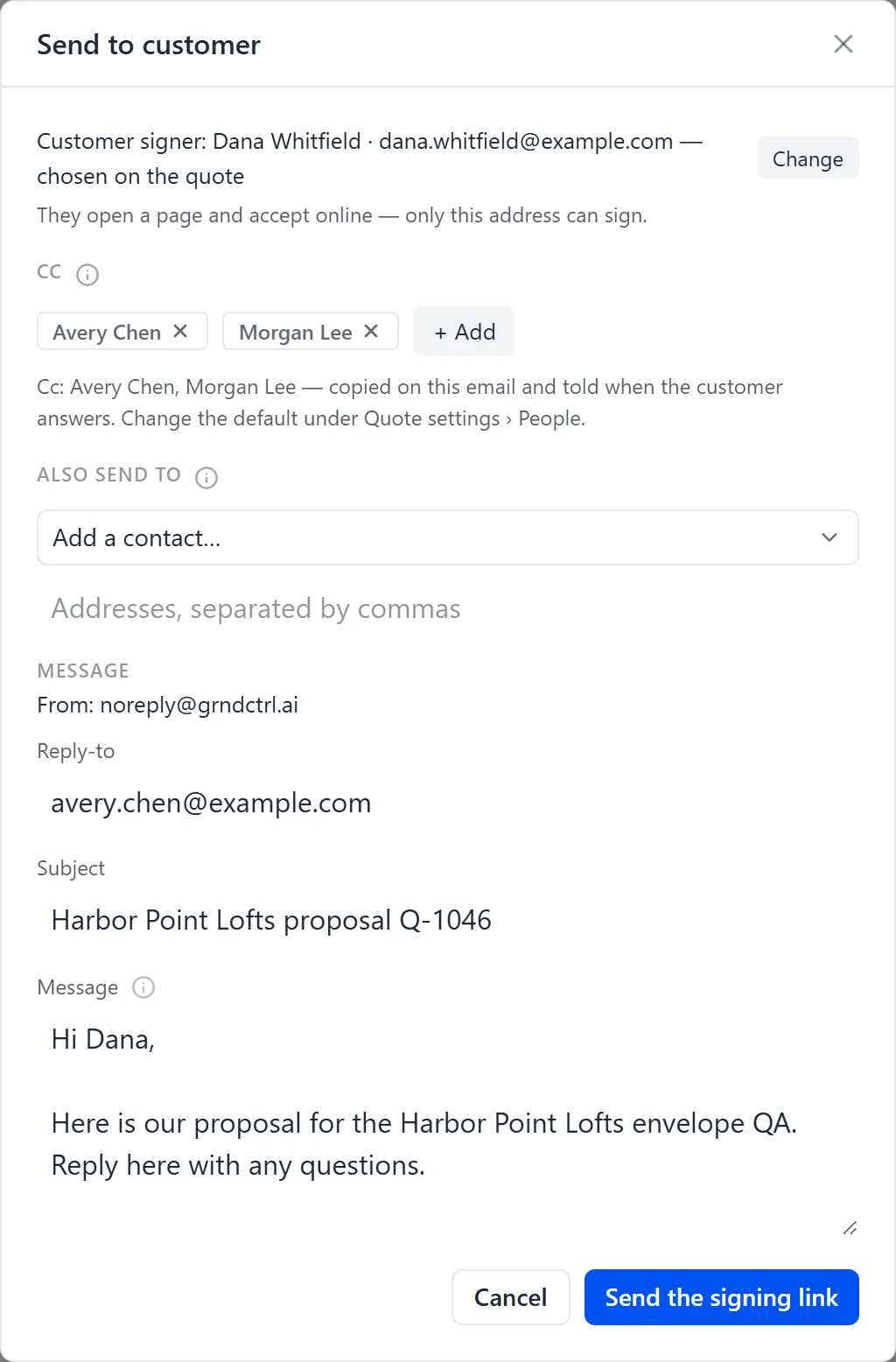
Every detail of the dialog, and sending a PDF instead of a link, is in Sending a Quote for Signature.
Who Is Told Along the Way
Section titled “Who Is Told Along the Way”With the default settings, every event goes out on Bell, Teams and Email, and nobody is told about something they did themselves. Teams reaches people only once your organisation has set it up through Microsoft Graph; until then it is greyed out, with the reason.
| When | Event | Who is told |
|---|---|---|
| The quote enters your review stage, if your organisation has one | Needs review | The Approver for the quote’s branch |
| The Approver moves it on | Approved | The salesperson |
| Step 15, the send | Sent to customer | The salesperson. Everyone on Cc is copied on the email itself. |
| The customer first opens the signing link | Opened | The quote’s Told when the customer opens it list: the salesperson, unless you change it |
| The customer signs | Accepted | Everyone with Cc on for the quote |
| The customer declines | Declined | Everyone with Cc on for the quote |
To stop a channel reaching you, open My notifications; a note that @mentions you has its own row there. The full list, and how administrators choose which events are told, is in Quote Notifications.
When the Customer Signs
Section titled “When the Customer Signs”- The customer opens Review and sign in the email, reads the proposal, chooses any options, and accepts and signs. The first time they open it, the people on the quote’s Told when the customer opens it list are told. See Reviewing and Signing a Proposal.
- Within a few seconds the quote moves to Won. The signed document and its certificate are stored on the quote, and the people on Cc are told.
- Where your organisation writes to Salesforce and NetSuite, the quote then says what happened, for example “Salesforce updated”, “CPQ quote created” and “NetSuite project created”. See What Happens in Salesforce and NetSuite When a Quote Is Won or Lost and After the Customer Signs.
Troubleshooting
Section titled “Troubleshooting”Open Opportunity is not offered
Section titled “Open Opportunity is not offered”Salesforce is not connected for your organisation, or no opportunities have synced yet. Ask your administrator; see Setting Up Quote Generator.
I can’t find the opportunity
Section titled “I can’t find the opportunity”A closed deal is under Previous proposals, not Open Opportunity, and two stages are hidden by default. See I can’t find an opportunity I know exists.
There is no Send to customer button
Section titled “There is no Send to customer button”The quote has to be at Ready to send first: step 12. The button is on the quote’s overview, not on its lines.