
Which Approver Is Told About a Quote
When a customer answers a proposal, or a quote needs approval, the Approver for the quote’s branch is told. This article explains how the branch and its Approvers are found, how an estimator changes the branch for one quote, and how an administrator assigns Approvers to each branch.
How the Quote’s Branch Is Found
Section titled “How the Quote’s Branch Is Found”Every quote routes to one branch — an office, such as Houston. It is decided in this order, and the first answer wins:
- A branch picked for this quote in Document Settings (below).
- Otherwise, the office of the Salesforce opportunity the quote is linked to. A copy of a quote follows the quote it was copied from.
- Otherwise, the customer’s office — but only when every one of the customer’s opportunities that names an office names the same one. A customer spread over several offices is never guessed.
- Otherwise there is no branch, and nobody is told. The quote says why.
The salesperson’s own office is never used. A salesperson in one office quoting a job for another office routes to the job’s office.
How the Branch’s Approvers Are Found
Section titled “How the Branch’s Approvers Are Found”For that branch, Quote Generator looks for Approvers four ways and tells everyone it finds, once each:
- office — a person holding the approving role whose directory office is the branch.
- title — a person whose directory title names the branch, such as
Houston Branch Manager— the title as your directory writes it. - assigned — the people your administrator assigned to the branch under Approvers. This is how someone who runs several offices is recorded: assigned once per office.
- opportunity — the manager Salesforce names on the linked opportunity, when the branch is that opportunity’s own office.
Only people who are enabled in your organisation’s directory count. An address that is not in the directory, or is disabled there, is listed as not found and is never told.
Seeing the Approver on a Quote
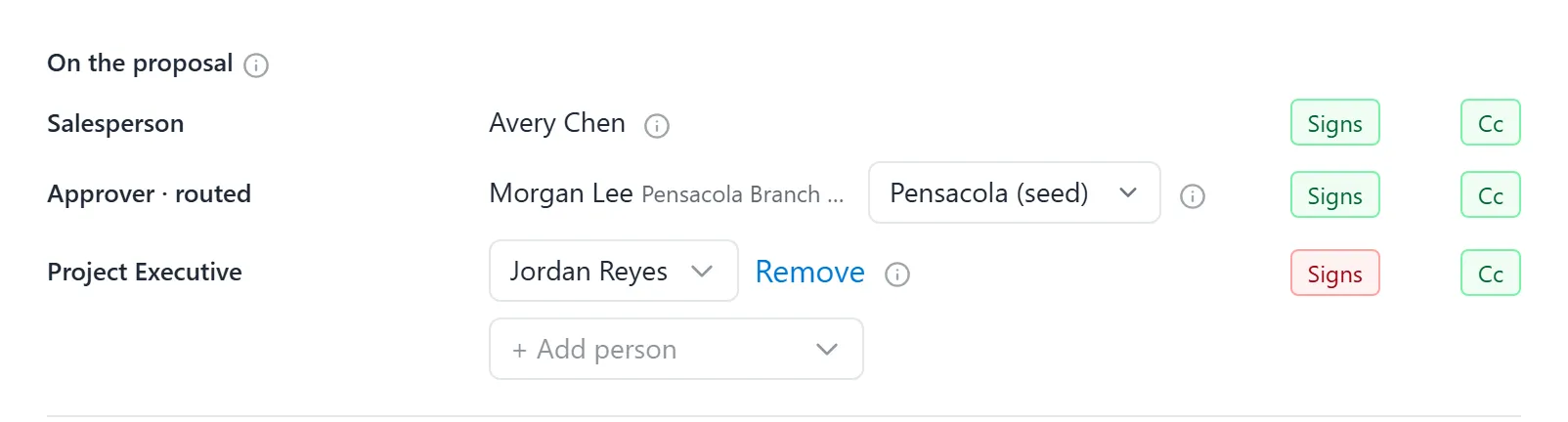
Section titled “Seeing the Approver on a Quote”The On the proposal cell on the quote’s overview, in its Document Settings card, shows the routed Approver marked Approver · routed; hover the name to see the branch and where it came from, such as “{branch} — from the opportunity’s location”. When nobody is found, the cell says why: “No Approver for {branch}” when the branch is known but nobody was found for it, or “No Approver — {reason}” when there is no branch. The reason is one of:
- “the quote has no opportunity and no customer”
- “the opportunity names no location”
- “the customer’s opportunities sit in more than one office”
- “the customer’s opportunities name no office”
These sentences appear only once your organisation has assigned at least one Approver under Admin → Operations → Approvers. Until then a quote says nothing about a missing Approver, on its overview or in Document Settings.
See The People on a Quote for the rest of the cell.
Changing the Branch for One Quote
Section titled “Changing the Branch for One Quote”If a quote’s work belongs to a different office than its opportunity says, pick the branch on the quote. Only this quote changes.
- On the quote’s overview, click the On the proposal cell. Document Settings opens at On the proposal.
- On the Approver · routed row, the branch list names the branch the quote follows,
for example
Pensacola (seed). The (i) beside it says where the branch came from, such asBranch: Pensacola · from the opportunity. - Pick another branch from the list. Its source changes to “set on this quote”, and the Approver changes with it.
To go back to the automatic branch, pick the first entry in the list, Use the seed’s branch. To keep the routed Approver from being told about this quote without changing the branch, switch off their Cc on the same row.
Assigning Approvers (Administrators)
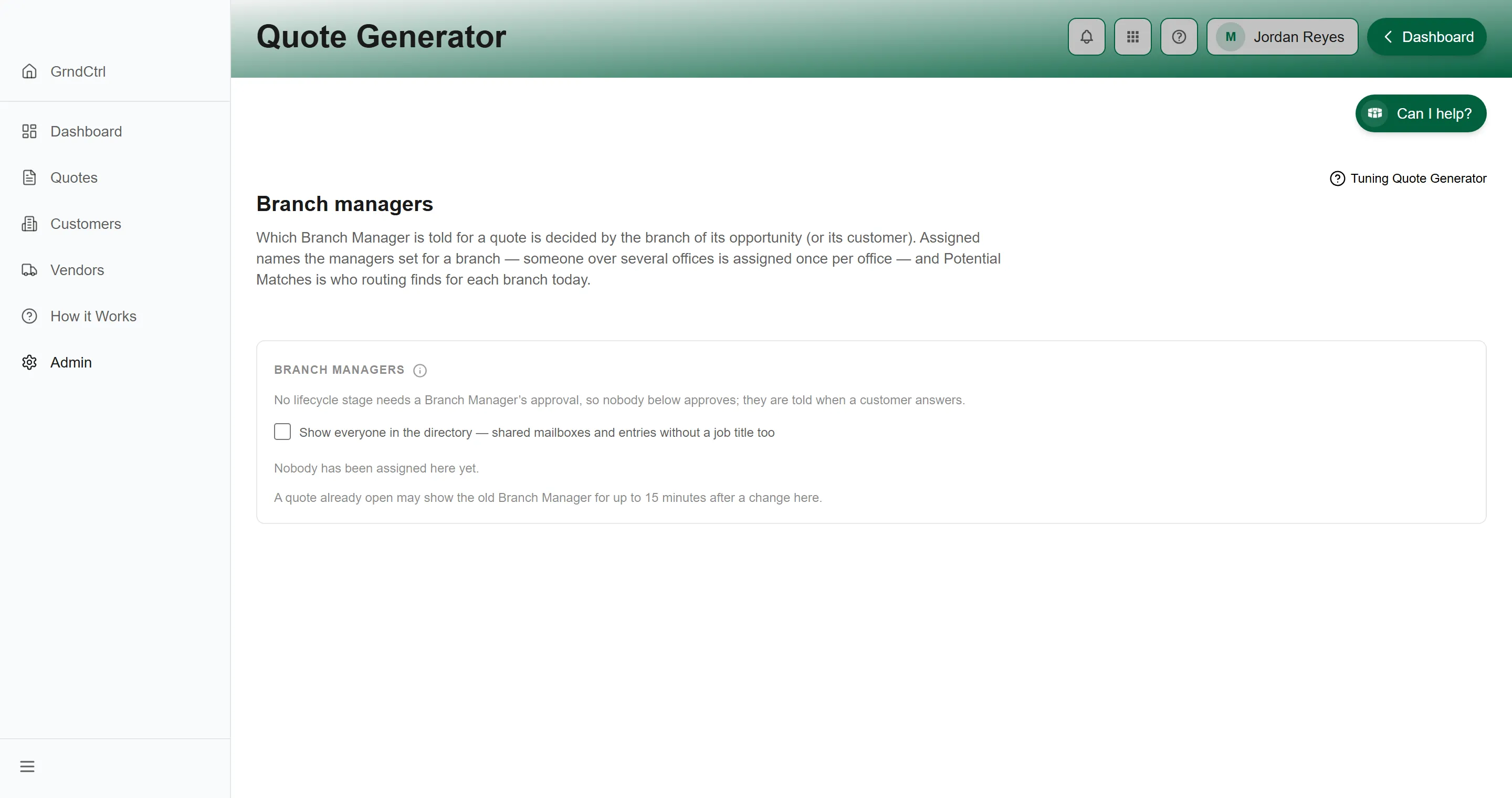
Section titled “Assigning Approvers (Administrators)”Open Admin → Operations → Approvers. The page says what it is for in a few words: “Who is told for each branch.” The ⓘ beside Approvers explains the routing: “The branch of a quote’s opportunity (or its customer) decides who is told. Routing finds an Approver by office (a role holder there), directory title (“Houston Branch Manager”), who is assigned here, and the opportunity’s Salesforce manager. Assigned is who is set for a branch — someone over several offices is assigned once per office; Potential Matches is who routing finds today. All are told; only role holders can approve.”
When no lifecycle stage in your organisation needs approval, the page says so in one line: “Nobody approves here yet; they are told when a customer answers.”
The page lists every branch that an opportunity names or that has anyone assigned. Each branch shows two columns side by side:
- Assigned — the Approvers your organisation assigned to that branch, or “None assigned”.
- Potential Matches — who routing finds for the branch today, with the ways each
person was found (
office,title,assigned,opportunity) and whether they hold the approving role — shown by that role’s own name in your organisation. Everyone listed here is told. A branch nobody covers reads “No Approver for {branch} — nobody will be told for quotes in {branch}”.
Adding or Removing an Approver
Section titled “Adding or Removing an Approver”A person routing already finds can be assigned in one click: beside them under Potential Matches, click + Add. It saves at once, with no confirmation. Someone already assigned has no + Add, and neither does an address routing could not find in the directory.
To assign anyone else:
- Under Assigned, open Add an Approver… and type in Search the directory…. The list offers people with a job title; tick Show everyone in the directory to include shared mailboxes and entries without one.
- Pick the person. A confirmation asks Add an Approver? — “{name} will be told for quotes in {branch} from now on.”
- Click Add Approver.
To remove someone, click the × on their name and confirm with Remove Approver — “{name} will no longer be told for quotes in {branch} as an assigned Approver.” Removing the last person leaves the branch “None assigned”; routing then falls back to the other three ways. Someone who runs several offices is assigned once to each branch.
While a change is saving, the branch shows “Adding…” or “Removing…” beside the control you used, and every control on the page waits. It stays until the page has read the branches back, a few seconds, so what you see afterwards is what routing now finds.
Only people in your directory can be assigned. Anyone else is refused with “Not in the directory: {email}.” or “Disabled in the directory: {email}.”, and nothing is saved.
The foot of the page says who last changed the assignments and when — or “Nobody has been assigned here yet.” — and lists the recent changes, such as “{branch}: added {name}” or, when a branch’s last Approver is removed, “none assigned now”. It also warns: “A quote already open may show the old Approver for up to 15 minutes after a change here.”
Troubleshooting
Section titled “Troubleshooting”The wrong Approver is told
Section titled “The wrong Approver is told”Hover the Approver in the quote’s On the proposal cell to see the branch and where it came from. If the branch is wrong, pick the right one on the quote, on the Approver’s row in Document Settings. If the branch is right but the person is wrong, an administrator changes who is assigned to the branch, or the person’s title or office in the directory.
Nobody is told for a branch
Section titled “Nobody is told for a branch”The Approvers page shows “No Approver for {branch} — nobody will be told for quotes in {branch}” on that branch. Assign an Approver to that branch: + Add beside a Potential Match, or Add an Approver….
An Approver is told but cannot approve
Section titled “An Approver is told but cannot approve”On the Approvers page their badge reads “Does not hold the {role} role — will be told but cannot approve”. Give them that role under Admin → Operations → People.
The page says nobody approves
Section titled “The page says nobody approves”“Nobody approves here yet; they are told when a customer answers.” This is normal when your lifecycle has no approval step. Approvers are still told when a customer answers.
An Approver is listed as not found
Section titled “An Approver is listed as not found”Their address is “not in the directory” or “disabled in the directory”. Nobody is told at that address. Remove them from the branch and assign someone else, or ask your directory administrator to correct the entry.